

Instagram is a wonderful place to share photos and stay connected — but it can also expose more about you than you realize. By default, a new Instagram account is public, meaning anyone in the world can view your photos, videos, and profile details without needing to follow you. For adults who joined Instagram to share memories with family and close friends, this open setting is often a surprise.
The good news: Instagram offers strong privacy controls that are simple to set up. Making your account private is a one-tap change, and a few additional settings can significantly reduce who can contact you, find your profile, or use your content.
What Does a Private Instagram Account Mean?
When your Instagram account is set to private, only people you approve as followers can see your posts, Reels, and Stories. Your profile photo and bio may still be visible to the public, but your content is hidden behind an approval gate.
Think of it like a photo album on your coffee table versus one locked inside a cabinet. Public means anyone who walks into your living room can flip through it. Private means only guests you personally invite get to see it.
For older adults who joined Instagram to share family photos, travel memories, or hobby content, the private setting makes the experience feel much more like a personal photo album — and much less like a public bulletin board.
Why Instagram Privacy Matters for Seniors
Instagram privacy isn’t just about keeping strangers from seeing your vacation photos. Public profiles can expose your location patterns, daily routines, and family connections — information scammers or bad actors actively seek out.
A visible Instagram profile might reveal where you live (tagged location posts), when you’re traveling (vacation photos posted in real time), and who your family members are (tagged relatives in posts). Locking down your account removes this information from public view.
How to Make Your Instagram Account Private
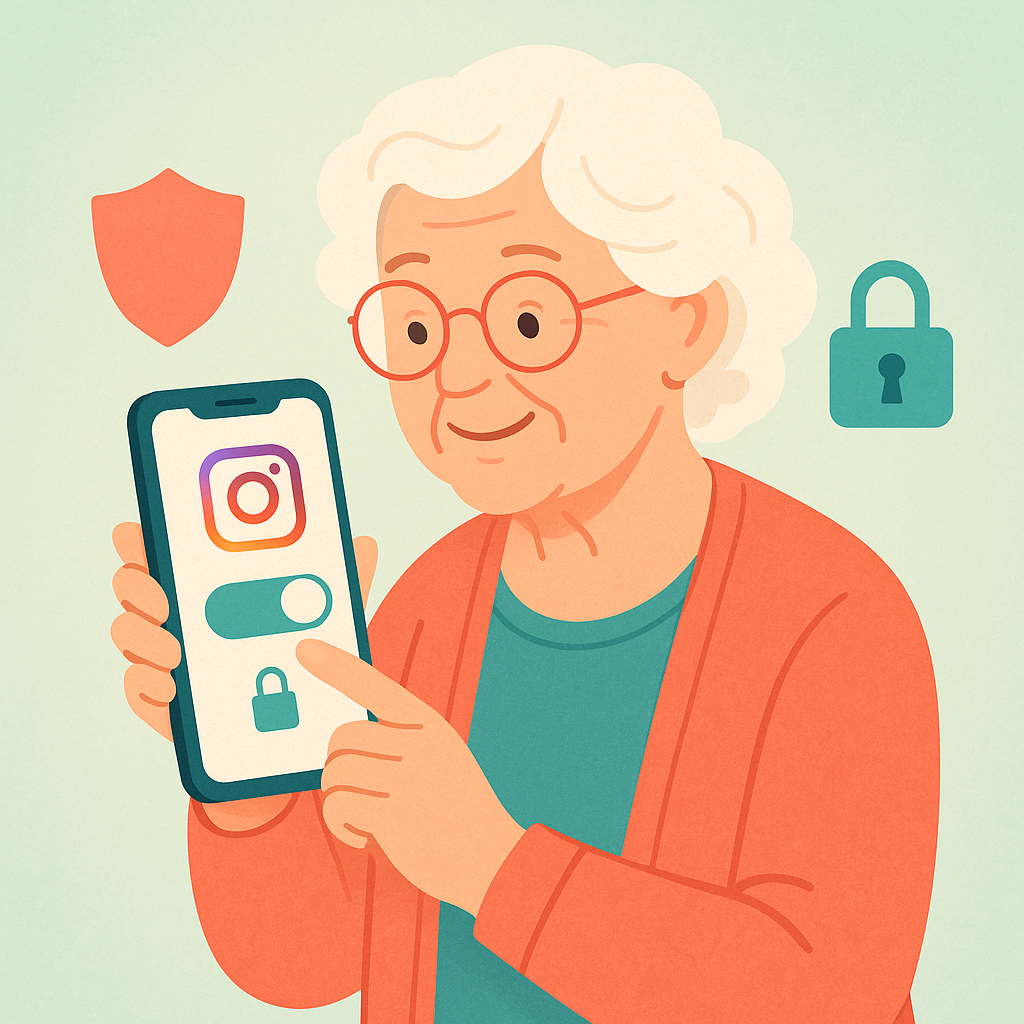
Follow these simple steps on your phone (the steps are nearly identical for iPhone and Android):
- Open Instagram and tap your profile picture in the bottom-right corner.
- Tap the three horizontal lines (☰) in the top-right corner.
- Select Settings and privacy.
- Tap Account privacy.
- Toggle Private account to ON (the switch turns blue).
- Tap Switch to Private to confirm.
That’s it. From this moment forward, only your approved followers can see your posts. Anyone who wasn’t already following you will need to send a follow request, which you can approve or decline.
Review Existing Followers After Going Private
Going private doesn’t automatically remove people who already follow you. This is a good time to review your current followers list. Go to your profile, tap Followers, and scroll through. If you see accounts you don’t recognize or didn’t personally approve, tap the three dots (•••) next to their name and select Remove.
Additional Privacy Settings Worth Adjusting
- Story sharing: Go to Settings > Privacy > Story, and disable Allow sharing to Stories to prevent others from resharing your content.
- Who can comment: Under Settings > Privacy > Comments, set it to People I follow or Followers only.
- Who can send you messages: Under Settings > Privacy > Messages, limit direct message requests to People you follow.
- Activity status: Under Settings > Privacy > Activity status, turn this OFF so others can’t see when you were last active.
- Location tags: Avoid tagging your home address or frequently visited locations in posts — even on a private account, approved followers can see these tags.
Pros and Cons of Making Your Instagram Private
Full control over your audience
Only people you approve can see your content — strangers and bots are blocked by default.
Reduces scam exposure
Scammers can’t harvest your photos, location patterns, or family information from a private profile.
More comfortable sharing
Many seniors feel more at ease posting personal photos when they know only approved friends and family can see them.
New followers must be approved manually
When acquaintances or family members want to follow you, they’ll need to send a request that you accept — a small extra step.
Content can’t be shared publicly
If you ever want to share a post more broadly (a public event, a business announcement), you’d need to temporarily switch accounts to public.
Frequently Asked Questions
If I switch to a private account, will my old posts be hidden too?
Yes. When you switch to private, all your existing posts become visible only to your approved followers. Public viewers who aren’t following you will no longer be able to see any of your content — past or future.
Can people who already follow me still see everything?
Yes — switching to private doesn’t remove existing followers. They can still see all your content. If you want to remove specific followers, you must do so manually from your Followers list.
Will Instagram notify me when someone requests to follow me?
Yes. You’ll receive a notification for each follow request. You can also find all pending requests in your notifications or by going to your profile and tapping Follow Requests.
Can I switch back to a public account later if I change my mind?
Absolutely. Go to Settings > Account privacy and toggle Private account OFF. Your content will become public again immediately. You can switch back and forth as often as you like.
Final Thoughts
Making your Instagram account private is one of the simplest, most impactful steps you can take to protect your privacy online. It takes about 30 seconds, and the benefits — controlling who sees your life, reducing scam exposure, and feeling more at ease sharing personal photos — are significant. Pair it with the additional settings covered above, and your Instagram experience becomes both safer and more enjoyable.
For broader social media protection, also see our guide on Facebook privacy settings — covering the essential controls on the platform where most seniors are most active.