

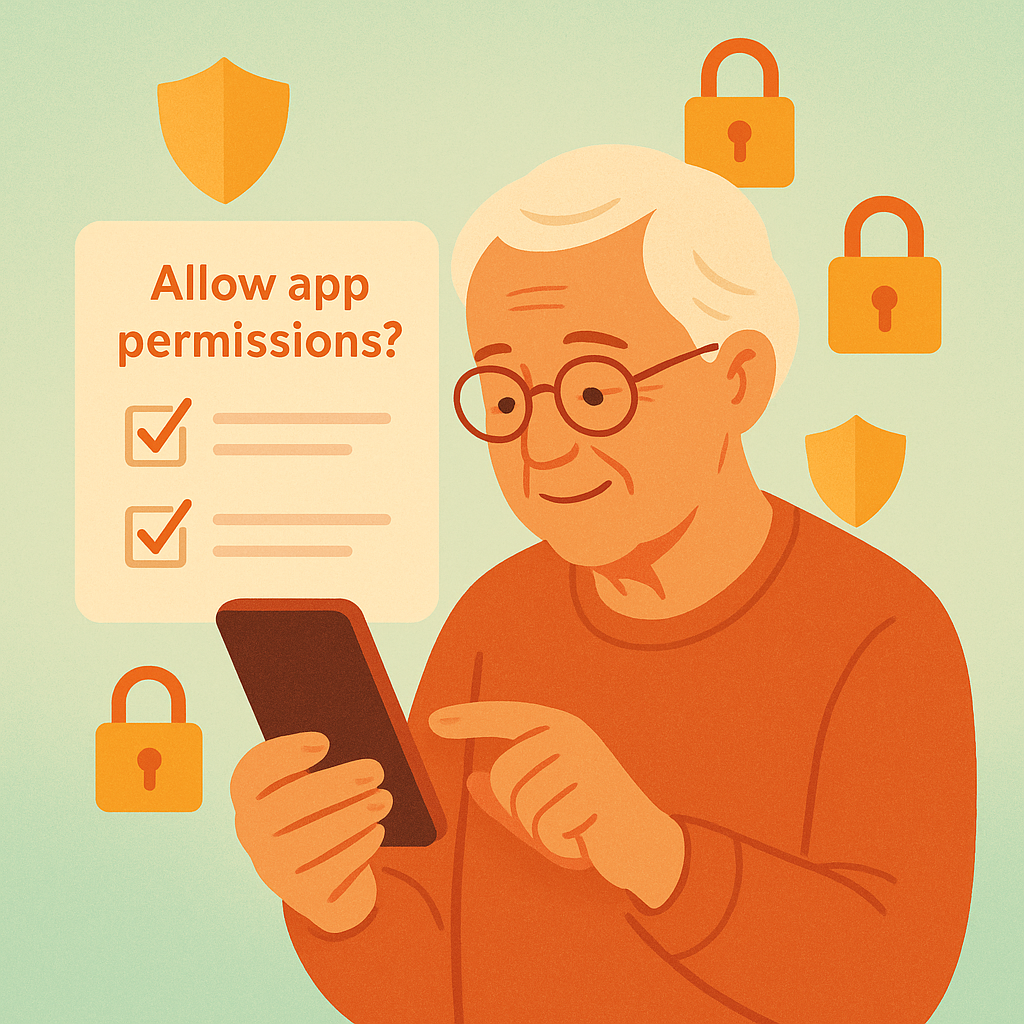
Every time you install a new app on your smartphone, it asks for permission to access different parts of your phone. Camera access for photo apps makes sense, but why does a flashlight app want to read your contacts? These permission requests can be confusing and potentially dangerous if you’re not careful.
Understanding app permissions is like knowing which keys to give someone entering your home. Some visitors need access to the kitchen, while others only need to use the bathroom. The same logic applies to apps—each one should only get access to what it actually needs to function.
- High-risk permissions that often get misused
- Safe permissions that rarely cause problems
- Red flags that indicate a suspicious app
- How to review and change permissions after installation
- Quick decision-making tips for permission requests
Let’s walk through each type of app permission so you can make informed decisions about what to allow on your phone.
What Are App Permissions
Think of app permissions like giving someone keys to different rooms in your house. Each “key” (permission) opens a specific door to your personal information or phone features.
When an app requests permission, it’s asking: “Can I access this part of your phone?” Here are the main types:
- Storage: Reading and writing files on your phone
- Camera: Taking photos and recording videos
- Microphone: Recording audio and listening
- Location: Knowing where you are
- Contacts: Reading your address book
- Calendar: Viewing and creating events
- Phone: Making calls and accessing call logs
Most apps only need one or two permissions to work properly. When an app asks for many unrelated permissions, that’s usually a red flag.
Why App Permissions Matter for Your Security
According to a 2024 study by the Federal Trade Commission, 87% of smartphone users grant permissions without reading what they’re allowing. This creates serious privacy risks, especially for seniors who are often targeted by scammers.
Here’s what can happen when apps get unnecessary access:
- Contact harvesting: Malicious apps steal your contact list to spread scams to friends and family
- Location stalking: Apps can track your daily routines and sell this information to advertisers
- Financial targeting: Apps may analyze your photos for financial documents or scan emails for banking information
Permissions You Should Usually Allow
These permissions are generally safe when requested by legitimate apps that need them for core functionality:
Low-Risk Permissions
- Storage (Photos/Media): Safe for camera apps, photo editors, and social media apps
- Camera: Essential for photo apps, video calling, and QR code scanners
- Microphone: Necessary for voice calling apps, voice recorders, and video chat
- Notifications: Allows apps to send you alerts and updates
Medium-Risk Permissions (Think Twice)
- Location (While Using App): OK for maps, weather, and ride-sharing apps
- Calendar: Reasonable for scheduling and reminder apps
- Phone: Only grant to actual calling apps or emergency services
Permissions You Should Usually Deny
Be very cautious about granting these permissions, especially if the app’s function doesn’t obviously require them:
High-Risk Permissions
- Location (All the Time): Very few apps need constant location access
- Contacts: Only social media and communication apps should need this
- Call Logs: Unless it’s your phone’s dialer app, this is usually unnecessary
- SMS/Text Messages: Dangerous—can be used to intercept two-factor authentication codes
- Device Administrator: Gives apps control over your phone’s security settings
Red Flag Permission Combinations
Be extra suspicious if an app requests multiple unrelated permissions:
- A flashlight app asking for contacts and location
- A game requesting access to your call logs and camera
- A weather app wanting to read your text messages
- Any app asking for device administrator privileges
Practical Tips for Managing App Permissions
- Read before you agree: Always read permission requests carefully—don’t just tap “Allow All”
- Start with “Deny” and grant as needed: It’s easier to allow a permission later than to revoke it
- Check app reviews: Look for mentions of excessive permission requests in app store reviews
- Review permissions monthly: Go to Settings → Apps → App permissions to audit what you’ve allowed
- Use “While Using App” for location: Avoid “Allow All the Time” unless absolutely necessary
- Delete suspicious apps immediately: If an app asks for unrelated permissions, uninstall it
- Update apps regularly: Newer versions often have better permission controls and security
Pros and Cons of Strict Permission Control
Enhanced privacy protection
Your personal data stays secure from apps that don’t actually need access to function properly.
Reduced scam vulnerability
Scammers can’t harvest your contacts or location data through malicious apps with restricted permissions.
Better battery life
Apps with fewer permissions typically use less battery power and data.
Some features may not work
Legitimate apps might need certain permissions to provide their best functionality and user experience.
More setup time required
You’ll need to carefully review each permission request instead of quickly allowing everything.
Frequently Asked Questions
Can I change app permissions after I’ve already granted them?
Yes! Go to Settings → Apps, select the app, then tap “Permissions” to revoke or modify any permission you previously granted.
Will denying permissions break the app completely?
Usually not. Most apps will work with reduced functionality, and they’ll ask again for permissions when they actually need them.
How can I tell if an app is using permissions inappropriately?
Check your phone’s permission dashboard (usually in Settings → Privacy) to see which apps have accessed what data recently.
Are permissions the same on iPhone and Android?
The concept is similar, but the names and controls are different. Both systems let you grant or deny individual permissions for each app.
Final Thoughts
Managing app permissions doesn’t require technical expertise—just common sense and a bit of caution. When in doubt, start by denying a permission and see if the app still works for your needs.
Remember that legitimate apps will clearly explain why they need specific permissions. If you can’t understand why a flashlight app needs your contact list, it probably doesn’t.
Take control of your privacy by being selective about what you allow. Your personal information is valuable—don’t give it away unnecessarily.