

Do you have a Facebook account from years ago that you barely touch? Or a Twitter profile you created and then forgot? Old, unused social media accounts are more than just digital clutter — they’re open doors for hackers and identity thieves. If an account is abandoned, you’re unlikely to notice if someone breaks in and uses it to scam your contacts or steal your personal data.
Deleting accounts you no longer need is one of the most effective privacy moves you can make. This step-by-step guide walks you through how to permanently delete your accounts on the most popular platforms — Facebook, Twitter/X, Instagram, and LinkedIn.
Why Old Accounts Are a Privacy Risk
When you stop logging into an account, you stop monitoring it. That’s exactly the kind of opportunity cybercriminals look for. Inactive accounts often still hold personal information — your email address, phone number, photos, and messages — all of which can be exploited if the account is compromised in a data breach.
According to the Identity Theft Resource Center (ITRC), data breaches exposed hundreds of millions of records in recent years, many from platforms people had long forgotten they used. If your old username and password were leaked, criminals could try that combination on your other accounts too — a technique called credential stuffing.
How to Delete Your Facebook Account
Facebook gives you two options: deactivation (temporary, hides your profile but keeps your data) and deletion (permanent, removes your account and most data after 30 days). For real privacy, choose permanent deletion.
- Step 1: Log in to Facebook and click the arrow icon in the top-right corner of the screen.
- Step 2: Select Settings & Privacy, then Settings.
- Step 3: In the left sidebar, click Your Facebook Information.
- Step 4: Click Deactivation and Deletion, then choose Delete Account.
- Step 5: Click Continue to Account Deletion, then Delete Account.
Facebook will pause your deletion for 30 days. If you log in during those 30 days, the deletion is cancelled. After 30 days, your account and most of your data are permanently removed.
How to Delete Your Twitter/X Account
Twitter/X uses a similar approach: deactivation first, then permanent deletion after 30 days of inactivity.
- Step 1: Log in to your account and click More in the left sidebar, then select Settings and Support.
- Step 2: Go to Settings > Your Account > Deactivate Your Account.
- Step 3: Read the information on screen, then click Deactivate and confirm with your password.
Your account becomes invisible immediately. After 30 days of not logging in, Twitter/X permanently deletes your account and data.
How to Delete Your Instagram Account
Instagram requires you to use a web browser (not the mobile app) to permanently delete your account.
- Step 1: On a computer or phone browser, go to instagram.com and log in.
- Step 2: Go to your profile, click Edit Profile, then scroll to Temporarily Deactivate Account.
- Step 3: For permanent deletion, go directly to the Instagram deletion page (search “Instagram delete account” in your browser) and follow the prompts.
- Step 4: Select a reason from the dropdown menu, enter your password, and click Delete Account.
How to Delete Your LinkedIn Account
- Step 1: Log in and click your profile icon, then select Settings & Privacy.
- Step 2: Under the Account preferences section, scroll down and click Close Account.
- Step 3: Choose a reason for closing, click Next, then confirm with your password and click Close Account.
LinkedIn closes your account immediately. You have a brief window to reactivate if you change your mind.
Tips for Managing Your Digital Footprint
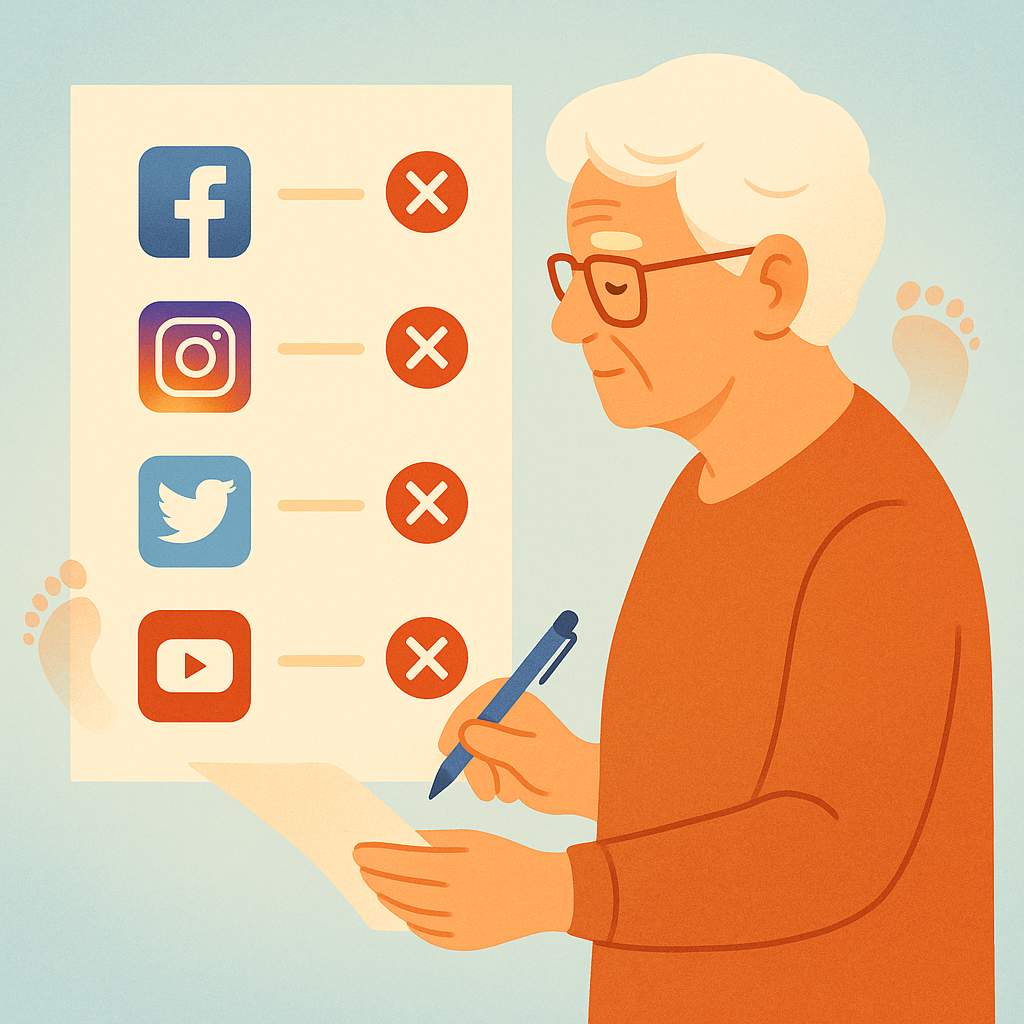
- Make a list first: Think back to every platform you’ve signed up for — forums, shopping sites, news apps, dating sites. Many of these also have deletion options.
- Download your data before deleting: Each major platform has a “Download Your Data” or “Download Your Information” option in Settings. Use it to save photos, messages, or contacts before you delete.
- Change the password before deleting: If you haven’t logged in recently, update the password first to ensure you’re the only one with access during the deletion process.
- Check email confirmation: Most platforms send a confirmation email when you request deletion. Watch for it and keep it for your records.
- Use a password manager to track accounts: If you have trouble remembering all your accounts, a password manager can help you maintain a complete list.
Pros and Cons of Deleting Old Accounts
Reduces your data exposure
Every account you delete is one less place where your personal information can be stolen in a data breach.
Eliminates hijacking risk
Unused accounts can be taken over and used to scam your friends and family without your knowledge.
Simplifies your digital life
Fewer accounts means fewer passwords to manage, fewer notifications, and a cleaner online presence.
Deletion is often permanent
Once deleted, most accounts cannot be recovered. Always download your data first and be certain before confirming.
Some platforms make it difficult
A few platforms bury the deletion option deep in their settings or require contacting customer support. Be patient and persistent.
Frequently Asked Questions
What’s the difference between deactivating and deleting an account?
Deactivation is temporary — your profile is hidden but your data is preserved and you can reactivate anytime. Deletion is permanent — your account and most data are removed after a waiting period (usually 30 days).
Will deleting a social media account remove all my data?
Most platforms delete your profile data, posts, and photos, but some retain certain information (like messages you sent to others) or anonymized data for a period of time. Check each platform’s privacy policy for details.
What if I can’t remember my login to delete an old account?
Use the “Forgot Password” option to reset your password via the email address you used when you signed up. If you no longer have access to that email, contact the platform’s support team with proof of your identity.
Should I delete accounts I use occasionally, or just the truly abandoned ones?
Focus on accounts you haven’t used in more than 6-12 months with no intention of returning to. For accounts you use occasionally, just ensure they have strong, unique passwords and updated privacy settings.
Final Thoughts
Cleaning up your digital footprint is a powerful act of self-protection. Every old account you delete removes one more opportunity for hackers to access your personal information. Set aside an afternoon, make a list of your old accounts, and work through them one by one. Start with the platforms in this guide, then use a tool like JustDeleteMe to tackle others.
Your digital life deserves the same security and tidiness as your home. A little housekeeping today can prevent a lot of headaches tomorrow.