

In an emergency, every second counts. If you’re ever in an accident, fall ill, or become unable to speak for yourself, the information stored in your phone could help first responders save your life.
Both iPhone and Android devices have a built-in feature specifically for this: a place to store your emergency contacts, medical conditions, blood type, allergies, and medications — all accessible even when your phone is locked. Setting it up takes about five minutes, and it’s one of the most important things you can do with your smartphone.
What Is Emergency Medical ID?
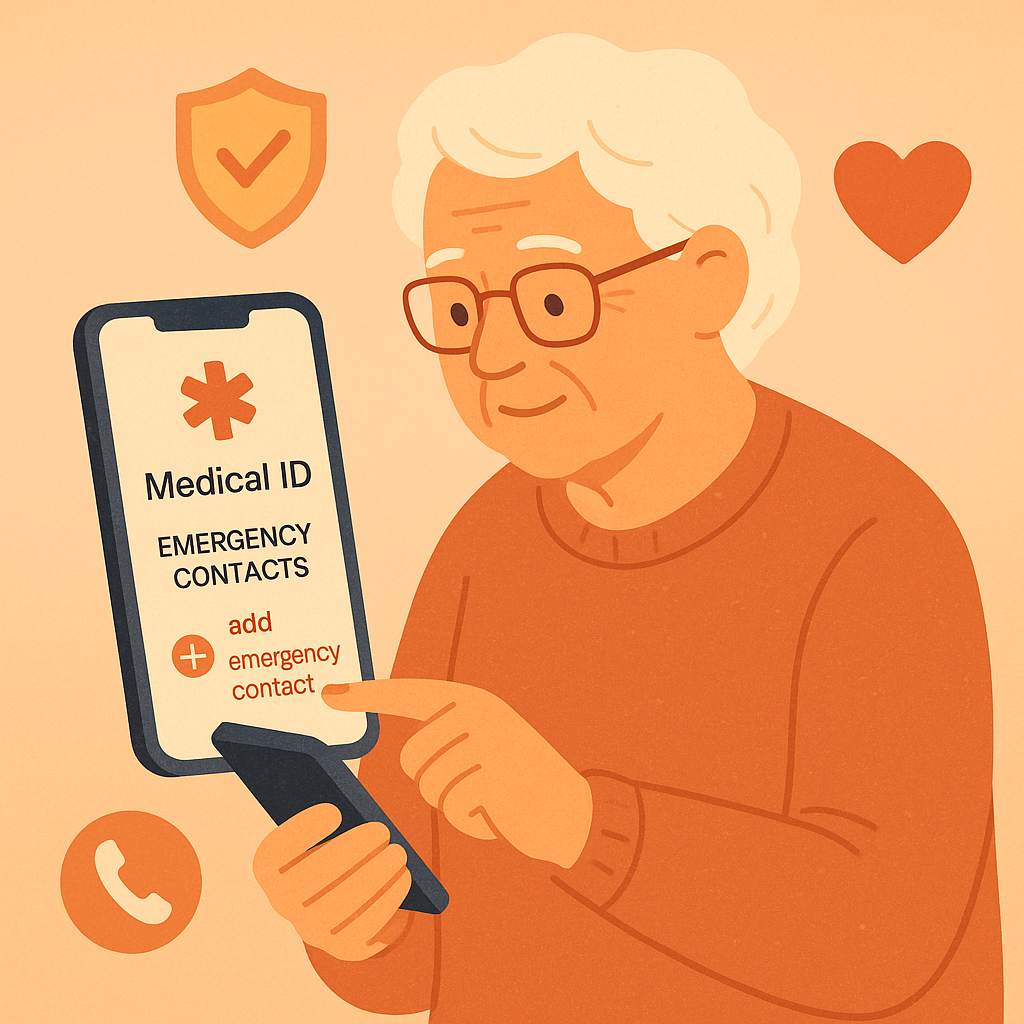
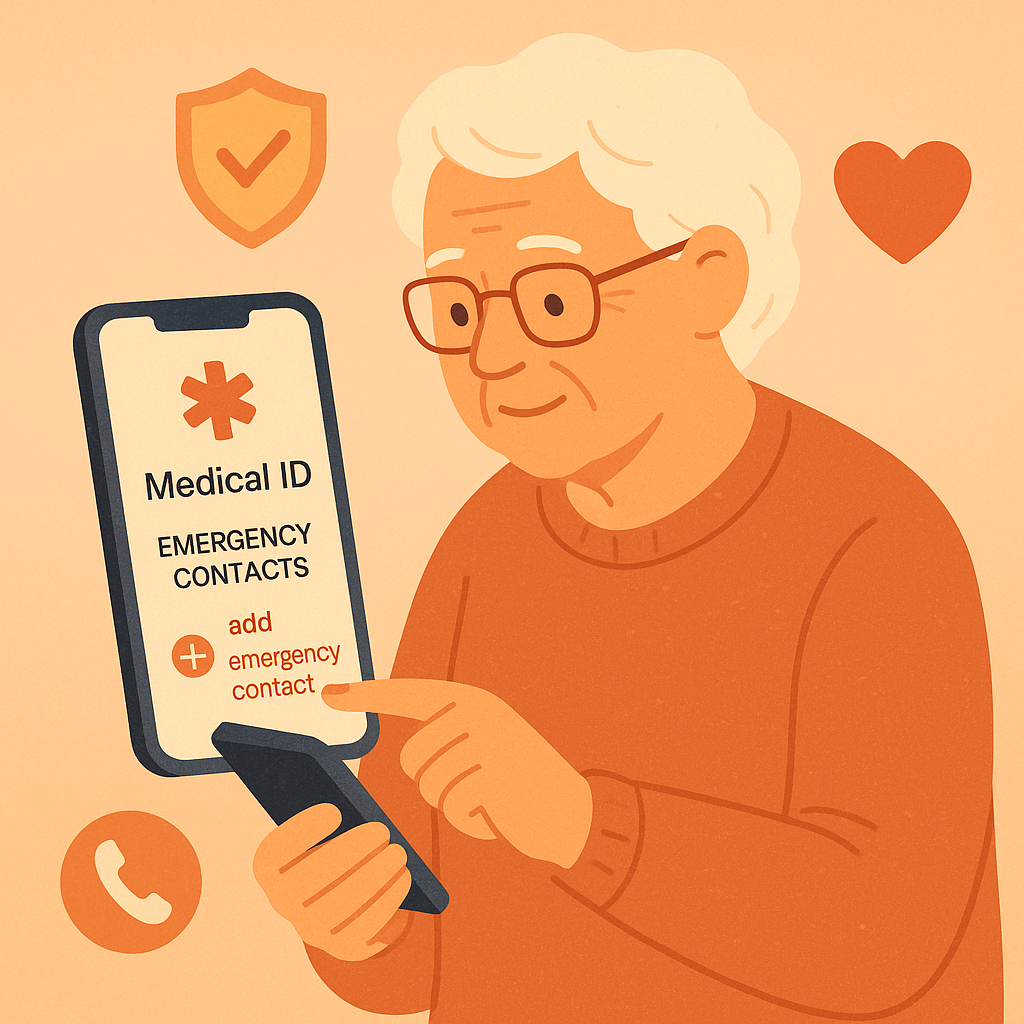
Emergency Medical ID (called Medical ID on iPhone and Emergency Information on Android) is a special section of your phone that stores critical health and contact information. It’s designed to be accessible by first responders from your phone’s lock screen — without needing your password.
This means that if you’re unconscious, disoriented, or unable to speak, a paramedic or emergency responder can immediately see:
- Your full name and date of birth
- Blood type — critical for transfusions
- Medical conditions — heart disease, diabetes, epilepsy, etc.
- Allergies and reactions — especially medication allergies
- Current medications
- Emergency contacts — people to notify
- Organ donor status
How to Set Up Medical ID on an iPhone
Setting up Medical ID on an iPhone takes just a few minutes and uses the built-in Health app.
Step-by-Step Instructions
- Open the Health app (the white icon with a red heart) on your iPhone.
- Tap your profile picture or initials in the top-right corner.
- Tap Medical ID.
- Tap Edit in the top-right corner.
- Fill in your information: name, date of birth, blood type, medical conditions, allergies, medications.
- Under Emergency Contacts, tap the + button to add a contact from your phone book. Add their relationship (spouse, daughter, son, doctor).
- Make sure Show When Locked is turned ON — this is critical so responders can see it.
- Tap Done to save.
To test it, press and hold the side button and volume button together (iPhone X or later) until you see the Emergency SOS slider. You’ll also see “Medical ID” at the bottom — tap it to see how it looks to a responder.
How to Set Up Emergency Information on Android
Android phones also have this feature, though the exact steps vary slightly by phone brand (Samsung, Google Pixel, Motorola, etc.).
General Steps for Most Android Phones
- Open the Settings app (the gear icon).
- Search for “Safety & Emergency” or “Emergency Information” using the search bar in Settings.
- Tap Emergency Information or Medical Info.
- Tap the pencil/edit icon to enter your information.
- Add your name, blood type, allergies, medications, and medical notes.
- Tap Add Contact to add your emergency contacts.
- Save your changes.
On most Android phones, emergency responders can access this information from your lock screen by tapping Emergency and then View Emergency Info.
Practical Tips for Your Emergency Setup
- List your most critical conditions first: If you have a serious allergy (like penicillin) or a major condition (like a pacemaker), put it at the top.
- Include at least two contacts: A primary contact (spouse, adult child) and a backup in case the first doesn’t answer.
- Keep it updated: Review your Medical ID every six months or whenever your medications or conditions change.
- Don’t skip medications: Many medications interact dangerously with emergency treatments. A complete list could prevent a fatal mistake.
- Tell your contacts they’re listed: Make sure the people you’ve listed as emergency contacts know and have your address readily accessible.
Pros and Cons of Setting Up Emergency Info
Could save your life
First responders can act faster and more safely when they know your blood type, allergies, and conditions.
Free and built-in
No app to download, no subscription. It’s already on your phone — just waiting to be filled in.
Accessible without unlocking
Responders don’t need your PIN to access emergency info — it shows on the lock screen.
Not a substitute for a medical bracelet
In some emergencies, a physical medical alert bracelet is checked first. Consider wearing one for critical conditions.
Must be kept updated manually
If your medications change and you forget to update the app, responders may see outdated information.
Frequently Asked Questions
Can anyone read my Medical ID if they find my phone?
Yes — that’s intentional. It’s designed to be visible on the lock screen for emergency use. However, it only shows the specific health fields you fill in, not your messages, photos, or other private data.
What if I don’t know my blood type?
Leave it blank rather than guessing. A wrong blood type on record could be dangerous. You can ask your doctor to confirm your blood type at your next visit.
Will this work if my phone’s battery is dead?
Unfortunately, no. That’s why a physical medical alert bracelet or wallet card is still a good backup for people with serious conditions.
How do I add a contact who isn’t in my phone book yet?
First save them as a contact in your Contacts app, then go back to Medical ID and add them. You need them in Contacts before you can link them as an emergency contact.
Final Thoughts
Setting up your emergency contacts and medical information is a small act with potentially life-saving consequences. It takes five minutes — and it’s the kind of preparation that, hopefully, you’ll never need but will be endlessly grateful for if you do.
Think of it as a digital medical card that travels with you everywhere. Take a few minutes today to fill it in, and then ask a family member or trusted friend to do the same.