

You’ve heard people say “turn on two-factor authentication” — but what does that actually mean? And is it really worth the extra step every time you log in?
The short answer: absolutely yes. Two-factor authentication is one of the single most effective things you can do to protect your accounts online. Let’s break it down.
What Is Two-Factor Authentication?
Imagine your front door has two locks instead of one. Even if someone steals your key, they still can’t get in without the second key. That’s exactly how two-factor authentication (2FA) works.
It means you need two different things to prove it’s really you:
- Something you know — your password
- Something you have — your phone, a security key, or a code sent to your email
The three most common methods are:
- SMS codes: A text message with a 6-digit code sent to your phone. The most familiar method.
- Authenticator apps: Apps like Google Authenticator or Authy generate codes that change every 30 seconds. More secure than SMS.
- Security keys: Physical USB or Bluetooth devices you tap to verify. The gold standard — virtually impossible to phish.
Why Two-Factor Authentication Matters
Even if you use the strongest password in the world, it can still be stolen through data breaches, phishing, or keyloggers. Two-factor authentication is your safety net:
- Phishing protection: Even if you accidentally give your password to a fake website, they can’t access your account without the second factor.
- Breach shield: When millions of passwords leak online (it happens regularly), your account stays safe because the password alone isn’t enough.
- Instant alerts: If someone tries to log in as you, you’ll get a notification immediately.
How to Set Up 2FA Step by Step
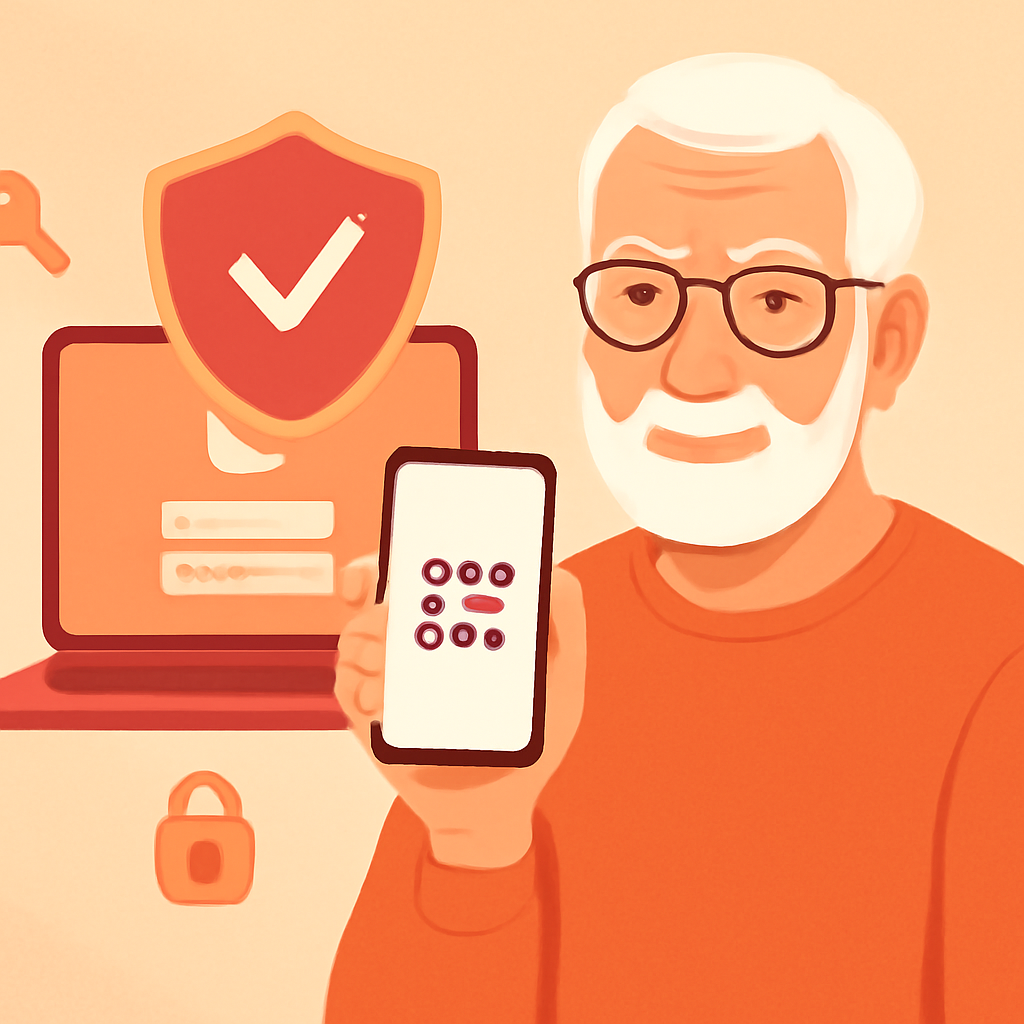
Let’s walk through the three most important accounts to protect first:
Gmail / Google Account:
- Go to myaccount.google.com → Security
- Click “2-Step Verification” → Get Started
- Choose your method: phone prompt, text message, or authenticator app
- Follow the on-screen instructions and save your backup codes
Facebook:
- Go to Settings → Security and Login
- Find “Use two-factor authentication” → Edit
- Choose text message or authenticator app
- Enter the code to confirm setup
Amazon:
- Go to Account → Login & Security
- Find “Two-Step Verification” → Edit
- Add your phone number or authenticator app
- Verify with the code sent to you
Practical Tips
- Start with your email — it’s the master key to reset all other passwords.
- Save backup codes in a safe place (printed, in a locked drawer) in case you lose your phone.
- Use an authenticator app over SMS when possible — it’s more secure and works without cell signal.
- Add a trusted device (your home computer) so you don’t need codes every single time.
- Keep your phone number updated with your accounts so SMS codes reach you.
Pros and Cons
Near-Total Protection
Blocks 99.9% of automated attacks — the single most impactful security step you can take.
Free to Use
Every major service offers 2FA at no cost. Authenticator apps are free to download.
Peace of Mind
Even if your password is compromised, your accounts remain locked down.
Extra Step at Login
Takes 10-15 seconds longer when signing in from a new device.
Phone Dependency
Losing your phone without backup codes saved can make recovery difficult.
Frequently Asked Questions
What if I lose my phone?
Use the backup codes you saved during setup. If you didn’t save them, contact the service’s support team with your ID for account recovery.
Is SMS-based 2FA safe enough?
Much better than no 2FA. Authenticator apps are more secure (SMS can be intercepted via SIM swap), but text codes still block the vast majority of attacks.
Do I need 2FA on every account?
Prioritize email, banking, social media, and shopping. These hold the most sensitive information and financial access.
Final Thoughts
Two-factor authentication is like adding a deadbolt to your digital front door. It takes minutes to set up and protects you from the vast majority of online threats.
Start with your email account today — it’s the master key to everything else. You don’t need to be a tech expert. You just need two keys instead of one.