

Email attachments are one of the most common ways cybercriminals deliver malware and steal personal information. In 2026, AI-enhanced phishing has made these attacks more convincing than ever. Knowing which attachments are safe to open—and which to avoid—can protect you from identity theft, ransomware, and financial fraud.
This checklist gives you practical steps to evaluate email attachments before you click, so you can stay secure without feeling overwhelmed.
What Makes Email Attachments Dangerous?
An email attachment is any file sent with an email—like a PDF, Word document, photo, or ZIP file. While most attachments are harmless, some contain hidden malware that installs itself on your device the moment you open the file.
Cybercriminals disguise malicious attachments to look legitimate. They might pretend to be invoices, delivery notices, tax documents, or even photos from a friend. Once opened, these files can:
- Steal your passwords and financial information
- Lock your files and demand a ransom to unlock them
- Take control of your device without your knowledge
Why Seniors Are Targeted
Scammers know that many seniors weren’t raised with digital technology and may trust emails more than younger generations do. They also assume seniors have savings and retirement accounts worth targeting.
This doesn’t mean you’re vulnerable—it means staying informed is your best defense.
The 5-Question Safety Checklist
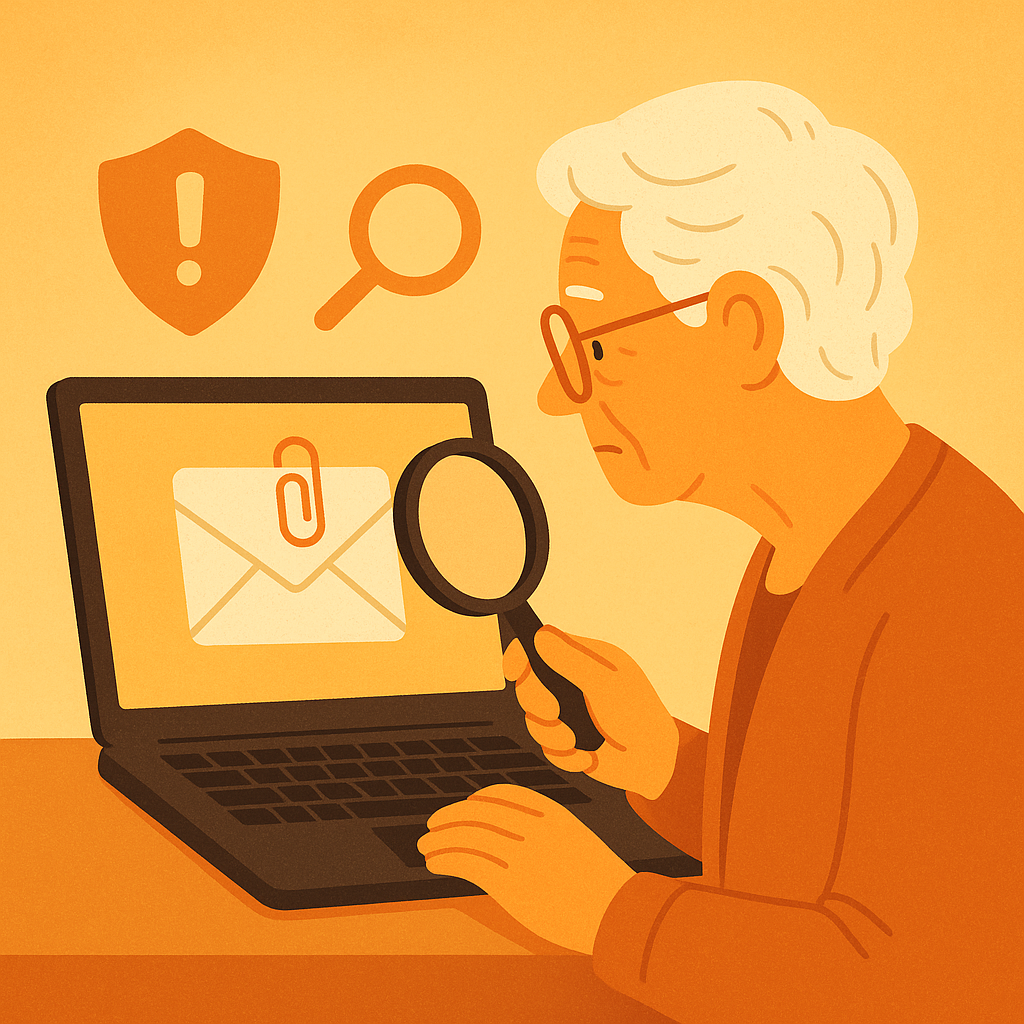
Before opening any email attachment, ask yourself these five questions:
1. Was I expecting this file?
If you didn’t request a document, invoice, or photo, don’t open it. Even if it looks like it’s from your bank, Amazon, or a delivery company, pause and verify first.
2. Do I recognize the sender?
Check the sender’s email address carefully. Scammers often use addresses that look legitimate but have small differences—like “supp0rt@amazoon.com” instead of “support@amazon.com.”
If the email claims to be from a friend or family member but feels odd, call them directly to confirm they sent it.
3. Does the email feel urgent or threatening?
Phishing emails often pressure you with threats like “Your account will be closed” or “Immediate action required.” Real organizations don’t operate this way. Take a breath and assess the situation calmly.
4. What type of file is it?
Some file types are riskier than others. Here’s what to watch for:
- .exe files — Executable programs. Never open these unless you’re 100% certain of the source.
- .zip or .rar files — Compressed folders that can hide multiple malicious files.
- .doc or .pdf files — Can be safe, but scammers sometimes embed harmful code inside them.
- .jpg or .png files — Generally safer, but still verify the sender first.
5. Does my antivirus software flag it?
If you have antivirus software installed (and you should), it may automatically scan attachments. If it flags a file as suspicious, do not open it—even if the email looks legitimate.
When to Delete Without Opening
Delete the email immediately if any of these apply:
- You don’t know the sender and weren’t expecting the file
- The subject line is vague (“Invoice,” “Document,” “Important”)
- The file name looks random (“doc_12345.exe” or “scan_0098.zip”)
- The email contains spelling errors or awkward phrasing (though AI has made this less reliable)
What to Do If You Opened a Suspicious Attachment
If you accidentally opened an attachment and now you’re worried, act quickly:
- Disconnect from the internet — This can stop malware from spreading or sending data.
- Run a full antivirus scan — Let your security software check your device.
- Change your passwords — Especially for email, banking, and financial accounts.
- Monitor your accounts — Watch for suspicious charges or login activity.
- Report the email — Forward it to your email provider’s abuse team and to FTC.gov.
Pros and Cons of Email Attachments
Convenient file sharing
Email attachments make it easy to send and receive documents, photos, and files.
Works across all devices
You can access attachments on your computer, tablet, or smartphone.
Common vehicle for malware
Cybercriminals frequently use attachments to deliver viruses and ransomware.
Hard to verify legitimacy
Even attachments from known senders can be dangerous if their account was hacked.
Frequently Asked Questions
Can antivirus software protect me from all malicious attachments?
No. While antivirus software catches many threats, new malware is created daily. Your best defense is caution—don’t open attachments unless you’re certain they’re safe.
Is it safe to open a PDF from my bank?
Only if you requested it or were expecting a statement. If you receive an unexpected PDF claiming to be from your bank, don’t open it. Instead, log into your bank’s website directly or call their customer service number.
What if the attachment is password-protected?
Password protection doesn’t guarantee safety. Scammers sometimes use this tactic to bypass email security filters. If you didn’t request the file, don’t open it—even if the password is included in the email.
How can I safely receive files from people I trust?
Ask trusted contacts to use secure file-sharing services like Google Drive or Dropbox instead of email attachments. This adds an extra layer of verification and safety.
Final Thoughts
Email attachments will always carry some risk, but you don’t have to avoid them entirely. By asking the right questions before you click, verifying senders carefully, and trusting your instincts when something feels off, you can protect yourself from the vast majority of email-based threats.
When in doubt, remember: it’s always safer to delete a suspicious email than to open an attachment you’re unsure about. Your digital safety is worth the extra moment of caution.