

Passkeys explained for seniors can sound like one more technology term to remember, but the idea is simpler than it looks. A passkey lets you sign in by unlocking your phone, tablet, or computer instead of typing a password every time.
Think of it like using the key to your front door. You do not need to describe the key to anyone, and you should not hand it to a stranger. With a passkey, your device quietly proves it is really you after you unlock it with a face scan, fingerprint, PIN, or screen lock.
This guide explains what passkeys are, when they may be helpful, and when it is better to wait or ask for help before changing account settings.
Why Passkeys Explained for Seniors Matter
Passwords can be hard to manage. They may be reused, written on paper, forgotten, or typed into a fake website by mistake. Passkeys are meant to reduce those problems by replacing the typed password with a safer sign-in method tied to your own device.
The FIDO Alliance, the standards group behind passkey technology, explains that passkeys use the same kind of action you already use to unlock a device, such as a PIN, fingerprint, face scan, or pattern. That means you are not expected to memorize a new secret phrase for every website.
If you want a refresher on why repeated passwords are risky, our guide on why you should never reuse passwords explains the older problem passkeys are trying to improve.
Start With Password and Account Security Basics
Before turning on a passkey, make sure the device itself is protected. A passkey is only as comfortable as the phone, tablet, or computer that holds it.
Check your device lock first
If your phone has no screen lock, anyone who picks it up may have too much access. Use a PIN, fingerprint, face unlock, or another lock option that feels manageable. Avoid very simple PINs like 0000 or 1234.
Keep recovery information up to date
Passkeys can make signing in easier, but you still need a way back into your account if your device is lost, broken, or replaced. Check that your recovery phone number and recovery email are current before you make big account changes.
For family planning around account access, you may also find our guide to a family password plan for seniors helpful. It explains how to document emergency access without sharing everything.
What to Check First Before Using a Passkey
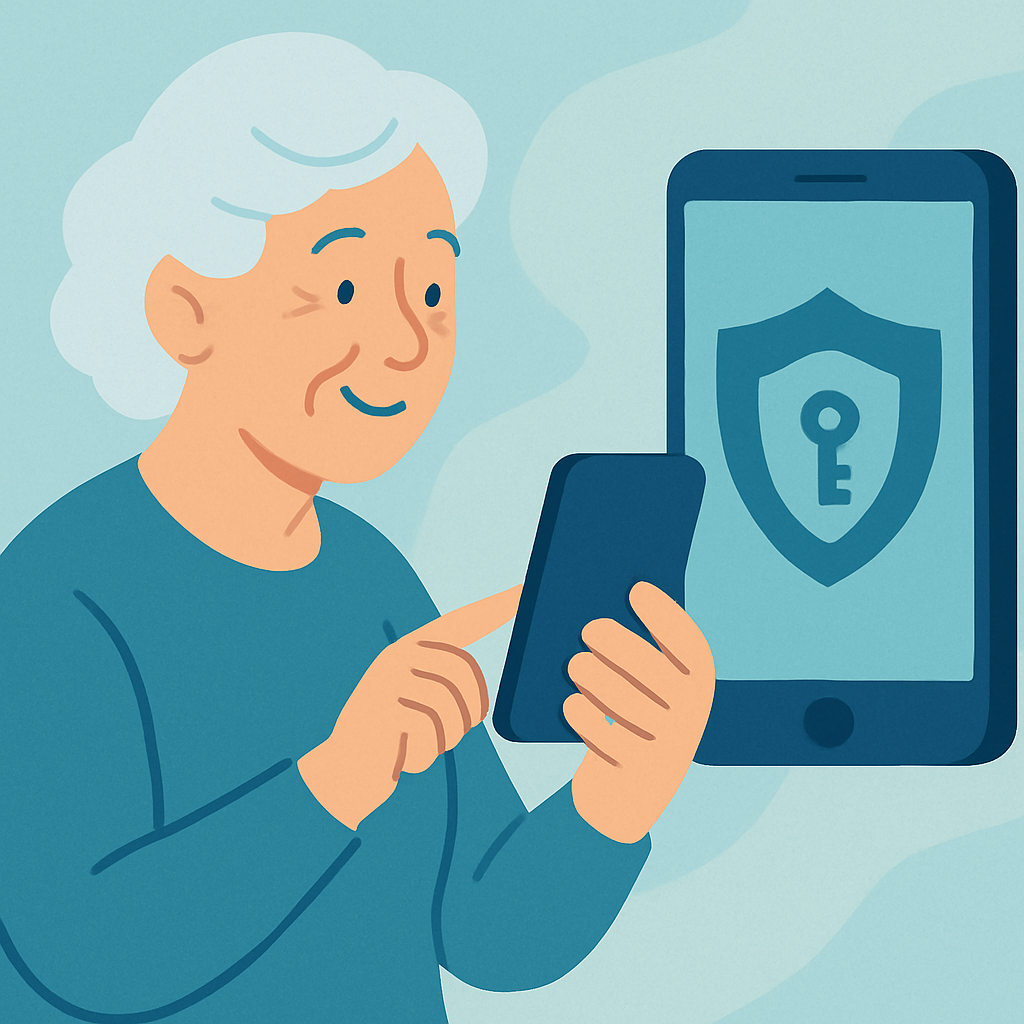
Not every account needs to be changed on the same day. Start with one familiar account, such as Google, Apple, Microsoft, or another service that clearly offers passkeys in its official security settings.
Google Account Help says a passkey can be used to sign in with a fingerprint, face scan, or phone screen lock, and it also notes that biometric data stays on the device rather than being shared with Google. You can read Google’s current explanation on its official passkey help page before changing your own settings.
After reading the official page, pause and ask three questions:
- Do I control this device? Avoid creating passkeys on a shared computer, library computer, or borrowed phone.
- Can I unlock it reliably? If face or fingerprint unlock often frustrates you, keep your PIN and recovery options ready.
- Do I understand how to recover the account? Make sure you know where recovery email, recovery phone, or backup codes are stored.
How to Handle a Passkey Step by Step
The exact buttons vary by company, so use the official help page for the account you are changing. The safe pattern is usually similar:
- Start from the real website or app: Type the address yourself or open the official app. Do not start from a surprise email link.
- Find account security settings: Look for words like Security, Sign-in options, Password and security, or Passkeys.
- Read the screen before agreeing: Check whether the passkey will be saved to your device, password manager, or account provider.
- Create the passkey only on your own device: Your personal phone or computer is safer than a borrowed or public device.
- Try signing in once while you are calm: Make sure you understand how it works before relying on it during an urgent moment.
- Write down recovery steps, not the passkey: Keep a note of where account recovery settings are located, but do not invent or store fake passkey codes.
When Passkeys May Be a Good Fit
Passkeys can be especially helpful when you struggle with long passwords or worry about typing a password into a fake page. Because passkeys are designed for the specific website or app, they reduce the chance of accidentally giving a password to an impostor.
They may be a good fit if you already use a screen lock comfortably, keep your phone updated, and have recovery information in place. They may also be helpful for high-value accounts such as email, banking, shopping, and cloud photo storage, as long as the official service supports them.
When You May Want to Wait
Waiting is reasonable if your phone is shared with several people, if you often forget your device PIN, or if you do not know how you would recover the account after losing the device. Good security should make you feel safer, not trapped.
You may also want help if the account is essential, such as the email address used for banking or medical portals. Ask a trusted family member or professional helper to sit with you while you read the official instructions. They should guide you, not take over or keep your account private information.
Pros and Cons of Using Passkeys
Less typing
You can often sign in by unlocking your device instead of entering a long password.
Better phishing protection
Passkeys are designed to work with the real website or app, which helps protect against fake sign-in pages.
No reused password problem
You are not relying on the same remembered password across several accounts.
Device confidence matters
If you are uncomfortable unlocking or managing your device, setup may feel confusing at first.
Recovery still matters
A lost phone or forgotten PIN can still create stress if recovery information is outdated.
Common Password and Account Security Mistakes to Avoid
The biggest mistake is rushing because a screen says passkeys are safer. Safer does not mean you must change every account immediately. Start with one account, learn how it works, and keep recovery options current.
- Do not create passkeys on public devices: Use only devices you own and control.
- Do not ignore recovery settings: Confirm your recovery email and phone number before changing sign-in methods.
- Do not trust surprise links: Go directly to the official app or website instead of clicking an email that tells you to set up a passkey.
- Do not remove every old sign-in option too quickly: Some services still keep passwords or backup methods available. Make changes slowly and read each screen.
If you need to update old passwords first, our step-by-step guide on how to change your password on Facebook, Gmail, and Amazon can help you clean up the basics before moving to newer sign-in options.
A Simple Checklist
Use this short checklist before saying yes to a passkey:
- My device has a screen lock: I use a PIN, fingerprint, face unlock, or another lock I understand.
- This is my personal device: It is not borrowed, public, or shared with people I do not fully trust.
- My recovery information is current: I can access the recovery email or phone number on the account.
- I started from the official source: I did not click a suspicious email, text, or ad.
- I tested it calmly: I know what the sign-in prompt looks like before an emergency happens.
When to Get Extra Help
Ask for help if the setup screen uses words you do not recognize, if the account is very important, or if you feel pressured to act immediately. A trustworthy helper should slow things down and explain what each step means.
For a neutral overview, the FIDO Alliance’s passkeys explainer describes passkeys as a general sign-in technology, not a feature owned by one company. That can be useful if you want to understand the concept before reading instructions from a specific service.
Frequently Asked Questions
What should I check first before using a passkey?
Check that your phone or computer has a screen lock you understand and that your recovery email or phone number is current.
How often should I review passkeys?
Review them when you replace a phone, lose a device, change password managers, or do a yearly account security checkup.
What should I do if I am not sure?
Do not guess. Read the official help page for that account or ask a trusted person to sit with you while you review the screen.
Can I undo passkey changes later?
Many services let you remove or manage passkeys later, but exact steps vary. Verify the current instructions before deleting anything important.
Final Thoughts
Passkeys are not magic, and they are not something you must adopt everywhere overnight. They are a newer, safer way to sign in that can reduce password stress when your device lock and recovery settings are ready.
Start small. Choose one familiar account, read the official instructions, and make sure you still know how to recover the account if something changes. That calm approach is the best way to make passkeys helpful instead of overwhelming.