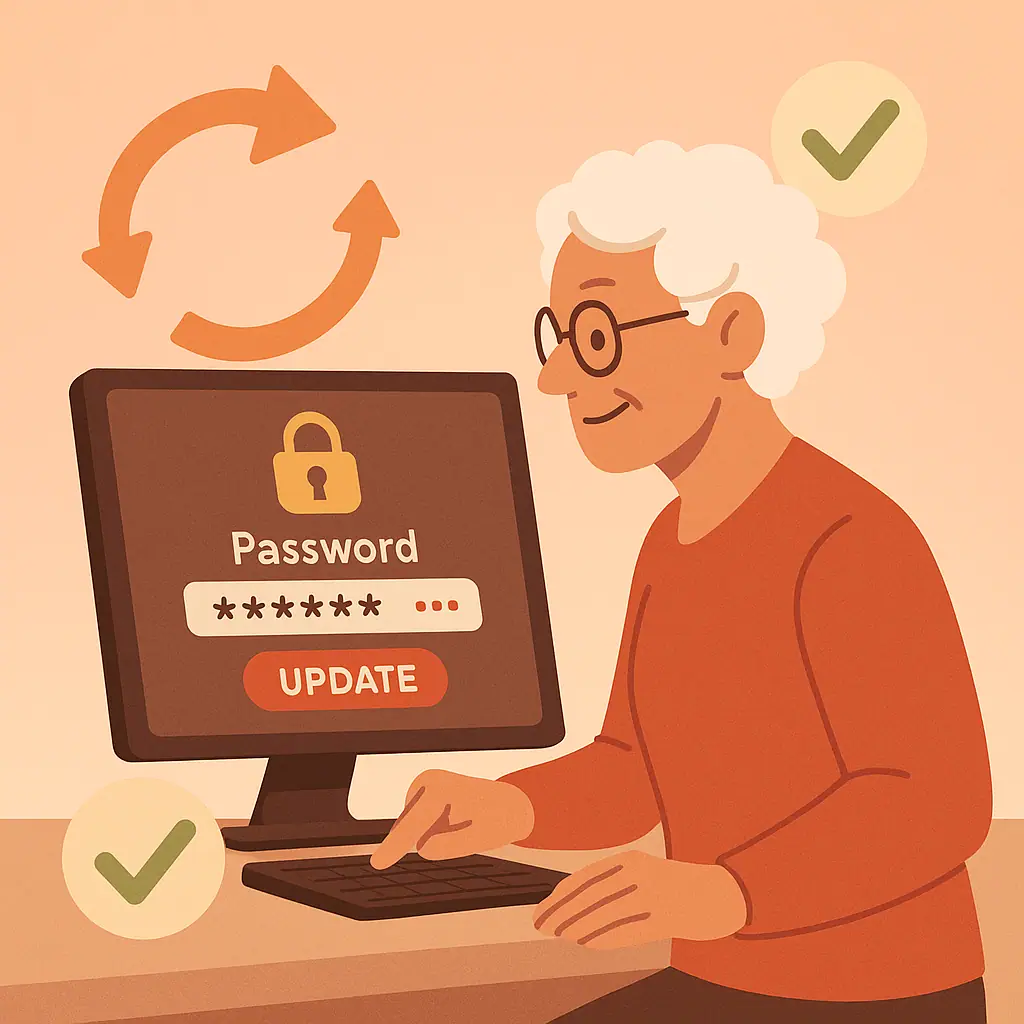
Changing your passwords regularly used to be standard advice, but security experts now recommend a smarter approach: change your password when you have a good reason, and make sure it's strong when you do.
You should update your password immediately if: you suspect it's been compromised, you used it on another site that was breached, or you shared it with someone who no longer needs access. For your most important accounts — email, banking, and shopping — knowing how to change passwords quickly can prevent serious problems.
This guide covers the three accounts that matter most for online safety:
- Gmail (your email gateway to everything else)
- Facebook (where scammers often target seniors)
- Amazon (connected to your payment information)
Read on to learn exactly where to find password settings and how to update them without getting locked out.
What Makes a Password Change Successful
Think of changing your password like changing the locks on your house. You want to do it properly the first time, test that your new key works, and make sure you can still get inside.
A successful password change includes:
- Strong replacement: At least 12 characters, unique to this account
- Immediate testing: Log out and log back in to verify it works
- Secure storage: Update your password manager or written records
- Device cleanup: Log out of other devices where the old password is saved
- Recovery verification: Ensure your backup email and phone number are current
Why These Three Accounts Matter Most
Your Gmail, Facebook, and Amazon accounts represent three critical attack surfaces that criminals target. Compromising any one of these can lead to access to your other accounts, personal information theft, or financial fraud.
Here's why these three accounts are priority targets:
- Gmail: Password reset emails for banking, shopping, and social accounts
- Facebook: Personal information for identity theft and access to family contacts
- Amazon: Saved payment methods and detailed purchase history
Changing Your Gmail Password
Google makes password changes straightforward, but the security settings are buried several clicks deep. Here's the direct path:
Step-by-Step Instructions
- Go to gmail.com and sign in to your account
- Click your profile picture in the top-right corner
- Select "Manage your Google Account"
- Click "Security" in the left sidebar
- Under "Signing in to Google," click "Password"
- Enter your current password to verify your identity
- Type your new password twice to confirm
- Click "Change Password"
Immediate Follow-Up
After changing your password:
- Google will automatically log you out of all devices
- Check your phone and tablet — you'll need to sign in again
- Update your password in any email apps you use
- Review the "Recent activity" to ensure all logins are yours
Changing Your Facebook Password
Facebook's password change process has moved around over the years, but the current location is consistent across desktop and mobile. The key is finding the right settings menu.
Desktop Instructions
- Log in to facebook.com
- Click the small arrow in the top-right corner
- Select "Settings & Privacy", then "Settings"
- Click "Security and Login" in the left menu
- Find "Login" section and click "Edit" next to "Password"
- Enter your current password
- Type your new password twice
- Click "Save Changes"
Mobile App Instructions
- Open the Facebook app and tap the three lines (menu)
- Scroll down and tap "Settings & Privacy"
- Tap "Settings"
- Under Account, tap "Password and Security"
- Tap "Password"
- Enter current password, then new password twice
- Tap "Update Password"
Facebook's Security Check
After changing your Facebook password, the platform will:
- Send you a confirmation email
- Ask if you want to log out of all devices (recommended)
- Show recent login activity for review
Changing Your Amazon Password
Amazon puts password changes in the "Login & Security" section, which isn't obvious from the main account menu. They also require more verification steps than most sites.
Step-by-Step Instructions
- Go to amazon.com and sign in
- Hover over "Hello [Your Name]" in the top-right
- Click "Manage Your Account & Login Info"
- Or go directly to "Your Account" and select "Login & Security"
- Next to "Password," click "Edit"
- Enter your current password
- Type your new password twice
- Click "Save changes"
Amazon's Extra Security
Amazon may ask for additional verification:
- Text message or email code
- Security questions you set up previously
- Confirmation of recent purchases
This extra security protects your payment information and purchase history.
Common Mistakes to Avoid
- Don't reuse old passwords: Even variations of previous passwords are risky
- Don't change passwords on public Wi-Fi: Wait until you're on a secure home network
- Don't forget to test immediately: Log out and back in to make sure it works
- Don't ignore logout notifications: These confirm the change worked properly
- Don't skip updating other devices: Your phone and tablet need the new password too
Pros and Cons of Regular Password Changes
Stops ongoing attacks
If someone already has your password, changing it immediately locks them out.
Limits breach damage
When other sites get hacked, changing your password prevents credential reuse attacks.
Peace of mind
Knowing you have a fresh, strong password reduces security anxiety.
Password fatigue
Changing too often leads to weaker, more predictable password patterns.
Increased lockouts
More changes mean more opportunities to forget and get locked out.
Time investment
Frequent changes require updating multiple devices and apps each time.
Frequently Asked Questions
How often should I change my passwords?
Only when you have a specific reason: suspected compromise, shared access that's no longer needed, or use on a site that got breached. Strong, unique passwords don't need regular changes just for the sake of changing them.
Will changing my password log me out of my phone and tablet?
Yes, in most cases. Gmail, Facebook, and Amazon will ask if you want to log out all devices when you change your password. This is a security feature — say yes, then sign back in on your trusted devices.
What if I forget my new password immediately after changing it?
Don't panic. Use the "Forgot Password" link on the login page. Since you just changed it, your backup email and phone number should be current, making recovery straightforward.
Should I change all my passwords at the same time?
Only if you were reusing the same password across multiple sites (which you should stop doing). Otherwise, change passwords individually when you have a specific reason for each account.
Final Thoughts
Knowing how to change your passwords quickly and correctly is an essential digital safety skill. While you don't need to change passwords frequently, being able to do it immediately when needed can prevent serious security problems.
Practice changing a password on a less critical account first if you're nervous. The process becomes routine after doing it once or twice.
Remember: a strong password that you can remember and access when needed is more valuable than a complex password that locks you out of your own accounts.