

Learning how to safely forward suspicious emails can make it easier to ask for help without putting yourself or another person at risk. Many scam emails are designed to make you feel rushed, worried, or embarrassed. The safest response is slower: do not click, do not download, and do not reply until you have checked the message.
If you want a second opinion from an adult child, a trusted friend, a bank, a phone provider, or an email provider, you can share the message carefully. The goal is to show enough information for someone to help while avoiding the risky parts of the email.
Why This Matters
Suspicious emails often include links, attachments, fake invoices, password warnings, delivery notices, or messages pretending to be from a company you use. Forwarding one too quickly can accidentally send a dangerous link or file to someone else. It can also hide the clues your helper needs, such as the sender address or the exact wording.
The Federal Trade Commission explains that phishing emails may try to get you to click links, open attachments, or share personal information. The FTC also says suspicious phishing emails can be forwarded to the Anti-Phishing Working Group and reported to the FTC, which is why it helps to keep the original message intact when possible.
Start With Email & Communication Safety
Email safety is not about handling every message alone. It is about choosing a safer path before you act. If a message says your account will close, a payment failed, a package is delayed, or someone needs urgent help, that pressure is a sign to slow down.
If the suspicious email includes a link, use our guide on checking an email link before clicking before you decide whether the message deserves any further action.
After that, take a breath and decide who is the right helper. A family member may help you read the message. A bank or company may confirm whether a notice is real. An email provider may have a report button built into the mailbox.
What to Check First Before You Forward
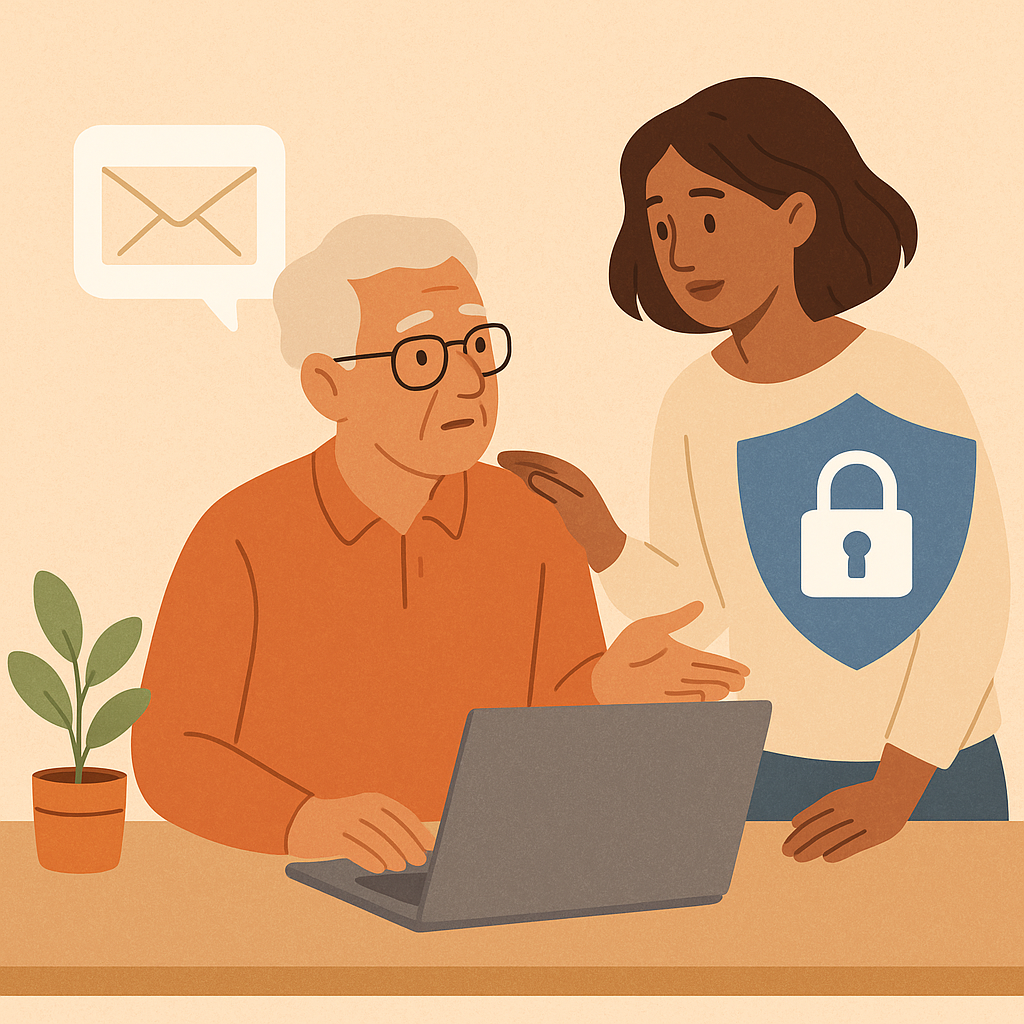
Before you forward a suspicious email, gather the basic clues. This does not require technical skill. You are simply reading the outside of the message before passing it along.
- Sender name and address: Look for misspellings, strange domains, or a name that does not match the address.
- Subject line: Notice urgent wording such as final warning, payment failed, account suspended, or immediate action required.
- Links: Do not click them. If you know how, hover with a mouse or long-press carefully on a phone only to preview, then back out without opening.
- Attachments: Do not open files from a message you do not trust, even if the file name looks familiar.
- Personal requests: Be cautious if the message asks for passwords, verification codes, gift cards, Social Security numbers, banking details, or remote computer access.
If the message has an attachment, review our email attachment safety checklist before opening or sending it to someone else.
When forwarding is not the best choice
Forwarding may not be the safest option if the message contains a dangerous attachment, private medical information, banking details, or a one-time security code. In those cases, a screenshot of the message header and first few lines may be enough for a trusted helper, or you may need to contact the real company using a phone number or website you already know.
How to Safely Forward Suspicious Emails Step by Step
Use this simple process when you need help deciding whether an email is real. You do not have to complete every step perfectly. The most important part is avoiding clicks and attachments while you ask for help.
- Do not reply to the suspicious sender: Replying can confirm that your address is active or pull you into a scam conversation.
- Do not click links or open attachments: Leave the risky parts untouched while you ask someone else to review the message.
- Choose one trusted helper: Pick a person or official support channel you already trust. Avoid posting the email publicly.
- Add a short note above the forwarded message: Write something like, “Can you help me check if this is real? I have not clicked anything.”
- Keep the original email below your note: This helps your helper see the sender, subject, wording, and layout.
- Remove private information if needed: If the message shows account numbers, medical details, or personal documents, ask your helper first whether a screenshot or phone call would be safer.
- Send only to the intended helper: Double-check the recipient line before sending. Do not forward to a large group.
- Wait before acting: Do not follow instructions in the suspicious email until your helper or the real company confirms what to do.
How to report a phishing email
If the message looks like phishing, the FTC consumer guidance on recognizing and avoiding phishing scams explains that phishing emails can be forwarded to the Anti-Phishing Working Group at reportphishing@apwg.org and reported to the FTC at ReportFraud.ftc.gov. Use that route when you are ready to report, not when you still need a personal explanation from someone you trust.
Common Email Safety Mistakes to Avoid
Most forwarding mistakes happen because the email makes the situation feel urgent. A calm routine protects you better than trying to outguess the scammer in the moment.
- Forwarding with no explanation: Add a short note so your helper knows you are asking for a safety check, not sharing something you believe is real.
- Sending to too many people: A suspicious message should not become a group thread. Choose one trusted person or official reporting address.
- Clicking first, asking later: Ask before clicking. If you already clicked, say that clearly so your helper understands the situation.
- Opening attachments to see what they are: A file can be risky even if the file name looks ordinary.
- Trusting the display name only: A sender name can say “Customer Support” while the actual email address is unrelated.
A Simple Checklist
Keep this checklist nearby for the next time a suspicious message arrives.
- Pause: Did I avoid replying, clicking, and opening files?
- Look: Did I check the sender address, subject line, and request?
- Choose: Am I sending this to one trusted helper or an official reporting address?
- Explain: Did I add a short note saying I need help checking it?
- Protect: Did I avoid forwarding private documents, codes, or account details unnecessarily?
- Wait: Am I waiting for confirmation before taking action?
If the sender name looks familiar but something feels off, it may help to compare the message with common signs in our guide to spotting fake customer service emails.
Pros and Cons of Forwarding for Help
You get a second opinion
A trusted person may notice a fake sender, strange wording, or risky link that you missed.
You slow down the scam
Forwarding for help creates a pause before you click, pay, reply, or share information.
You preserve useful clues
The original message can show sender details, timing, and wording that help identify a scam.
Risky links may travel with the message
Your helper also needs to know not to click links or open files casually.
Private details may be exposed
Some emails include account numbers, documents, addresses, or personal information that should not be shared widely.
Group forwarding can create confusion
Too many replies can make it harder to decide what is real and what to do next.
When to Get Extra Help
Get extra help if the email involves money, taxes, Medicare, banking, passwords, legal threats, gift cards, remote computer access, or an account you depend on. Do not use the phone number or link inside the suspicious message. Instead, use a statement, card, bookmarked website, or official app you already trust.
If you think your email contacts may include old or confusing entries, it is also worth reviewing safer email contacts for everyday communication. A cleaner address book makes it easier to choose the right helper when something suspicious arrives.
Frequently Asked Questions
Should I forward the suspicious email or send a screenshot?
If the email has no private details or attachments, forwarding may preserve useful clues. If it includes sensitive information, a screenshot of the sender, subject, and first few lines may be safer.
How often should I review this habit?
Review it whenever a message makes you feel rushed or worried. You can also practice the checklist once a month so it feels familiar before a real suspicious email arrives.
What if I already clicked a link?
Stop using the link, do not enter more information, and tell your helper exactly what happened. If you entered a password or payment details, contact the real company through a trusted channel.
Can I undo a forwarded email?
Usually no. Some email apps offer a very short undo window, but it is best to double-check the recipient and private details before sending.
Final Thoughts
The safest way to forward suspicious emails is calm and simple: do not click, do not open attachments, choose one trusted helper, add a clear note, and wait before acting. You are not bothering someone by asking for a second opinion. You are creating a safer pause.
Start with one small habit today. The next time an email feels urgent or strange, say out loud: “I can check this before I act.” That sentence alone can protect your money, your accounts, and your peace of mind.