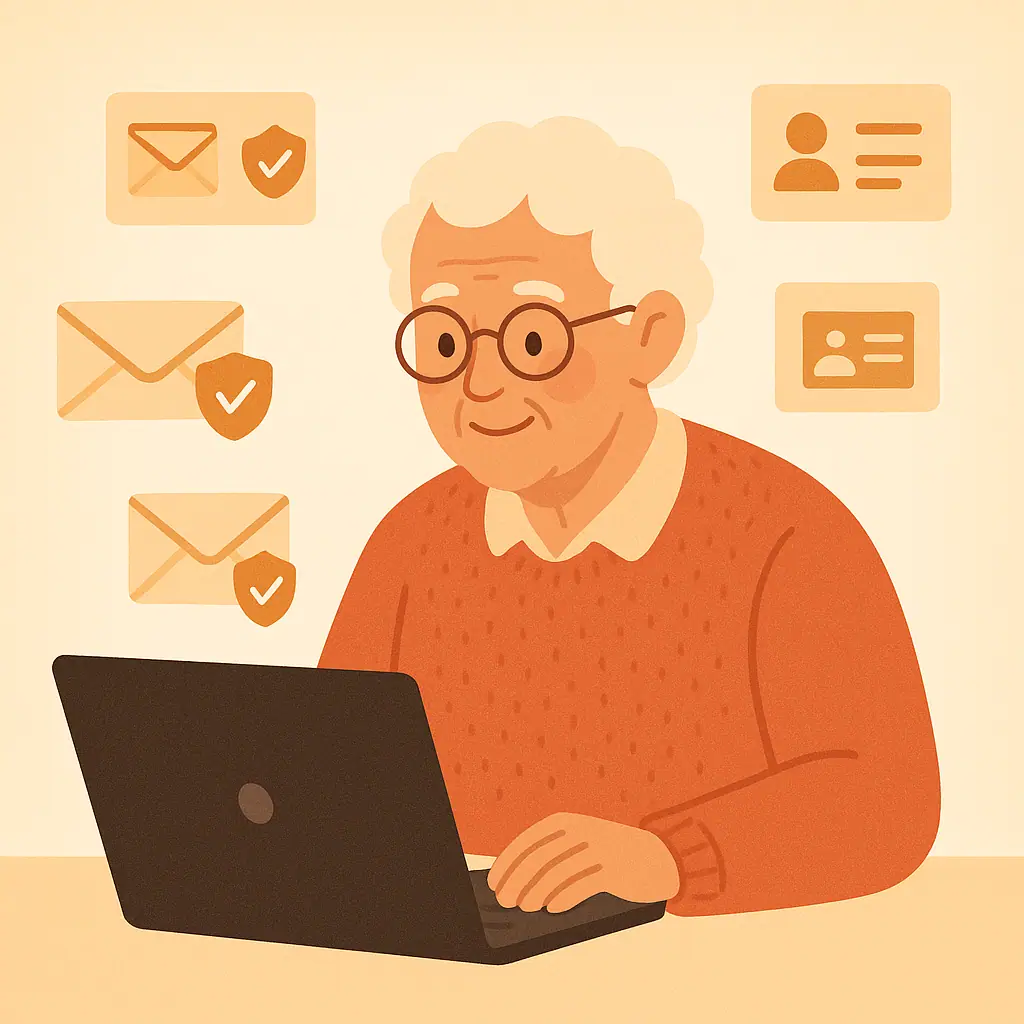
Making your address book safer is one of the quietest ways to protect your email. A good contact list helps you recognize real family members, doctors, banks, clubs, and service providers more easily. It also makes suspicious messages stand out faster. This guide to safe email contacts for seniors focuses on calm habits: cleaning up old entries, verifying people before replying, and watching for lookalike sender names.
You do not need to be a computer expert. Think of your email contacts like a phone book by the kitchen phone. If the names are clear, current, and trusted, everyday communication feels less confusing. If the list is full of old addresses, mystery names, and duplicates, it becomes easier to make a mistake.
Why This Matters
Email scams often work because they look familiar. A message may use a friend’s name, a church group name, a delivery notice, or a business you have used before. The Federal Trade Commission advises people to slow down and look carefully at the sender, links, and requests before responding to suspicious messages. Your contact list can support that habit by helping you compare what you see with the addresses you already trust.
Safer contacts also reduce simple confusion. If you have three entries for the same person, one old work email, and one misspelled address, it is easy to send information to the wrong place. A tidy address book gives you fewer choices and clearer names.
Start With Email & Communication Safety
The goal is not to delete everything. The goal is to keep your contact list useful. Start with the people and organizations you email most often: close family, a doctor’s office, a pharmacy, a bank alert address, a senior center, a church office, or a trusted repair company.
What belongs in a safer contact list
- Real names: Use clear names such as “Linda Thompson — daughter” instead of only “Linda.”
- Verified addresses: Keep the address you confirmed directly with the person or organization.
- Helpful notes: If your email app allows notes, add reminders like “uses this address for family photos.”
- No mystery entries: Remove contacts you do not recognize after checking they are not important.
If you use Gmail, Google’s official Contacts help explains how contacts can be created, edited, merged, or deleted. If you use Outlook, Microsoft’s official Outlook contact help explains similar contact management options. Exact screens can change, so official help pages are safer than old screenshots when you need step-by-step menu labels.
A Safe Email Contacts for Seniors Routine
Set aside 20 minutes, not a whole afternoon. Choose one email account and review only the contacts you use most. This keeps the task from becoming overwhelming.
Step 1: Find your contacts area
Look for words such as Contacts, People, or Address Book. In many email services, contacts may open in a separate app or browser tab. If you cannot find it quickly, search the official help page for your email provider rather than clicking random ads or unofficial downloads.
Step 2: Fix names before deleting
Start by making names clearer. “Bob” might become “Bob Williams — neighbor.” “Dr office” might become “Maple Street Clinic — scheduling.” Clear labels help you pause before trusting a message that only pretends to be from someone familiar.
Step 3: Merge or remove duplicates
Many people end up with duplicate contacts after changing phones or email accounts. If you see the same person listed several times, keep the current address and remove outdated duplicates. If you are not sure which address is current, ask the person by phone or in person before deleting.
Step 4: Mark important contacts carefully
Some email apps let you star or favorite contacts. Use that only for people and organizations you truly trust. Favorites should be a short list, not everyone you have ever emailed.
How to Avoid Lookalike Sender Names
A lookalike sender is a message that uses a familiar name but a different address. For example, the display name might say “Amazon Support,” while the actual address is a strange personal account or a misspelled domain. This is why the real address matters.
On a computer, you can often move your pointer over the sender name to reveal more details. On a phone or tablet, you may need to tap the sender name to expand the address. Do not tap links or download attachments while checking. You are only looking at who sent the message.
- Compare spelling: Watch for extra letters, missing letters, or domains that almost match the real company.
- Beware sudden changes: If a longtime contact writes from a new address and asks for money or documents, verify first.
- Use saved contacts as clues, not proof: A saved contact helps, but accounts can be spoofed or compromised.
- Do not reply to test it: If you are unsure, start a fresh message using the address you already trust.
For more help with suspicious messages, see SenorSafe’s guide on how to spot a phishing email before you click and our checklist for email attachment safety.
Pros and Cons of Cleaning Up Email Contacts
Less everyday confusion
Clear names and current addresses make it easier to choose the right person before sending a message.
Better scam resistance
A clean contact list helps unfamiliar addresses and suspicious name changes stand out more quickly.
Easier help from family
If a trusted family member ever helps you organize email, clear contact names make the conversation simpler.
Old addresses may be hard to judge
You may need to ask someone directly before deciding whether an address is still correct.
Menus can differ by email service
Gmail, Outlook, Yahoo, Apple Mail, and phone apps may place contacts in slightly different areas.
A Simple Checklist
Use this checklist once every few months, or anytime you notice confusing email names.
- Review top contacts: Start with the people and organizations you email most often.
- Rename unclear entries: Add last names or relationship notes where helpful.
- Remove obvious duplicates: Keep the current address and delete old copies when you are sure.
- Verify before sending private details: Use a phone call, official website, or in-person confirmation.
- Keep sensitive information out of regular email: Before sending documents, read our guide on why you should not share personal information over email.
When to Get Extra Help
Ask for help if you see contacts you do not recognize, if a message claims someone changed their email address, or if you are about to send financial, medical, or identity information. Choose someone you already trust, sit beside them, and ask them to explain each change before making it.
If the contact is a business, do not rely only on a link inside the message. Go to the official website yourself, use a phone number from a bill or card you already have, or sign in through your usual saved bookmark. This extra minute can prevent a serious mistake.
Frequently Asked Questions
What should I check first in my email contacts?
Start with family, medical offices, banks, clubs, and anyone you email often. Make sure names are clear and addresses are current before reviewing less important entries.
How often should I review my contacts?
A few times a year is enough for most people. Review sooner if you change phones, switch email apps, or notice many duplicate names.
What if I am not sure an address is real?
Do not guess. Call the person using a number you already trust, ask in person, or use an official website for a business or organization.
Can I undo contact changes later?
Often, yes, but it depends on the email service and whether deleted contacts can be restored. When uncertain, rename or update a contact before deleting it completely.
Final Thoughts
Safe email contacts for seniors are not about complicated technology. They are about making your everyday address book easier to trust. Clear names, verified addresses, and a habit of checking unusual requests can make email feel calmer and safer.
Begin with five important contacts today. Make their names clear, remove one duplicate if you are sure, and promise yourself to verify sensitive requests before replying. Small steps are enough to build safer communication.