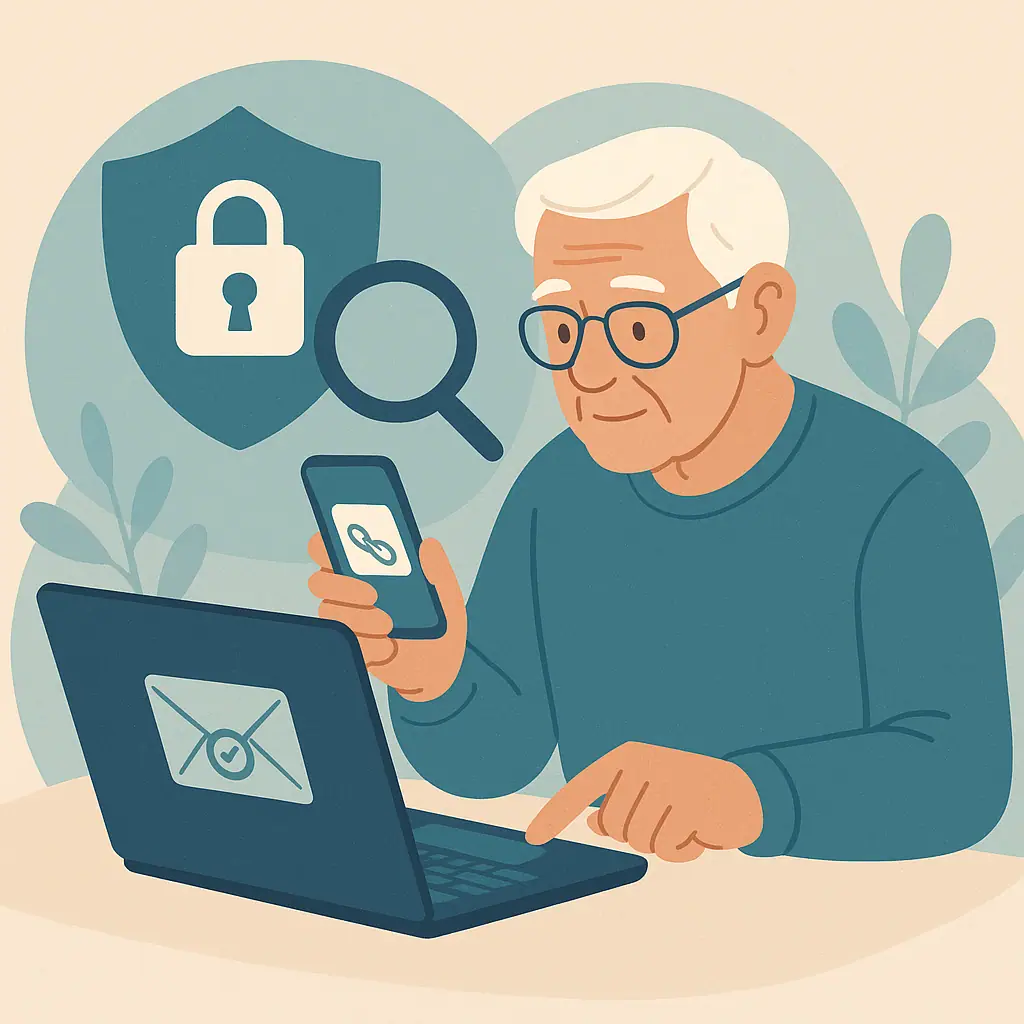
One small email link can look harmless, especially when the message seems to come from a bank, delivery service, doctor’s office, store, or someone you know. Scammers understand that familiar names make people relax, so they often hide unsafe links behind normal-looking buttons and friendly words.
The safest habit is simple: pause before you click. You do not need to become a computer expert. You only need a short routine that helps you check email link before clicking, especially when a message asks for your password, payment information, Medicare details, or urgent action.
This guide explains how to inspect links on a computer and phone, what warning signs matter most, and when it is better to go directly to a website instead of trusting the email.
Why You Should Check Email Link Before Clicking
Email links are convenient, but they can also lead to fake sign-in pages, fake invoices, malware downloads, or lookalike websites. A scam email may copy the colors, logo, and wording of a real company while sending you somewhere completely different.
Google’s Gmail Help explains that phishing messages may ask you to click links, download software, or share personal information while pretending to be an organization or person you trust. Google also advises users not to enter a password after clicking a suspicious message link; instead, go directly to the website you want to use.
You can review Google’s current phishing guidance here: Avoid and report phishing emails.
If you want a broader warning-sign checklist before focusing only on links, our guide on how to spot a phishing email is a helpful companion.
What a Safe-Looking Link Can Hide
The words you see in an email are not always the same as the address behind them. A button may say “View your account,” but the hidden destination may be a strange domain. A blue link may show a familiar company name, while the real address contains extra words, misspellings, numbers, or an unrelated country ending.
Look for the real destination
The real destination is the web address your browser will open if you click. Scammers count on people reading the visible words and not checking the underlying address.
Watch for lookalike domains
A link can be unsafe even when it looks close to a real brand. For example, extra dashes, swapped letters, added words, or odd endings can turn a familiar name into a fake one. If you feel unsure, do not click.
How to Check Email Links on a Computer
On a desktop or laptop, the easiest first step is to hover your mouse over the link without clicking. Many email programs and browsers show the real address near the bottom of the window or in a small preview box.
Microsoft’s phishing guidance recommends hovering over suspicious links to see whether the address that appears matches what the message claims. Microsoft also recommends using the organization’s official website or phone number when a message seems questionable.
Microsoft’s current guidance is available here: Protect yourself from phishing.
- Move slowly: Place your pointer over the link or button, but do not click.
- Read the preview: Look for the domain, such as the main company website name.
- Compare the message and the address: If the email says it is from your bank, the link should not point to an unrelated website.
- Be careful with shortened links: Short addresses hide the final destination, so avoid them in unexpected emails.
- When in doubt, skip the link: Open a new browser tab and visit the company directly.
How to Preview Email Links on a Phone
Phones make link checking feel harder because there is no mouse. The idea is still the same: preview first, tap only when you are confident. On many phones, you can press and hold a link lightly to preview the destination without opening it.
Be gentle and deliberate. A quick tap may open the link, while a longer press usually opens a preview menu. If you are unsure how your phone behaves, practice first with a safe link from a website you trust, not with a suspicious email.
- On iPhone: A light long-press can show a preview or menu. Do not choose Open unless you trust the destination.
- On Android: A long-press often shows the link address or a menu with more options.
- In email apps: Some apps may show warnings, previews, or reporting options. Read the screen before choosing anything.
- If the preview looks strange: Close the menu and use the official app or website instead.
When Not to Click Even If the Link Looks Normal
A link does not have to look obviously strange to be risky. Some scam messages use believable wording, real company logos, and addresses that seem close enough at a quick glance. The safest choice depends on the whole message, not just the link.
Be extra careful if the email says your account will close today, your payment failed, your package is stuck, your bank needs verification, or you must act before talking to anyone. Pressure is one of the clearest warning signs.
For bank-related messages, it is safer to compare the email with our guide to fake bank emails before you click anything involving money or identity information.
Safer Alternatives to Clicking an Email Link
If a message may be real but you do not fully trust the link, you still have options. The goal is to reach the account safely without following the path chosen by the email sender.
- Type the website yourself: Open a new browser tab and enter the address you already know.
- Use the official app: For banking, shopping, Medicare, utilities, or delivery services, open the app you installed yourself.
- Use saved bookmarks: A bookmark you created earlier is safer than a surprise email link.
- Call using a trusted number: Use the number on your card, bill, statement, or official website, not the number inside the suspicious email.
- Ask a trusted person: Forward a screenshot or read the message aloud, but do not click while you are asking for help.
If you already clicked something and now feel worried, stop entering information and follow the steps in our guide on what to do after clicking a suspicious link.
Use Official Reporting Tools When Available
Many email services include a way to report phishing. Reporting helps the service improve warnings and may protect other people from receiving the same message. In Gmail, Google provides a Report phishing option for suspicious messages. In Outlook, Microsoft describes reporting options for phishing messages as well.
The Federal Trade Commission also explains that phishing messages often tell a story to trick people into clicking links or opening attachments. The FTC recommends reporting phishing attempts and avoiding suspicious links when a message asks for sensitive information.
You can read the FTC consumer guidance here: How to recognize and avoid phishing scams.
Pros and Cons of Checking Links First
Prevents rushed mistakes
A short pause gives you time to notice pressure, strange domains, or requests for private information.
Works on most devices
Hovering on a computer and long-pressing on a phone are simple habits you can repeat.
Builds confidence
You become less dependent on guessing whether a message feels real.
Previews can be small
Phone screens and email apps may make long addresses difficult to read.
Some links are still confusing
Companies sometimes use tracking or redirect links, so the safest backup is visiting the website directly.
A Calm Link-Safety Checklist
Use this checklist whenever an email link asks for money, passwords, personal information, documents, or urgent action:
- Pause first: Do not click while feeling rushed, scared, or excited.
- Check the sender: Look for misspellings, unfamiliar domains, or a name that does not match the email address.
- Preview the link: Hover on a computer or long-press on a phone.
- Compare the domain: Make sure the real address matches the company or service.
- Avoid password forms from email links: Go directly to the website if sign-in is required.
- Use official contact paths: Confirm through the app, website, statement, card, or trusted phone number.
Frequently Asked Questions
Is it safe to hover over a link?
Yes, hovering on a computer is a normal way to preview a link without opening it. The key is to avoid clicking while you inspect the address.
What if I already clicked an email link?
Do not enter more information. Close the page, change passwords if you entered one, and check the account by going directly to the official website.
Can a real company send a link that looks confusing?
Yes. Some companies use tracking or redirect links. If the link is confusing, skip it and visit the company through the official website or app.
Should I use a link scanner website?
Only if you already trust the scanner and know how to copy links safely. For most seniors, going directly to the official website is simpler and safer.
Final Thoughts
You do not have to solve every technical mystery inside an email. Your best protection is a calm habit: pause, preview, compare, and choose a safer route when something feels off.
When an email link is truly important, the information should also be available through the company’s official website, app, or support number. That gives you control instead of letting a surprise message decide where you go.