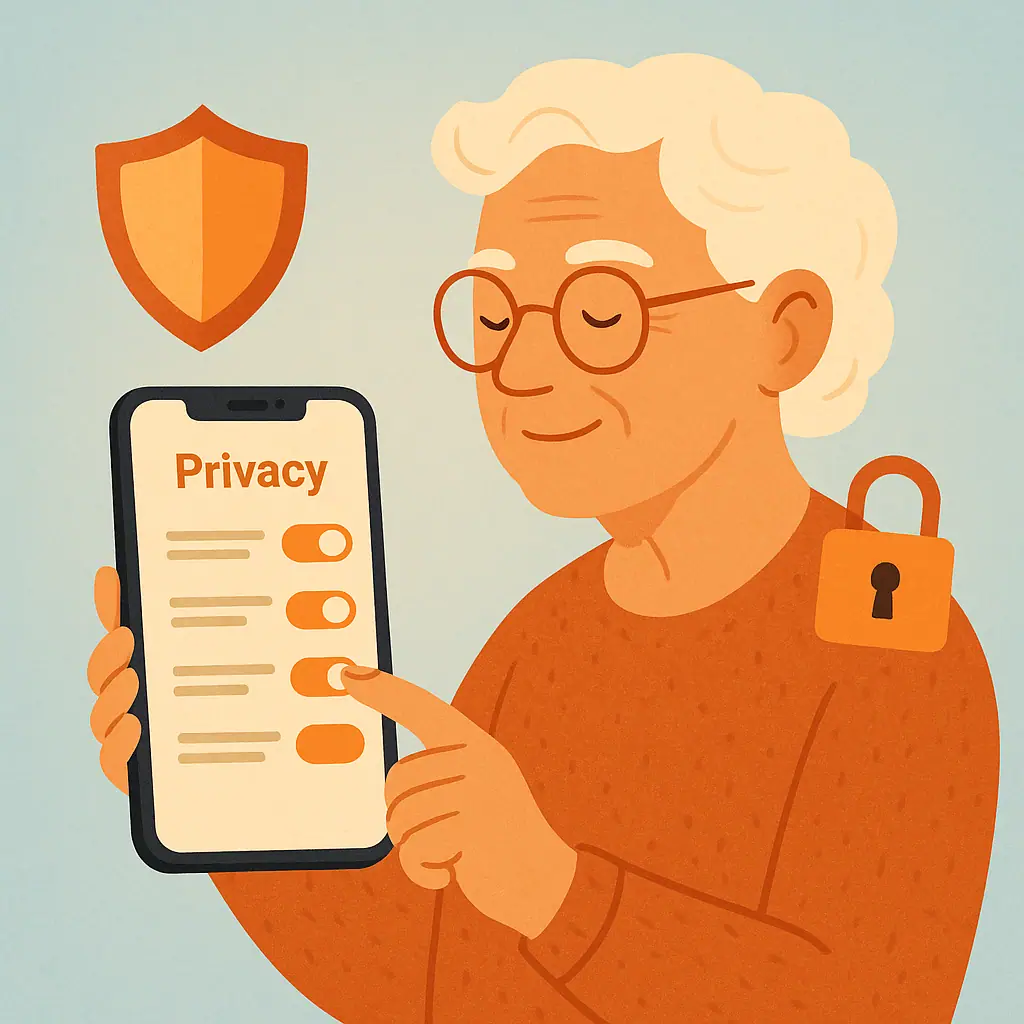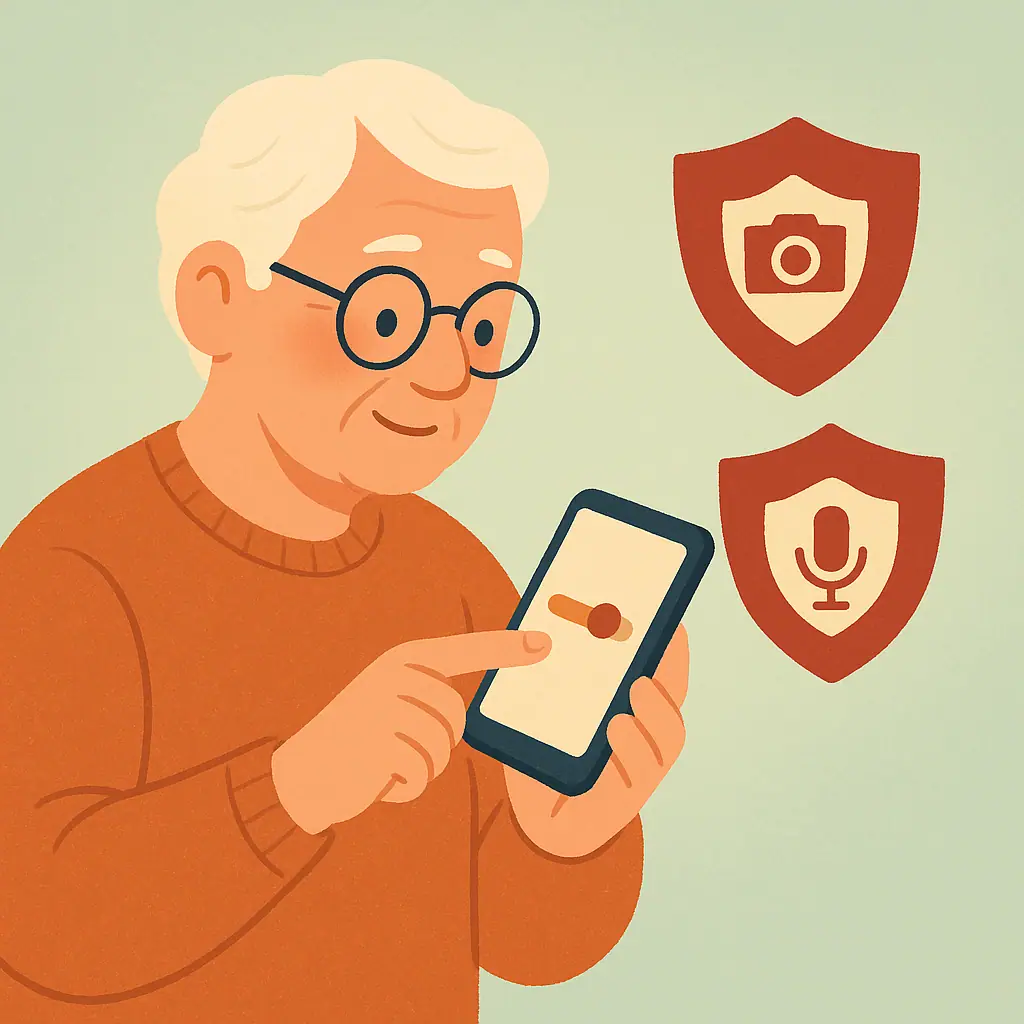
If you have ever wondered which apps can use your phone camera or microphone, you are not being overly cautious. It is a sensible privacy habit, like checking which spare keys are still on your key ring. Most camera and microphone access is normal: a video calling app needs your camera, and a voice memo app needs your microphone. But older apps, games, shopping apps, or one-time tools may still have permissions they no longer need.
This guide will help you check camera microphone permissions phone settings on both iPhone and Android without panic or jargon. The goal is not to make your phone harder to use. The goal is to help you know which apps have access, turn off what feels unnecessary, and keep trusted features working.
Why This Matters
Your camera and microphone are two of the most personal parts of your phone. They help you take family photos, join video calls, scan documents, speak to a voice assistant, and record short messages. Because they are useful, many legitimate apps ask for access. The question is whether each app still has a good reason.
Both Apple and Android now provide privacy controls that let you review these permissions. Apple groups these controls under Privacy & Security settings for hardware features, while Google explains Android permissions through its app permissions help page. Menu names may vary a little by phone model and software version, but the idea is the same: you can see which apps have access and change those choices.
Start With Phone & App Privacy
Before you tap through menus, it helps to think in plain categories. Some apps clearly need camera or microphone access. Others only need it for a special feature. Some may not need it at all anymore.
Apps that often need access
- Video calling apps: FaceTime, Zoom, WhatsApp, Messenger, and similar apps need camera and microphone access for calls.
- Camera and scanning apps: Camera, QR code, banking deposit, and document scanning apps may need camera access.
- Voice and recording tools: Voice memo, dictation, language learning, and hearing-related apps may need microphone access.
- Security or doorbell apps: Home camera and doorbell apps may need microphone access if you talk through them.
Apps to review more carefully
Games, coupon apps, old shopping apps, photo filters you no longer use, and apps you downloaded once for a trip or event are worth checking. They may be harmless, but if you do not use the camera or microphone feature, you can often turn that access off.
Check Camera and Microphone Access on iPhone
On an iPhone, the exact wording can shift slightly as Apple updates iOS, but the common path is simple.
- Open Settings.
- Tap Privacy & Security.
- Tap Camera to see which apps can use the camera.
- Use the switch beside an app to turn camera access on or off.
- Go back and tap Microphone to review microphone access the same way.
If you see an app you do not recognize, do not rush. First ask yourself: “Do I use this app for calls, photos, scanning, or voice?” If the answer is no, turn off access and see whether anything important changes.
You may also notice small privacy indicators while using your iPhone. A colored dot near the top of the screen can appear when an app is using the microphone or camera. Treat it as a helpful signal, not an emergency alarm. If the dot appears while you are on a video call, that is expected. If it appears when you are using an app that should not need those features, review that app’s permissions.
Check Camera and Microphone Access on Android
Android phones vary more because Samsung, Google Pixel, Motorola, and other brands arrange Settings differently. Look for similar words if your screen does not match these steps exactly.
- Open Settings.
- Look for Privacy, Security & privacy, or Apps.
- Tap Permission manager or Permissions.
- Tap Camera to see which apps are allowed.
- Tap an app and choose whether to allow or deny access.
- Go back and repeat the process for Microphone.
Some Android phones also show recent permission use, which can help you see whether an app used the camera or microphone recently. If your phone has a Privacy Dashboard, open it and look for Camera and Microphone activity. If you do not see that feature, do not worry; the permission list is still the main place to review access.
Which Apps Usually Need Camera or Microphone Access
The safest approach is not to block everything. It is to match each permission to the job the app performs.
- Keep access when the reason is obvious: A video calling app needs both camera and microphone for calls.
- Allow only when using the app if offered: Some phones let you allow access only while the app is open. This is a good middle ground for apps you trust but do not use daily.
- Turn access off for unused apps: If you have not opened an app in months, it does not need special access today.
- Review apps after updates: If an app changes features or starts asking for new permissions, pause and read the prompt before accepting.
If you want a broader refresher, SenorSafe also has a guide on which app permissions to allow and which to deny. Camera and microphone access are just two pieces of the larger app privacy picture.
How to Turn Off Access Safely
When you decide to remove camera or microphone access, make one change at a time. This keeps the process calm and easy to reverse.
A gentle three-step method
- Pick one app: Start with an app you rarely use or do not fully recognize.
- Turn off one permission: For example, turn off microphone access but leave camera access alone until you understand what the app needs.
- Test only if needed: Open the app later. If a feature you trust stops working, the app will usually ask for permission again.
This is especially helpful if you rely on video calls with family, telehealth visits, banking check deposits, or accessibility features. You do not have to make every decision at once.
Pros and Cons of Tightening Camera and Microphone Permissions
More control over personal access
You can decide which apps are allowed to use sensitive phone features instead of leaving old choices in place forever.
Less worry about unused apps
Removing access from apps you no longer use can make your phone feel simpler and easier to trust.
Easy to repeat later
Once you know where the settings are, you can review them every few months in just a few minutes.
Some helpful features may pause
A trusted app may need permission again for video calls, scanning checks, recording notes, or taking photos.
Menu labels can differ
Android brands and software versions sometimes use different words, so you may need to look for similar privacy labels.
A Simple Checklist
Use this short checklist whenever you install a new app or review an old one:
- Do I recognize this app? If not, look it up before changing anything important.
- Does it truly need my camera? Photos, video calls, scanning, and QR codes are common reasons.
- Does it truly need my microphone? Calls, recordings, voice messages, and dictation are common reasons.
- Can I allow access only while using the app? Choose that option when it is available and makes sense.
- Have I used this app recently? If not, consider removing the permission or deleting the app.
For related cleanup, see our guide on how to stop apps from tracking your location. Location, camera, and microphone permissions are often worth reviewing together.
When to Get Extra Help
Ask a trusted person for help if you see an app name you do not recognize, if your phone menus look very different from the steps above, or if a security message appears that you do not understand. Try not to hand over your phone unlocked to someone you do not know well. Instead, sit beside the person and let them explain what they are tapping.
You can also use official help pages from Apple or Google when menu labels change. That is safer than following random screenshots from old articles, because phone settings can move over time.
Frequently Asked Questions
Should I turn off camera access for every app?
No. Video call apps, camera apps, scanning tools, and some banking apps may need camera access. Turn it off for apps where the reason is unclear or no longer useful.
Can an app still use my microphone after I turn permission off?
Normal apps should not be able to use the microphone permission after you deny it through phone settings. If an app needs it later, it should ask you to allow access again.
Why do menu names look different on my phone?
Phone brands and software versions vary. Look for similar words such as Privacy, Security & privacy, Apps, Permissions, Camera, and Microphone.
What if an app stops working after I change permission?
Open the app and see which feature is affected. If it is a feature you trust and use, go back to Settings and turn that permission on again.
Final Thoughts
Learning to check camera microphone permissions phone settings is a small privacy habit that gives you more confidence. You do not need to understand every technical detail. You only need to ask a practical question: “Does this app still need this access?”
Start with one permission list today. Review Camera, then Microphone, and make only the changes that feel clear. Privacy is not about fear; it is about staying in charge of your own device.