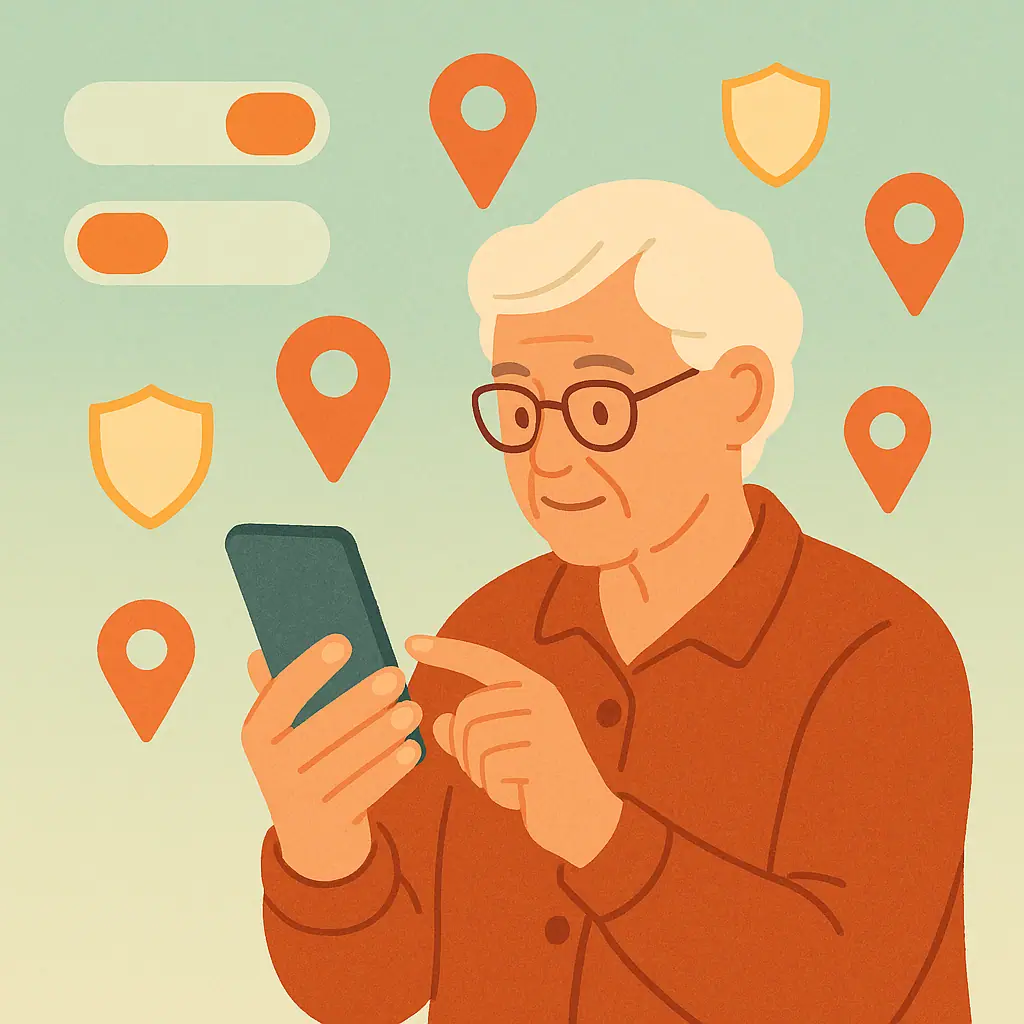
Your smartphone knows exactly where you are, where you've been, and where you go regularly. While location services can be helpful for navigation and weather updates, many apps track your location continuously—even when you're not using them. This creates a detailed profile of your daily routines that can be sold to advertisers or potentially accessed by bad actors.
The good news is that you have complete control over which apps can track your location and when they're allowed to do so. You can enjoy the convenience of location-based services while protecting your privacy from apps that don't actually need to know where you are.
- Why constant location tracking is a privacy risk
- Which apps legitimately need location access
- Step-by-step instructions for iPhone and Android
- How to check which apps are currently tracking you
- Alternative solutions that protect privacy while maintaining functionality
Let's examine how location tracking works and take control of your privacy settings on both iPhone and Android devices.
What Is App Location Tracking
Think of location tracking like having someone follow you around all day, taking notes about every place you visit. Your phone uses GPS, Wi-Fi networks, and cell towers to pinpoint your exact location, often accurate to within a few feet.
Apps can request three levels of location access:
- "While Using App": Only tracks you when the app is open and active
- "Allow Once": Single-use permission that expires when you close the app
- "Always" or "All the Time": Continuous tracking, even when the app is closed
Most apps that ask for location access don't actually need it running constantly. A weather app, for example, only needs to check your location when you open it to get your local forecast.
Why Location Tracking Matters for Your Privacy
According to a 2024 report by the Electronic Frontier Foundation, location data is among the most sensitive personal information your phone collects. Unlike a password you can change, your daily routines and frequented places create a permanent digital footprint.
Here's what companies do with your location data:
- Advertising profiles: Build detailed profiles about your income level based on where you shop and live
- Behavior prediction: Predict your future movements and target you with location-based ads
- Data brokers: Sell your location history to third-party companies for marketing and research
How to Control Location Tracking on Your Phone
Both iPhone and Android give you granular control over location permissions. Here's how to audit and adjust these settings:
iPhone Location Settings
- Open Settings → Privacy & Security → Location Services
- You'll see a list of all apps that have requested location access
- Tap any app to change its permission level
- Choose "Never" for apps that don't need location
- Select "While Using App" instead of "Always" when possible
- For apps you rarely use, choose "Ask Next Time"
Android Location Settings
- Open Settings → Location (or Privacy → Location)
- Tap App location permissions
- Review each app's permission level
- Change "Allow all the time" to "Allow only while using the app"
- Set unnecessary apps to "Don't allow"
- Scroll down to check "Location services" and disable unneeded features
Additional Privacy Controls
Both platforms offer additional location privacy features:
- Precise Location (iPhone): Toggle off to give apps your general area instead of exact coordinates
- Location History: Disable this to prevent your phone from saving a timeline of everywhere you go
- Ad Tracking: Turn off location-based advertising in privacy settings
Which Apps Actually Need Location Access
Before granting location permission, ask yourself: "Does this app need to know where I am to function properly?" Here's a practical breakdown:
Apps That Usually Need Location
- Maps and Navigation: Google Maps, Apple Maps, Waze
- Ride-sharing: Uber, Lyft, taxi apps
- Weather: Weather apps (but only "while using app")
- Emergency Services: Medical ID, emergency contact apps
- Find My Device: Built-in phone finder services
Apps That Don't Need Constant Location
- Social Media: Facebook, Instagram (can function without location)
- Shopping Apps: Amazon, eBay (can manually set delivery address)
- Games: Most games work fine without knowing your location
- Flashlight/Utility Apps: Never need location access
- Photo Apps: Can function without geotagging photos
Practical Tips for Location Privacy
- Review permissions monthly: Set a reminder to check which apps have location access
- Use "While Using App" as default: Very few apps actually need "Always" permission
- Turn off location history: Prevent your phone from building a timeline of your movements
- Check location-based ads: Disable advertising that uses your location data
- Use airplane mode strategically: When you need complete privacy, airplane mode prevents all tracking
- Consider privacy-focused alternatives: DuckDuckGo browser and ProtonMail don't track location like Google products
- Read app privacy labels: Both app stores now show what data apps collect before you download them
Pros and Cons of Restricting Location Access
Enhanced privacy protection
Companies can't build detailed profiles of your daily routines and personal habits.
Improved battery life
Location services use significant battery power—restricting access can extend your phone's battery life.
Reduced targeted advertising
You'll see fewer creepy ads that seem to know exactly where you've been shopping or dining.
Less convenient features
Some helpful features like automatic traffic updates or location-based reminders won't work as well.
Manual location entry required
You may need to manually enter your location for weather, delivery addresses, or local search results.
Frequently Asked Questions
Will turning off location services affect emergency calls?
No. Emergency services (911) can still locate your phone even if you've disabled location services for apps. This is a built-in safety feature that cannot be disabled.
Can apps still track me if I deny location permission?
Apps with denied location permissions cannot access GPS data, but they might still estimate your general area using your IP address or Wi-Fi networks.
How can I tell if an app is currently using my location?
On iPhone, you'll see a small arrow icon in the status bar. On Android, look for a location pin icon in the notification bar when apps access location.
What's the difference between "precise" and "approximate" location?
Precise location gives your exact coordinates (within a few feet), while approximate location only shares your general neighborhood or city area.
Final Thoughts
Taking control of location tracking doesn't mean giving up the convenience of location-based services. It means being intentional about which apps get access to this sensitive information and when they can use it.
Start by reviewing your current location permissions and changing "Always" to "While Using App" for most applications. You can always grant more access later if you find you need additional functionality.
Your location data tells the story of your life—make sure you're comfortable with who has access to that story.