Mobile banking safety seniors can actually use does not need to be complicated. Most of the safest habits are small: use the real bank app, keep your phone locked, avoid risky Wi-Fi choices, and turn on alerts so you notice unusual activity quickly.
If banking on your phone still feels a little uncomfortable, that is understandable. Money apps deserve extra care. The goal is not to make you afraid of mobile banking. The goal is to help you use it in a slower, more confident way.
This guide walks through practical checks for official apps, phone locks, app permissions, camera and microphone access, public Wi-Fi, alerts, and sign-out habits.
Why Mobile Banking Safety Seniors Can Start With Small Checks
Your bank app may let you deposit checks, pay bills, move money, and receive security notices. That convenience is useful, especially if driving to a branch is hard or you help manage household bills from home.
The risk is not that every banking app is unsafe. The risk is using the wrong app, opening the app on an unsafe network, sharing your phone with no lock screen, or missing an alert that could have warned you earlier.
The Federal Trade Commission's guidance on public Wi-Fi networks explains that encrypted websites help protect information, but it can be harder to tell how a mobile app handles encryption. For banking, that is a good reason to use extra caution on public Wi-Fi.
Start With the Official Banking App
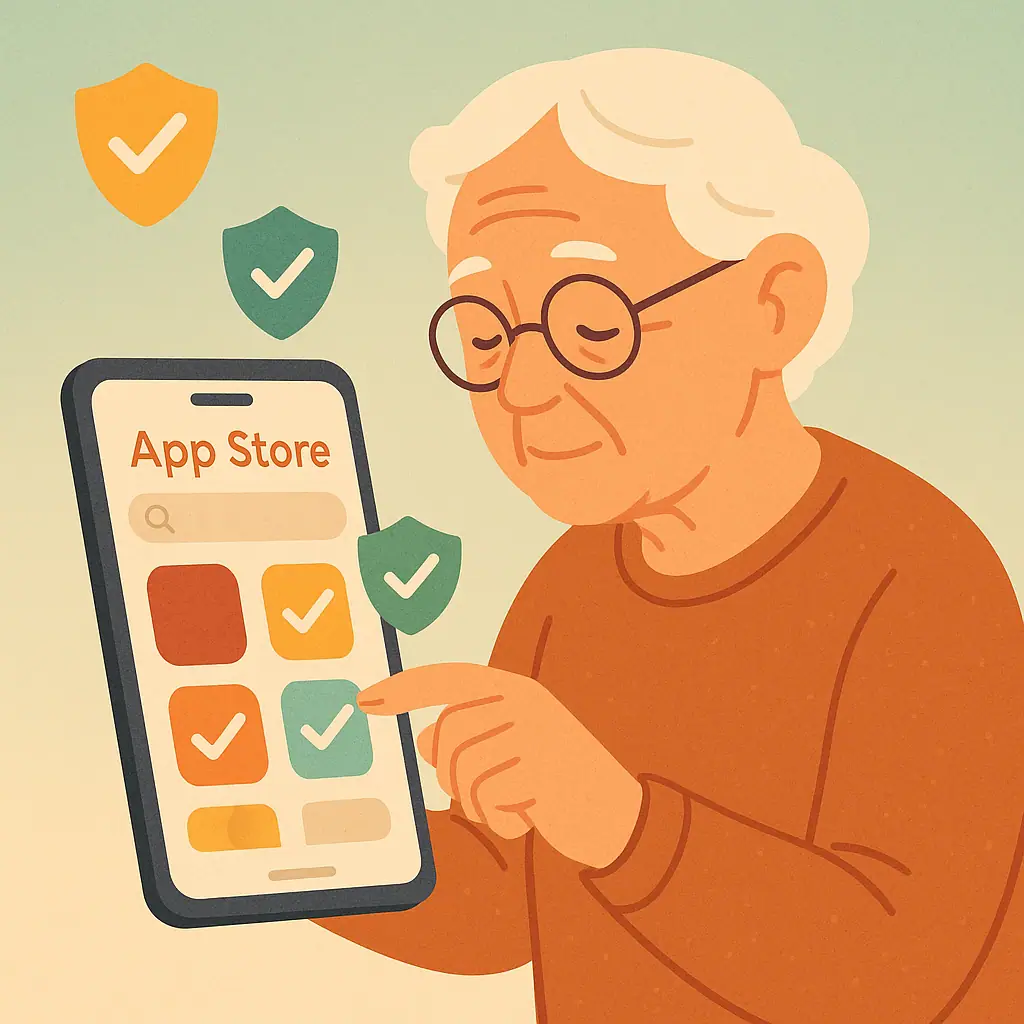
The safest banking app is usually the one your bank links to from its official website. Do not search randomly and choose the first result if you are unsure. Scammers sometimes copy names, colors, or logos to make a fake app look familiar.
How to confirm the app
Go to your bank's website by typing the address yourself or using a bookmark you trust. Look for a mobile banking or app page. From there, use the link to the Apple App Store or Google Play listing.
If you are not sure whether an app is real, compare the developer name, reviews, number of downloads, and bank website link. SenorSafe's guide to safe app downloads gives a simple routine you can use before installing any financial app.
Remove apps you do not recognize
If you see more than one app with a similar bank name, do not guess. Open the one you already know is official, or call the bank using the number on your card or statement. Avoid calling a phone number shown inside a suspicious message.
Make Your Phone Lock Screen Safer Before Banking
A banking app is only one part of the safety picture. Your phone itself needs a lock that another person cannot easily bypass. A strong passcode, Face ID, fingerprint unlock, or other built-in screen lock can protect your banking app if the phone is misplaced.
- Use a real passcode: Avoid simple patterns like 1234, 0000, birthdays, or the last four digits of your phone number.
- Keep bank alerts private: If your phone shows message previews on the lock screen, consider hiding previews for banking and email apps.
- Know your backup method: If Face ID or fingerprint unlock fails, make sure your passcode is something you can remember but others cannot guess.
- Review who knows the code: Share it only with a trusted person if you truly need emergency help.
For a deeper setup, use SenorSafe's guide to safer phone lock screen settings. A stronger lock screen makes every financial app safer, not just mobile banking.
Check App Permissions for Your Banking App
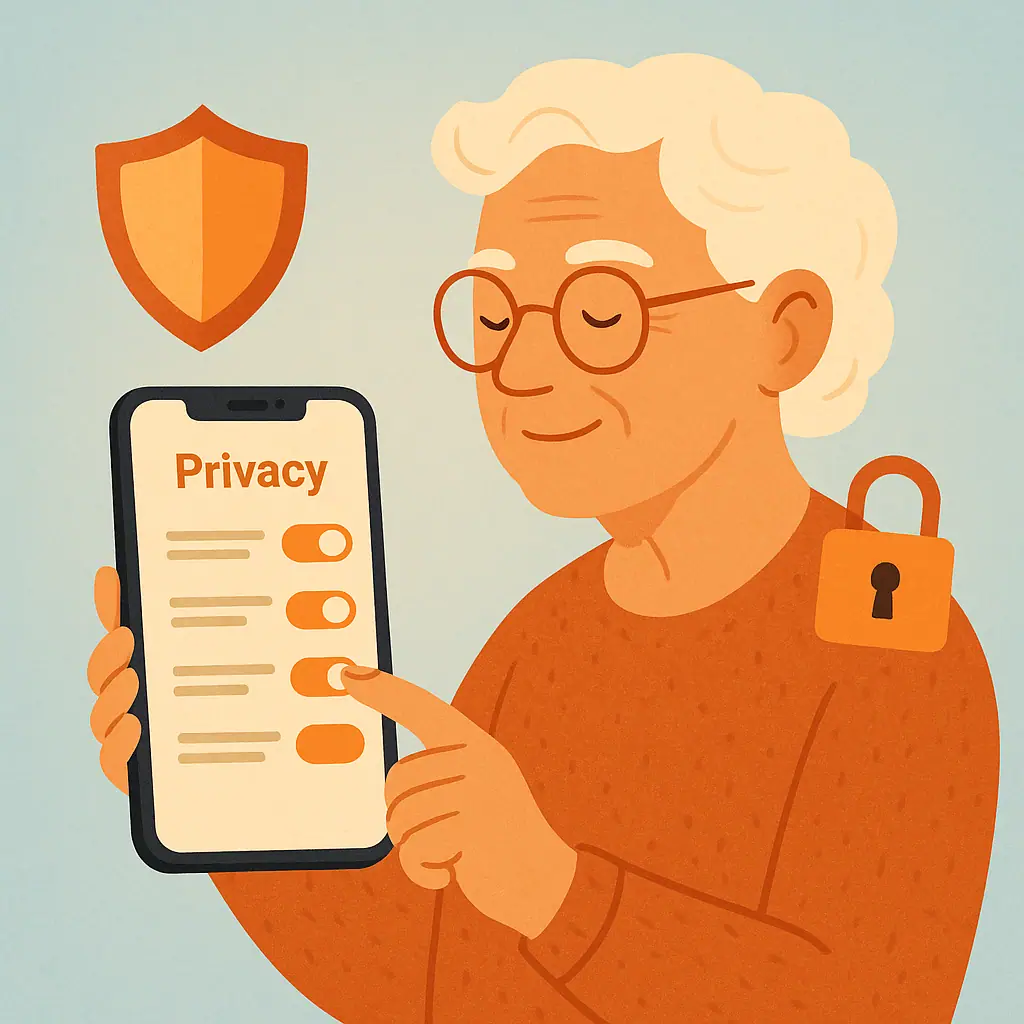
Some permissions are normal. A banking app may ask for camera access so you can deposit a check or scan a document. It may ask for notifications so it can send alerts. But it is still wise to review what the app can access.
On iPhone
Apple's official iPhone guidance says you can go to Settings, then Privacy & Security, and choose a hardware feature such as Camera or Microphone to control app access. Apple also explains that a green indicator appears when the camera is in use and an orange indicator appears when the microphone is used without the camera.
You can review Apple's current instructions here: Control access to hardware features on iPhone.
On Android
Google's Android help explains that you can change permissions for a single app through Settings, Apps, the app name, and Permissions. You can also use Security & Privacy, Privacy, and Permission Manager to review apps by permission type. Menu names can vary by phone brand and Android version.
Google's current instructions are available at Change app permissions on your Android phone.
Use Alerts and Public Wi-Fi Cautiously
Banking alerts are one of the easiest safety tools to turn on. Many banks can send notifications for large purchases, ATM withdrawals, low balances, password changes, and unusual sign-ins. Alerts do not prevent every problem, but they help you notice trouble faster.
Public Wi-Fi needs a slower approach. If you are at a library, airport, hotel, or coffee shop, avoid moving money or changing passwords unless you have a safe connection and you are sure the app is official. If the task can wait until you are at home on your own network, waiting is often the simpler choice.
- Turn on transaction alerts: Start with purchases, withdrawals, and transfers over an amount that matters to you.
- Use your bank's message center: If the app has a secure inbox, use it instead of replying to random texts or emails.
- Avoid banking from shared devices: Use your own phone, not a hotel lobby computer or someone else's tablet.
- Sign out after important tasks: Especially if another person sometimes uses your phone.
- Keep the app updated: Updates often fix security and reliability issues.
Mobile Banking Safety Seniors Should Practice Regularly
Think of mobile banking safety like locking your front door. You do not need to worry about the door all day. You just build a habit of checking it at the right time.
Use the official app
Install or update the app through your bank's official website link, the Apple App Store, or Google Play.
Keep alerts on
Transaction and sign-in alerts can help you respond quickly when something looks wrong.
Bank on a trusted connection
Use your home Wi-Fi or cellular connection for sensitive tasks when possible.
Following banking links in messages
Texts and emails can be fake. Open the app yourself instead of trusting a link in a surprise message.
Ignoring unfamiliar permissions
If a financial app asks for access that does not make sense, pause and verify before allowing it.
When to Get Extra Help
Ask for help if your bank app looks different than usual, you installed an app and now cannot find the official one, you received a message saying your account is locked, or you noticed a transaction you do not recognize.
Use a phone number from your debit card, credit card, bank statement, or the bank's official website. Do not use a phone number inside a suspicious text or email.
If you clicked a banking link and then feel unsure, read SenorSafe's guide on what to do after clicking a suspicious link. The right next step depends on whether you entered a password, downloaded something, or shared account details.
Frequently Asked Questions
Is mobile banking safe for seniors?
It can be safe when you use the official bank app, keep your phone locked, turn on alerts, avoid suspicious links, and bank on a trusted connection whenever possible.
Should I use mobile banking on public Wi-Fi?
If the task is sensitive, it is usually better to wait until you are on a trusted home network or cellular connection. Public Wi-Fi can be harder to judge, especially inside apps.
Does my banking app need camera permission?
It may need camera permission for mobile check deposit or document scanning. If you never use those features, you can turn camera access off and turn it back on later if needed.
What should I do if my bank sends a fraud alert?
Open your banking app yourself or call the number on your card or statement. Avoid tapping links or calling phone numbers inside a surprise text until you verify they are real.
Final Thoughts
Making mobile banking safer is mostly about slowing down and using trusted paths. Open the official app yourself, protect the phone with a strong lock screen, keep alerts on, review permissions, and avoid banking through links in surprise messages.
Choose one step today: turn on a transaction alert, check your bank app permissions, or confirm that your app came from the official store. One small habit can make the next banking task feel much safer.