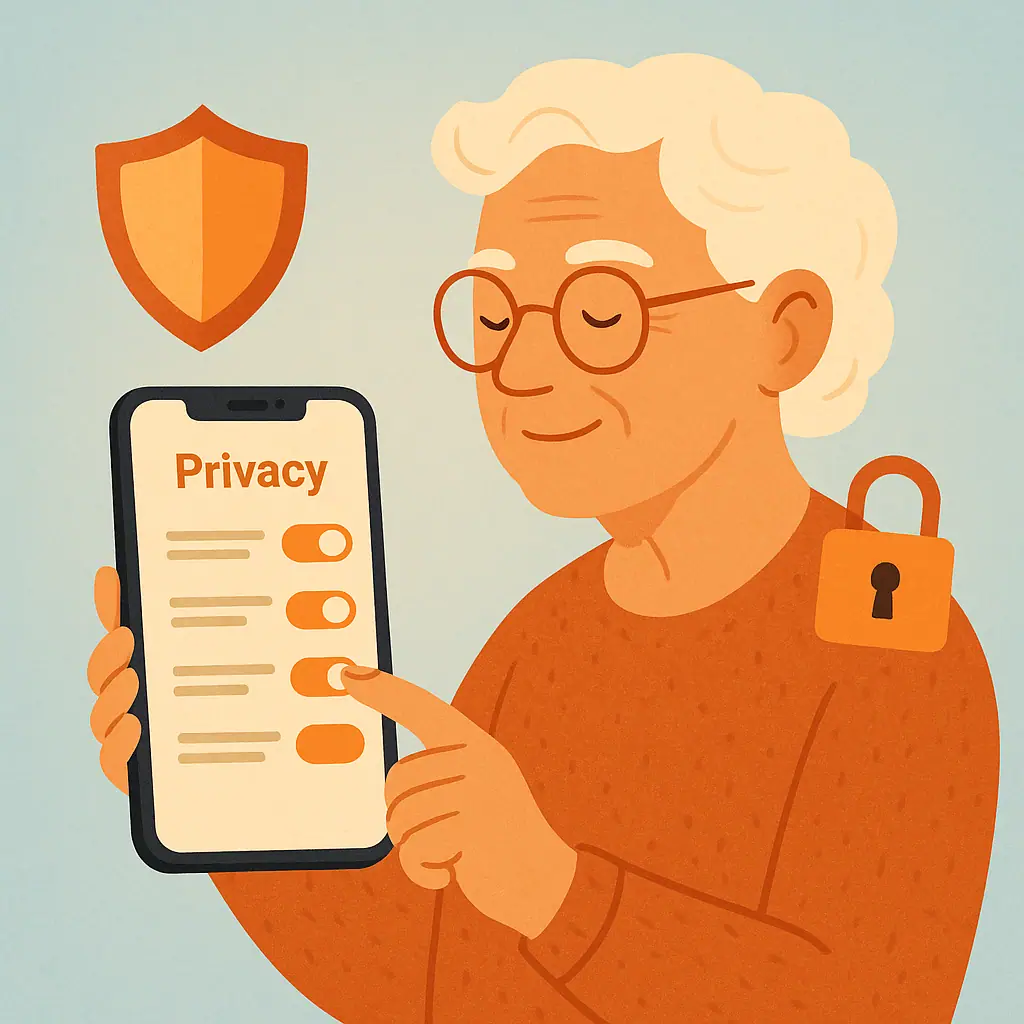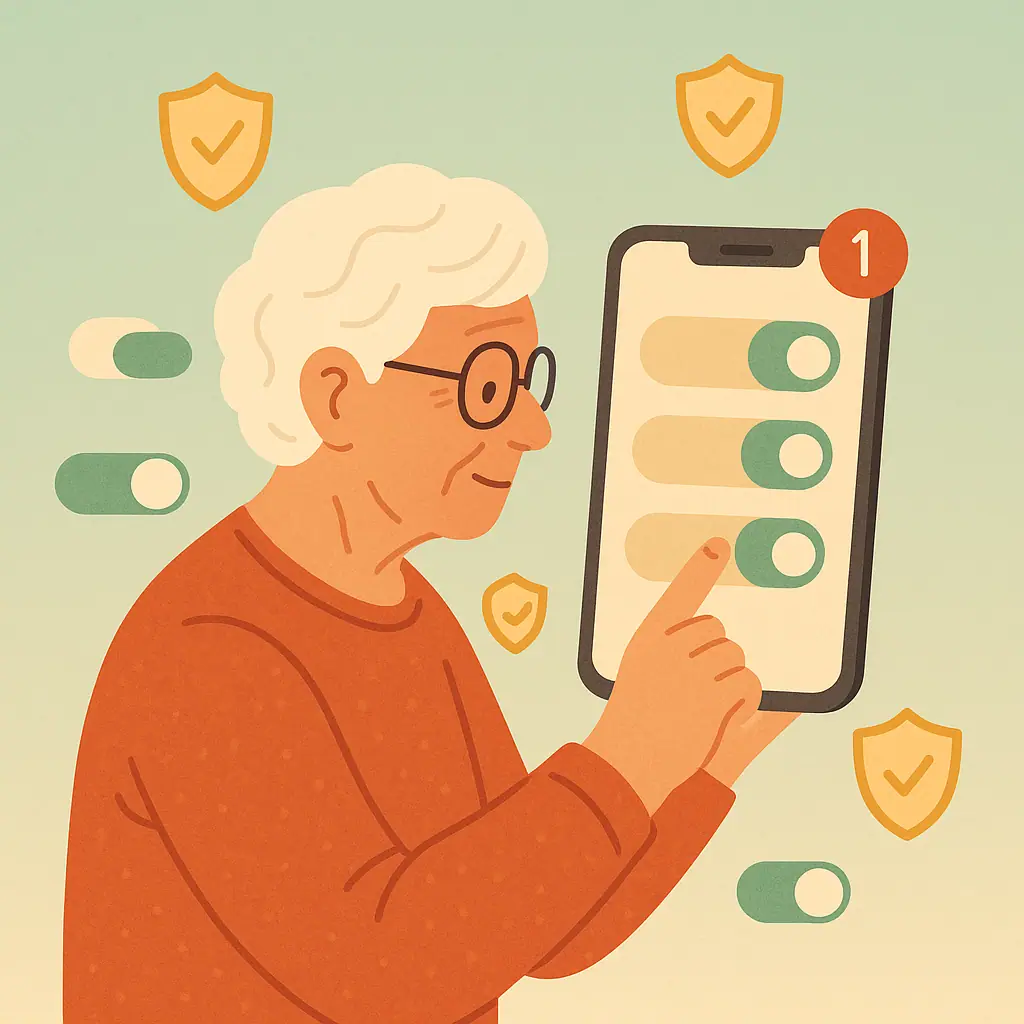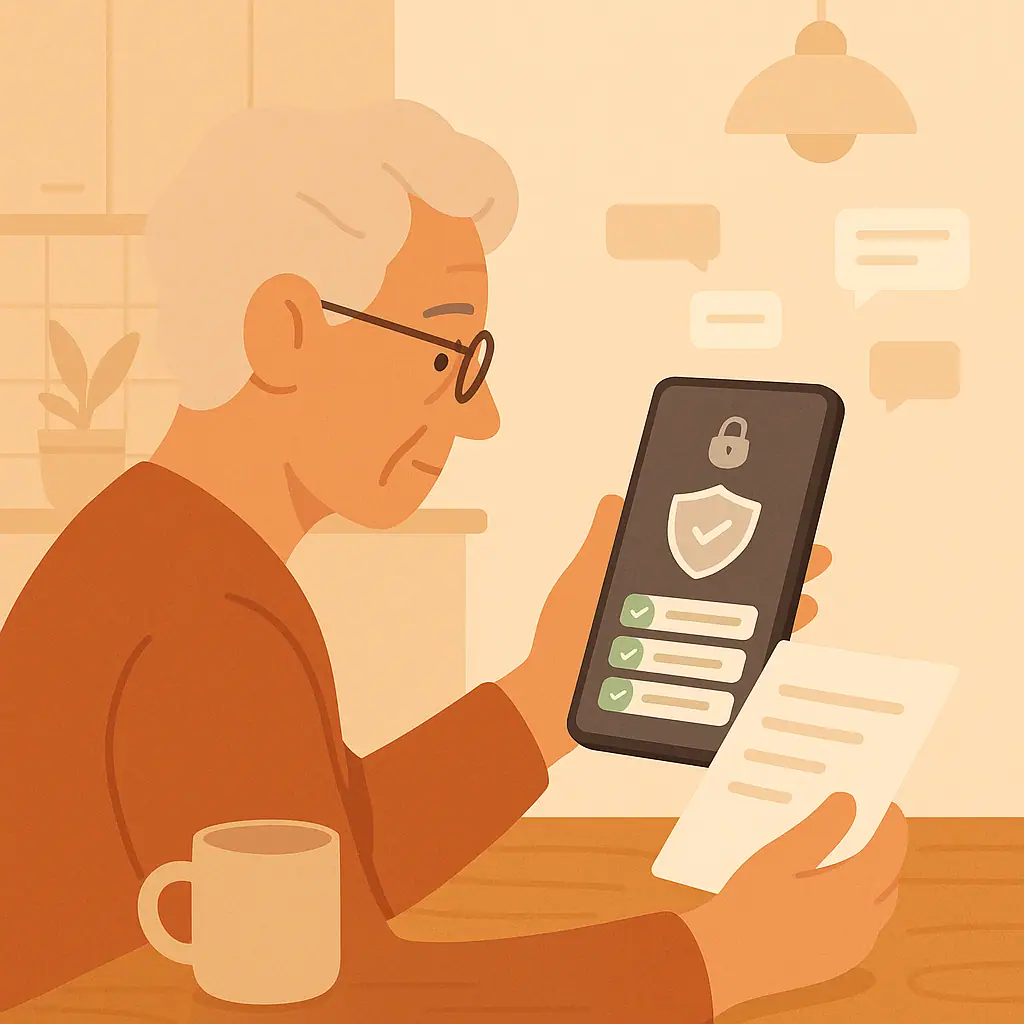
Your phone lock screen is like the front porch of your digital life. It is not fully inside your phone, but it can still show messages, calendar reminders, payment shortcuts, health details, and other clues before the phone is unlocked.
Good phone lock screen privacy settings do not have to make your phone hard to use. The goal is simple: keep the phone easy for you to open, useful in an emergency, and less revealing to anyone who picks it up, borrows it, or sees it sitting on a table.
Why Phone Lock Screen Privacy Settings Matter
A locked phone can still reveal more than many people realize. Text message previews may show private conversations. Email previews may show account alerts. Calendar reminders may show where you are going. Wallet or device controls may be convenient, but they are worth reviewing calmly.
Apple's iPhone guide explains that passcode options include custom numeric and custom alphanumeric codes, which are stronger than the shortest simple codes. You can review Apple's official page on how to set or change an iPhone passcode if you want the current menu wording.
Start With a Lock Method You Can Actually Use
The strongest lock is not helpful if you cannot remember it or avoid using it. Choose a method that fits your hands, eyesight, memory, and daily routine. For many people, that means a longer passcode plus Face ID, Touch ID, fingerprint unlock, or face unlock when available.
If your phone also holds emergency contacts, take a moment to understand what should stay accessible. Our guide to setting up emergency contacts and medical information on your phone explains the helpful side of lock screen access.
After that, come back to this article and decide what should be hidden. Safety and privacy can work together when each setting has a purpose.
Use more than the shortest PIN
A four-digit PIN is easy to type, but it can also be easier for someone nearby to guess or observe. If your phone allows a six-digit PIN, a custom numeric code, or an alphanumeric passcode, consider using one that is still memorable for you.
Keep biometrics as convenience, not your only plan
Face or fingerprint unlock can make a longer passcode less annoying. Still, you should know the passcode and keep it private. Do not share it casually with visitors, helpers, or people who only need to make a quick call.
Hide Sensitive Notifications on the Lock Screen
Notification previews are often the biggest lock screen privacy issue. A message can show the sender, the first sentence, a banking alert, an appointment, or a password reset notice while the phone is still locked.
On iPhone, Apple says you can choose whether notification previews appear always, when unlocked, or never. The official Apple guide to changing notification settings on iPhone confirms that previews can include things like Messages, Mail, and Calendar details.
On Android, Google explains that lock screen notification choices vary by phone, but may include hiding sensitive content or not showing lock screen notifications. Google's Android help page on controlling notifications on Android is a useful place to check current labels.
A calm setting to try first
Start with a balanced option: show that you have notifications, but hide the private content until the phone is unlocked. This lets you notice activity without displaying the message itself to anyone nearby.
Review the most sensitive apps one by one
You do not need to change every app at once. Begin with Messages, Mail, banking apps, health apps, calendar apps, and delivery apps. Then decide whether each app should show full previews, partial alerts, or no lock screen alerts.
Review Wallet, Control Center, and Quick Access Features
Modern phones let you do useful things from the lock screen: open the camera, control music, use a wallet, view device controls, or check widgets. These shortcuts can be convenient, but convenience should match your comfort level.
Apple's lock screen feature guide says iPhone users can manage items allowed when locked, such as Control Center, widgets, and other features, from Face ID & Passcode or Touch ID & Passcode settings. Review Apple's page on turning on lock screen features on iPhone for the current list.
Google's Wallet help says Android users may be able to show wallet access on the lock screen through Settings and Display, depending on the device. The official Google page about Google Play services for Wallet preferences explains that lock screen wallet access is a setting you can control on supported phones.
- Wallet access: Decide whether payment shortcuts should appear before unlock, especially if you often misplace your phone.
- Control Center or quick settings: Review whether someone can change wireless settings or device controls while the phone is locked.
- Smart home controls: If your phone can control lights, locks, cameras, or thermostats, make sure lock screen access feels appropriate.
- Camera shortcut: This is usually lower risk than messages or payments, but you can still review it if privacy is a concern.
- Widgets: Weather may be harmless, but calendar, reminders, travel, or health widgets may reveal more than you want.
Balance Emergency Information With Privacy
Emergency information is different from ordinary private information. You may want first responders or a helpful stranger to see an emergency contact, allergy note, or medical condition even when the phone is locked. The question is how much information to show.
Apple explains that Medical ID can be shown when locked, and Android's emergency help says anyone who picks up the phone may be able to find lock screen emergency information if it is enabled. Google notes this clearly on its page about getting help during an emergency with Android.
Choose information that would truly help in an emergency. Avoid adding details that are not needed by a responder or trusted helper. If you are unsure, ask your doctor or a trusted family member what would be useful without being excessive.
A Step-by-Step Lock Screen Safety Check
Use this simple routine when you have ten quiet minutes. You can stop after any step and come back later.
- Check your screen lock: Make sure your phone requires a passcode, PIN, password, fingerprint, or face unlock.
- Strengthen the code if needed: Move from a very short PIN to a longer PIN or custom passcode you can still remember.
- Hide sensitive previews: Set messages, mail, banking, health, and calendar apps to hide private content until unlocked.
- Review wallet shortcuts: Decide whether payment or pass shortcuts should show before the phone is unlocked.
- Review quick controls: Look at Control Center, Quick Settings, smart home controls, widgets, and similar lock screen features.
- Check emergency information: Keep helpful emergency details, but remove anything that is not needed on a locked phone.
- Test your changes: Lock the phone, wake the screen, and see what a stranger could read without unlocking it.
- Write down what changed: A small note can help you remember where to look if you want to adjust the setting later.
If this topic makes you want to review more phone privacy habits, our article on checking which apps can use your camera and microphone is a good next step. It follows the same one-setting-at-a-time approach.
Common Mistakes to Avoid
The biggest mistake is trying to make the lock screen perfect in one sitting. A phone should still work for you. A setting that causes daily frustration may lead you to turn security off completely, which is not the goal.
Do not hide every alert without a plan
Some alerts matter, such as banking notifications, security codes, medication reminders, or calls from family. You can often hide the private content while still allowing the alert itself to appear.
Do not make emergency access useless
If you want emergency contacts or medical notes available, test how they appear from the lock screen. Remove unnecessary details, but keep the parts that would help someone assist you.
Do not share the passcode for convenience
If someone needs to use your phone often, consider whether there is a safer arrangement. Sharing the passcode gives access to messages, photos, email, saved passwords, wallet apps, and account settings.
Pros and Cons of Tightening Lock Screen Privacy
Protects private messages
Hiding previews keeps texts, emails, appointments, and account alerts from showing before the phone is unlocked.
Reduces casual access
A stronger passcode and fewer lock screen shortcuts make it harder for someone nearby to misuse the phone.
Keeps useful safety options
You can still allow carefully chosen emergency information while hiding everyday private details.
May take a little adjustment
You may need to unlock the phone more often to read full messages or use certain shortcuts.
Menus vary by phone
Android brands and software versions use different labels, and Apple may change menu wording over time.
When to Ask for Help
Ask a trusted person for help if you cannot find the setting, if your phone looks very different from the official instructions, or if you worry about locking yourself out. It is better to pause than to guess.
You can also review related privacy settings slowly. For example, location history is separate from lock screen privacy, but it affects what your phone remembers about places you go. Our guide to reviewing location history on iPhone and Android can help when you are ready for that next check.
Frequently Asked Questions
Should I turn off all lock screen notifications?
Not necessarily. Many people prefer to show that a notification arrived but hide the message content until the phone is unlocked. That is usually a good balance.
Is Face ID or fingerprint unlock safer than a PIN?
Face or fingerprint unlock can be convenient, but your passcode still matters. Use biometrics with a passcode that is not too short, obvious, or shared.
Should emergency information be visible on a locked phone?
It can be helpful if it includes only what a responder or trusted helper needs. Review it carefully so the lock screen does not show unnecessary personal details.
Why do the settings look different on my Android phone?
Android settings vary by brand and software version. Look for similar words such as Lock screen, Notifications, Privacy, Security, Wallet, or Emergency information.
Final Thoughts
Phone lock screen privacy settings are worth reviewing because they sit between convenience and protection. You do not have to remove every shortcut or hide every alert. You only need to decide what should be visible before your phone is unlocked.
Start with one change today: hide sensitive notification previews, strengthen your passcode, or review emergency information. A safer lock screen should feel calmer, clearer, and easier to trust.