Account lockouts often happen at the worst time: a forgotten password, a new phone, a browser that asks you to sign in again, or a suspicious login warning you did not expect. The good news is that a little preparation now can make recovery much less stressful later.
This account recovery setup guide for seniors explains the simple pieces to put in place before you need them. Think of it like keeping a spare house key with someone trustworthy. You hope you never need it, but you are very glad it exists when the door will not open.
The goal is not to share every private detail with family or write passwords everywhere. The goal is to make sure your important accounts have safe ways to prove it is really you.
What Is Account Recovery?
Account recovery is the process a website or app uses to help you get back in when normal sign-in does not work. It may ask for a recovery email, a recovery phone number, a code from a trusted device, or a backup code you saved earlier.
For example, Google says recovery information can help if you forget your password, someone else uses your account, or you are locked out for another reason. Their official help page explains how to add recovery phone and email options in your account settings: Google Account recovery options.
Recovery is different from simply having a password. A password opens the front door. Recovery tools help prove your identity if the front door key is missing, changed, or not accepted.
The five recovery pieces to know
- Recovery email: A second email address where the service can send security notices or reset steps.
- Recovery phone: A mobile number that can receive codes or alerts when the account needs confirmation.
- Backup codes: One-time codes you save before trouble happens, often used when two-factor authentication is turned on.
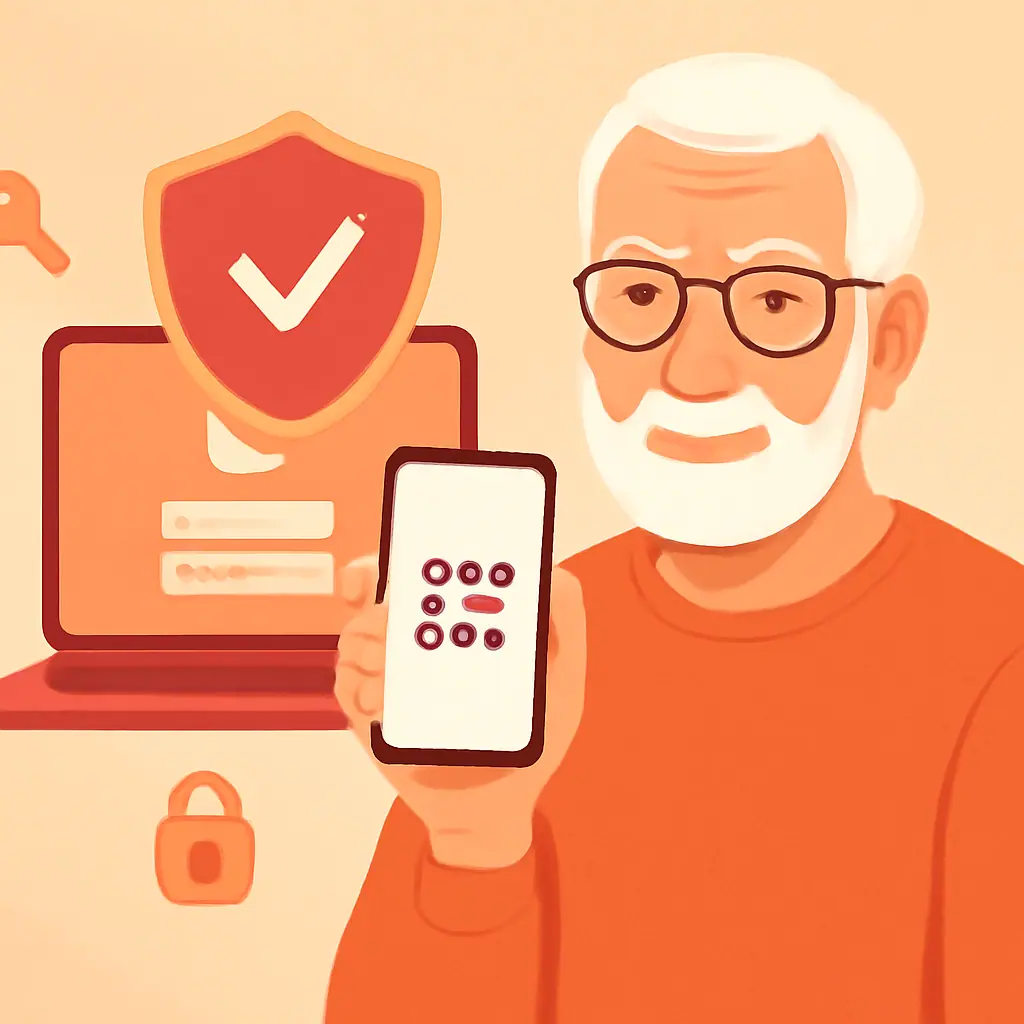
- Trusted devices: Phones, tablets, or computers the service already recognizes as yours.
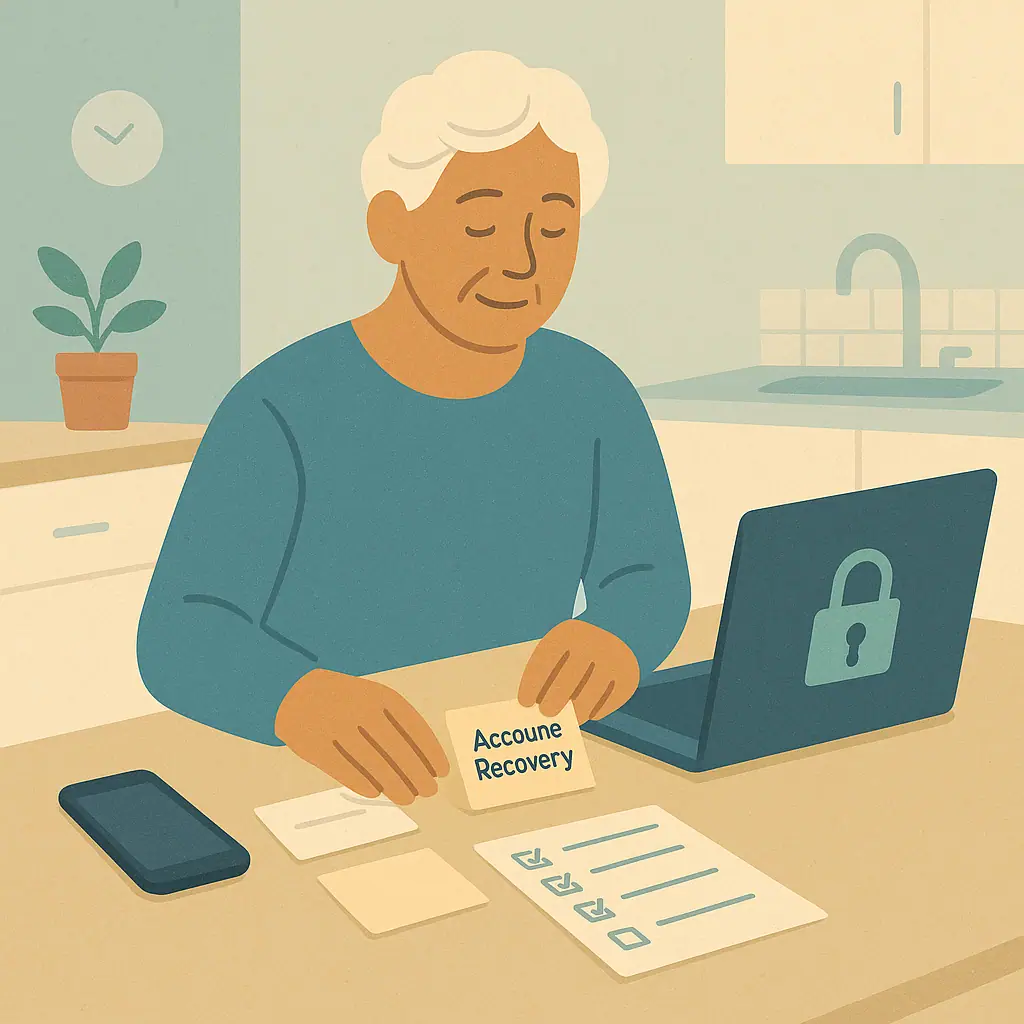
- Emergency notes: A simple written record showing where recovery information is stored, without exposing every password.
Why This Matters Before Trouble Starts
Many people only think about recovery after they are already locked out. By then, the account may ask for proof you cannot reach anymore, such as an old phone number, a closed email address, or a device you replaced months ago.
Microsoft also offers a recovery code for Microsoft accounts. Its official support page explains that a recovery code is used to regain access if you forget your password or your account is compromised, and it advises printing the code and keeping it in a safe place rather than storing it on the same device you use to sign in: Microsoft account recovery code guidance.
If you are also reviewing your main login habits, it helps to first create a strong password you can actually remember. A strong password and updated recovery information work together: one helps keep people out, and the other helps you get back in safely.
Step-by-Step Account Recovery Setup Guide for Seniors
Set aside 20 to 30 quiet minutes for your most important accounts: email, banking, Medicare-related accounts, Amazon, Facebook, Apple, Google, or Microsoft. Do one account at a time so the process stays calm.
1. Check your recovery email
Look for a section called Security, Sign-in, Password and security, or Account recovery. Confirm that the recovery email is one you still use and can open today. Avoid using an email address you rarely check or one that belongs to someone you do not fully trust.
2. Check your recovery phone
Make sure the phone number belongs to you, receives text messages, and is not an old landline or disconnected mobile number. If you changed carriers, moved numbers, or gave an old phone to someone else, this is worth checking carefully.
3. Save backup codes the safe way
If the account offers backup codes, create a fresh set and store them somewhere secure. A printed copy in a locked drawer or home safe is often safer than a photo saved on the same phone that might be lost.
This is especially useful if you use two-step login. If that phrase still feels confusing, read our plain-English guide to two-factor authentication explained simply before you turn on new settings.
4. Review trusted devices
Most large services show devices that are currently signed in or recently used. Remove devices you no longer own, such as an old phone, a sold tablet, or a computer you used while traveling. Keep only devices you recognize.
5. Write an emergency note without exposing everything
Your note should not list every password. Instead, write where recovery items are stored and who should help if you are unavailable. For example: “Backup codes for email are in the blue folder in the locked desk drawer.”
Practical Tips for Safer Recovery
- Use your own phone number: Do not use a number shared by many people unless there is no better option.
- Keep recovery email separate: If possible, use a second email that also has its own strong password and recovery settings.
- Update after life changes: Review recovery settings after changing phones, moving, closing an email account, or changing a family helper.
- Do not trust surprise callers: A real company will not call out of nowhere and demand your password, recovery code, or text message code.
- Tell one trusted person where instructions are: They do not need your password, but they can know where your emergency note is kept.
Pros and Cons of Setting This Up Now
Less panic during lockouts
You already know which email, phone, or code can help you get back in.
Better protection from account theft
Updated recovery details make it harder for someone else to quietly take over your account.
Easier family support
A trusted helper can follow your instructions without needing full access to your private information.
Takes a little time
You may need to sign in, receive codes, and check a few menus.
Must be kept current
Recovery information becomes less helpful if phone numbers or emails are out of date.
Frequently Asked Questions
Do I need both a recovery email and a recovery phone?
When available, yes. Having more than one recovery method gives you another safe path if your phone is lost or your email is temporarily unavailable.
Where should I keep backup codes?
Keep them somewhere protected but reachable, such as a locked drawer, home safe, or sealed envelope with other important papers. Avoid saving the only copy on the same phone or laptop you use to sign in.
Should I give my password to a family member?
Usually, no. A safer approach is to document where recovery instructions are kept and choose one trusted helper for emergencies.
What if I think someone already got into my account?
Act quickly: change the password from a safe device, review recovery settings, remove unknown devices, and follow the steps in our guide on what to do if your password was stolen.
Final Thoughts
Account recovery is not about being technical. It is about preparing a calm backup plan while everything still works. Start with your main email account, then repeat the same check for your most important services.
Once your recovery email, phone number, backup codes, and emergency note are in order, you will have a much safer path back in if a lockout ever happens.