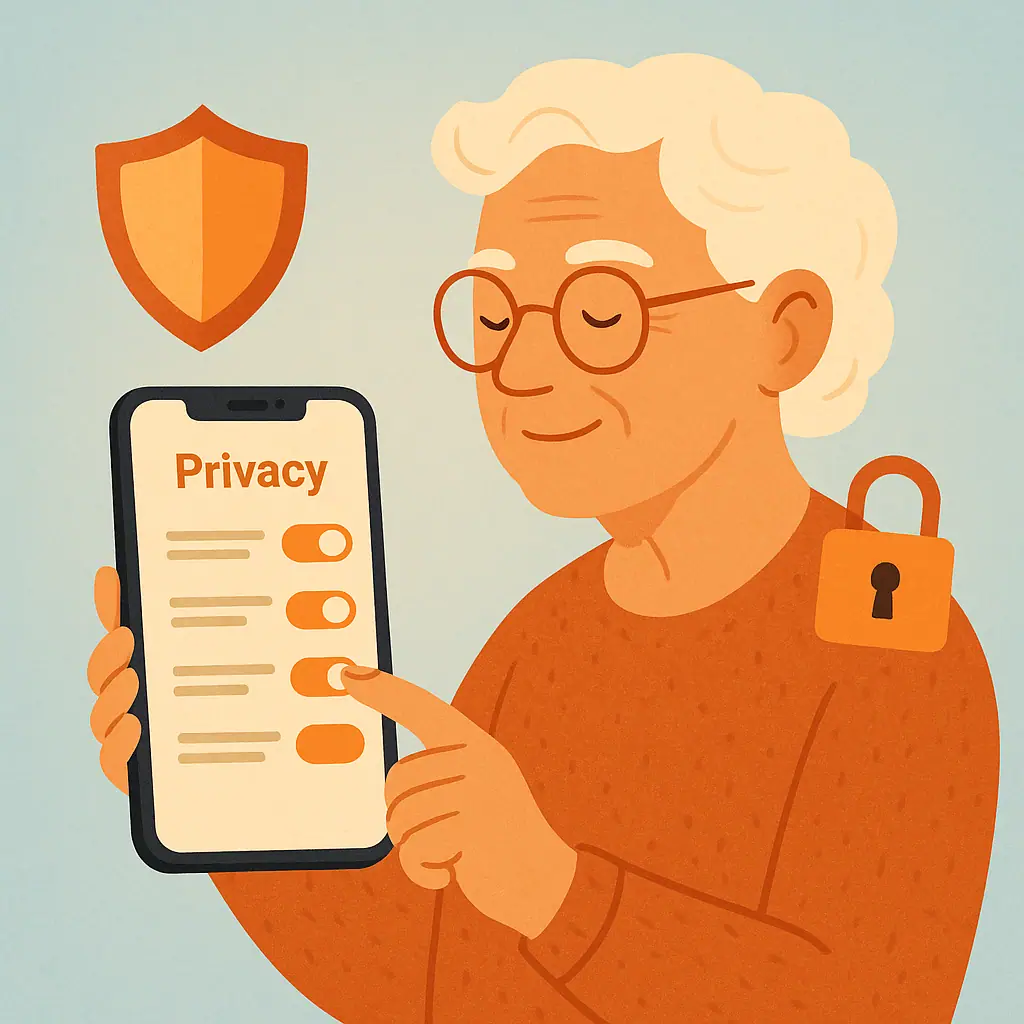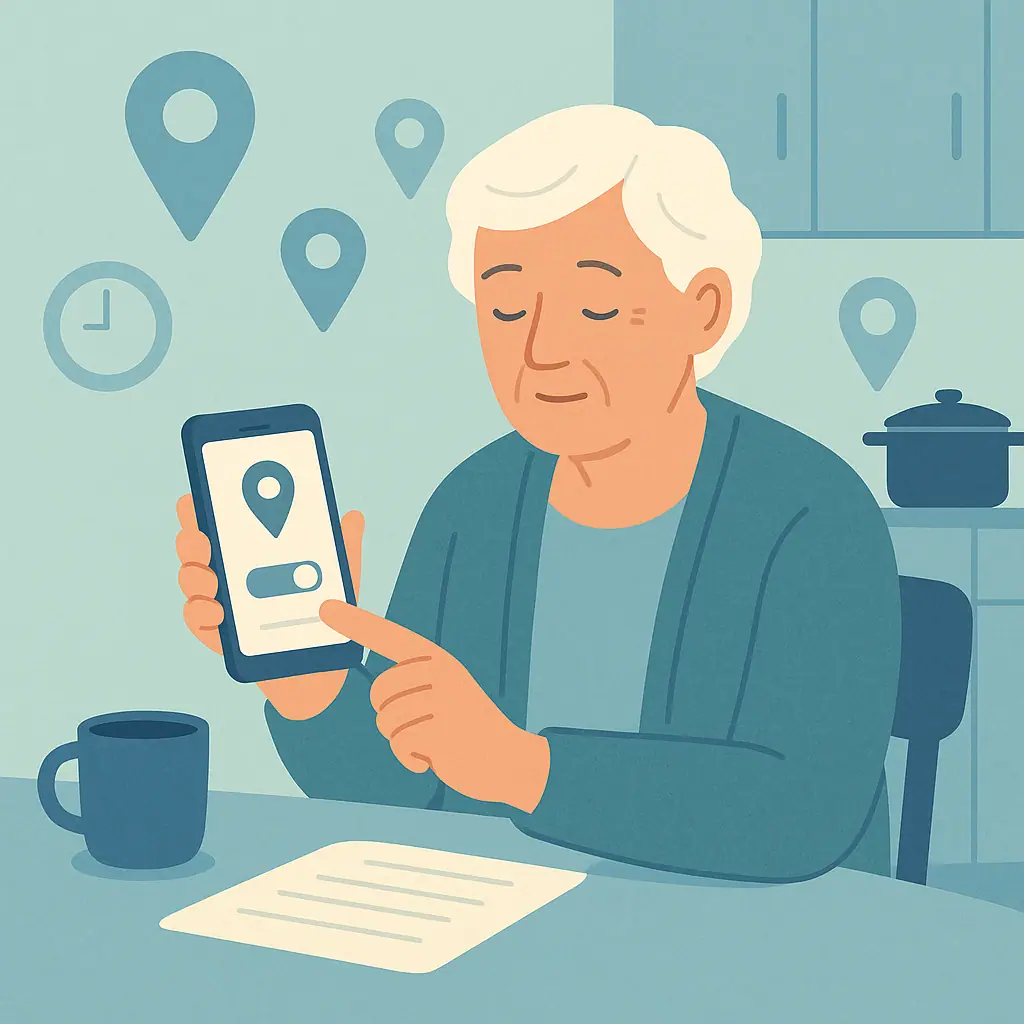
Learning how to review location history on iPhone and Android can feel confusing at first, especially because each phone uses slightly different words. The good news is that you do not need to be a technology expert to make safer choices.
Location history is simply a record of places your phone or apps may remember. It can help with maps, directions, weather, photos, and finding a lost device. It can also feel too personal if old places, routines, or visits are saved longer than you expected.
This guide will help you check the main location areas calmly, understand what you are seeing, and decide whether to keep, pause, or delete some location information.
Why Review Location History Phone Settings?
Your phone uses location in more than one way. Some access happens when an app needs your current position, such as a maps app giving directions. Other access may create a history, such as a timeline of places you visited.
Apple explains that iPhone Location Services choices can be reviewed in Settings under Privacy & Security, including which apps can use location and some system services. You can read Apple's official overview of privacy and Location Services if you want the current Apple wording.
Start With Phone & App Privacy
Before opening detailed menus, decide what you want from the review. Some people want location features to work normally, but only for trusted apps. Others want fewer records saved. Both are reasonable choices.
If you are already cleaning up phone privacy settings, our guide on turning off personalized ads on your phone is a useful companion step. Ad settings and location settings are separate, but both help reduce unnecessary personal tracking.
It also helps to understand app permissions in general. For a related walkthrough, see our guide on checking camera and microphone permissions. The same habit applies here: look, decide, change one setting at a time, and test afterward.
How to Review Location History on iPhone
On an iPhone, begin with the general location controls. Open Settings, then look for Privacy & Security, and then Location Services. If your iPhone uses slightly different words, look for anything named Privacy, Security, or Location.
Check which apps can use location
Inside Location Services, review the app list. You may see choices such as Never, Ask Next Time, While Using the App, or Always. For many everyday apps, While Using the App is enough. Apps that do not clearly need your location can often be changed to Never.
Check Significant Locations
Apple devices may also have a setting called Significant Locations under System Services. This area can show places your device considers important, depending on your settings and software version. If you do not want this feature, you can turn it off or clear history from the same general area.
Move slowly here. If you are unsure what a setting does, leave it as is, write down the name, and ask a trusted person before changing it.
How to Review Location History on Android
Android phones vary because Samsung, Google Pixel, Motorola, and other brands organize settings differently. Start with Settings, then look for Location, Privacy, or Permissions.
Check app location permissions
Look for an area called App location permissions, Permission Manager, or Location permissions. Review which apps have access all the time, only while in use, or not at all. A weather app may need a general location. A flashlight, game, or simple calculator usually does not.
Check Google Maps Timeline
Many Android users also have location information connected to Google Maps Timeline. Google says Timeline can help you manage and delete location information. The official Google Account help page on managing Timeline data explains current options for reviewing, deleting, or changing how Timeline information is handled.
Which Location Access Is Usually Normal?
Some location access is expected. A maps app needs location for directions. A weather app may use your city. A ride service needs pickup and drop-off points. A photo app may use location if you want pictures grouped by place.
Other access deserves a second look. If an app has no clear reason to know where you are, change it to a more limited option or turn it off. If something stops working, you can turn permission back on later.
- Usually reasonable: maps, weather, emergency tools, rides, delivery, and trusted travel apps.
- Worth reviewing: shopping apps, games, coupon apps, unfamiliar apps, and apps you rarely open.
- Change carefully: Find My iPhone, Find My Device, emergency services, and family safety features may be useful in real emergencies.
How to Turn Off or Delete Location History Safely
The safest approach is to change one thing at a time. If you turn off several settings at once, it becomes harder to know which change affected maps, weather, photos, or family location sharing.
- Start with app permissions: Limit location for apps that do not need it.
- Test important apps: Open maps, weather, and any family safety app you rely on.
- Review timeline or significant locations: Decide whether to keep, pause, or delete saved history.
- Write down what you changed: A small note helps you reverse a setting later if needed.
- Ask before changing safety features: If a family member helps you find a lost phone, check with them before turning that feature off.
If you find old apps you no longer recognize, location review is a good time to remove clutter. Our guide to finding and deleting unused apps explains how unused apps can create privacy noise over time.
Pros and Cons of Keeping Location History
Helpful memories and directions
Location history can help you remember a restaurant, route, store, or trip from the past.
Useful phone features
Some services work better when your phone understands your usual places or recent travel.
Lost-device support
Location features can help you or a trusted person find a misplaced phone.
Feels too personal
A long record of places can feel uncomfortable, especially if you did not know it was saved.
More settings to manage
Location controls can be spread across phone settings, app settings, and account settings.
Possible confusion later
Turning off too much at once may make maps, weather, photos, or family safety tools behave differently.
A Simple Checklist
Use this checklist every few months, or whenever you install several new apps.
- Phone setting: Did you review the main Location area in Settings?
- App permissions: Are any unfamiliar apps allowed to use location all the time?
- Timeline or history: Do you want old places saved, paused, or deleted?
- Safety tools: Did you keep lost-phone and emergency features you still use?
- Testing: Did maps, weather, and trusted family features still work afterward?
When to Get Extra Help
Ask for help if you see a location record you do not understand, if a family safety feature stops working, or if you are unsure whether a setting is connected to emergency help. A trusted family member, local library technology class, or phone store can help you compare the setting with your goal.
If your bigger concern is apps tracking where you go, our guide on stopping apps from tracking your location goes deeper into app-level choices. Take one step at a time so the process stays manageable.
Frequently Asked Questions
Should I turn off location for every app?
No. Maps, weather, rides, delivery, emergency, and lost-phone tools may need location. Limit apps where the reason is unclear.
Will deleting location history break my phone?
Deleting history should not break the phone itself, but some services may lose old timeline details or personalized place suggestions.
Why do menu names look different on my phone?
Phone brands and software versions vary. Look for similar words such as Location, Privacy, Permissions, Timeline, and System Services.
What if an app stops working after I change location access?
Open the app and see which feature is affected. If you trust the app and need that feature, turn location back on for that app only.
Final Thoughts
Knowing how to review location history on iPhone and Android gives you more control without needing to understand every technical detail. The goal is not to turn off everything. The goal is to know which apps and services are using your location, then choose what feels useful and comfortable.
Your next safe step is simple: open your phone's Location settings and review just three apps today. Small, calm checks are easier to maintain than one stressful privacy overhaul.