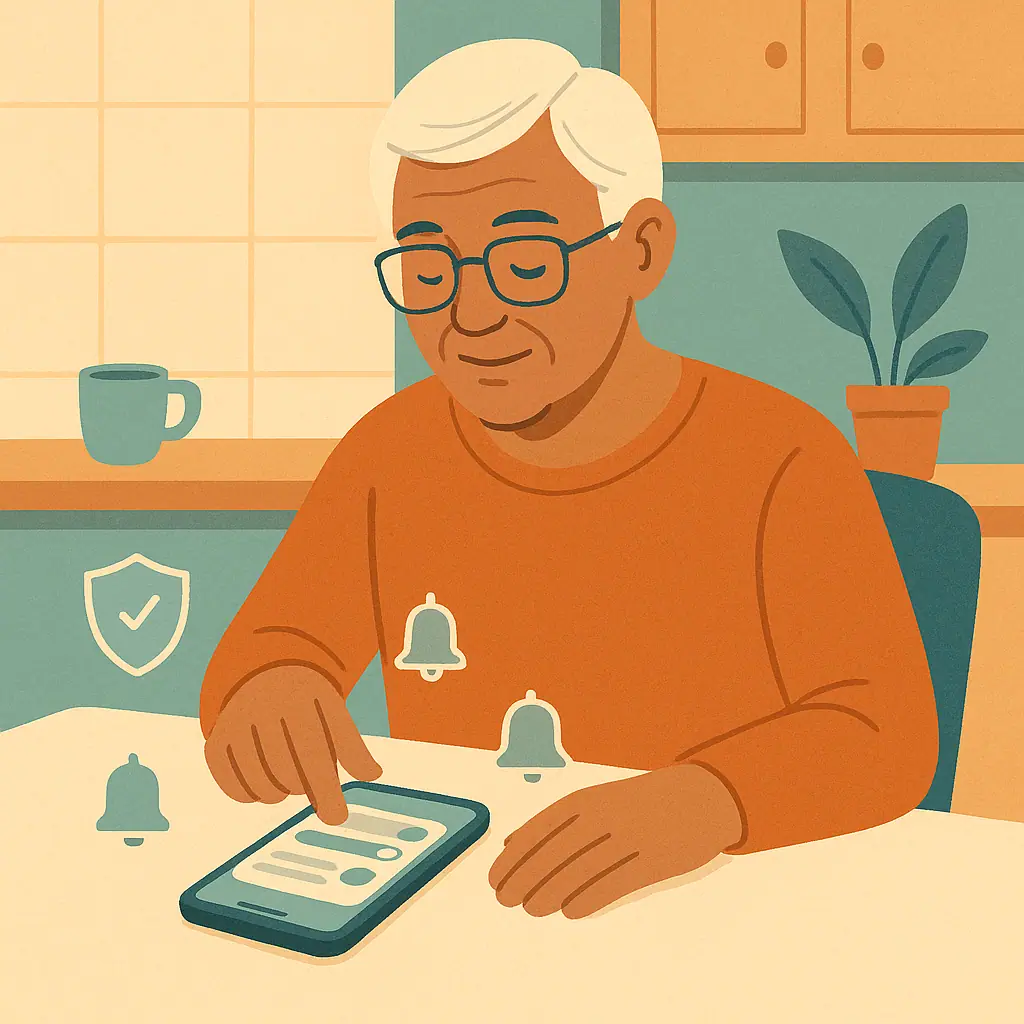
Too many phone notifications can make every buzz feel urgent. Weather, games, shopping apps, social media, delivery updates, banking messages, health reminders, and security alerts may all arrive in the same noisy stream. After a while, the truly important alerts become easier to miss.
The goal is not to turn everything off. It is to make the important things easier to notice. Apple says iPhone users can manage notifications to minimize interruptions, and Android users can control many notification and emergency alert settings through system options. A few careful changes can make your phone calmer without making it less safe.
This guide focuses on phone notification security alerts: the account, banking, device, and emergency messages you still want to see while quieting the less important noise.
Why Notification Overload Becomes a Safety Problem
When every app asks for attention, your brain starts treating alerts as background noise. That can be risky if a bank warns about a login, a password manager asks for approval, or your phone displays an emergency alert.
Notification overload also creates pressure. Scammers like urgency, and a crowded notification screen can make people tap too quickly. If you want a related habit, the guide on checking devices logged into your accounts helps you respond calmly when an account alert appears.
Start With Three Alert Groups
Sort before you switch things off
Before changing settings, divide notifications into three groups. The first group is essential: bank alerts, account sign-in notices, emergency warnings, medication or medical reminders, password manager prompts, and trusted family contacts. The second group is useful but not urgent: deliveries, calendars, rides, and appointments. The third group is optional: shopping offers, games, news pings, and social media reactions.
This sorting step prevents the biggest mistake: turning off too much at once. You want less noise, not silence where safety alerts should be.
What to Keep Easy to Notice
Important alerts deserve a clear path
Keep security and recovery alerts visible. If your email, bank, Apple ID, Google account, password manager, or phone carrier sends a login warning, you want to notice it quickly. You may also want trusted family contacts to come through clearly.
- Bank and card alerts: Keep purchase, transfer, and login warnings visible.
- Email account alerts: Keep sign-in and recovery notices from your main email account.
- Password manager alerts: Keep approval requests and breach warnings enabled.
- Emergency alerts: Treat public safety and weather alerts carefully before disabling anything.
- Trusted people: Allow close family or caregivers through focus or quiet modes if your phone supports it.
For emergency warning controls, Google notes that Android settings can vary by phone, but its Android notification help explains that wireless emergency alerts can be reviewed and adjusted from notification settings on supported devices.
How to Reduce Notification Overload Step by Step
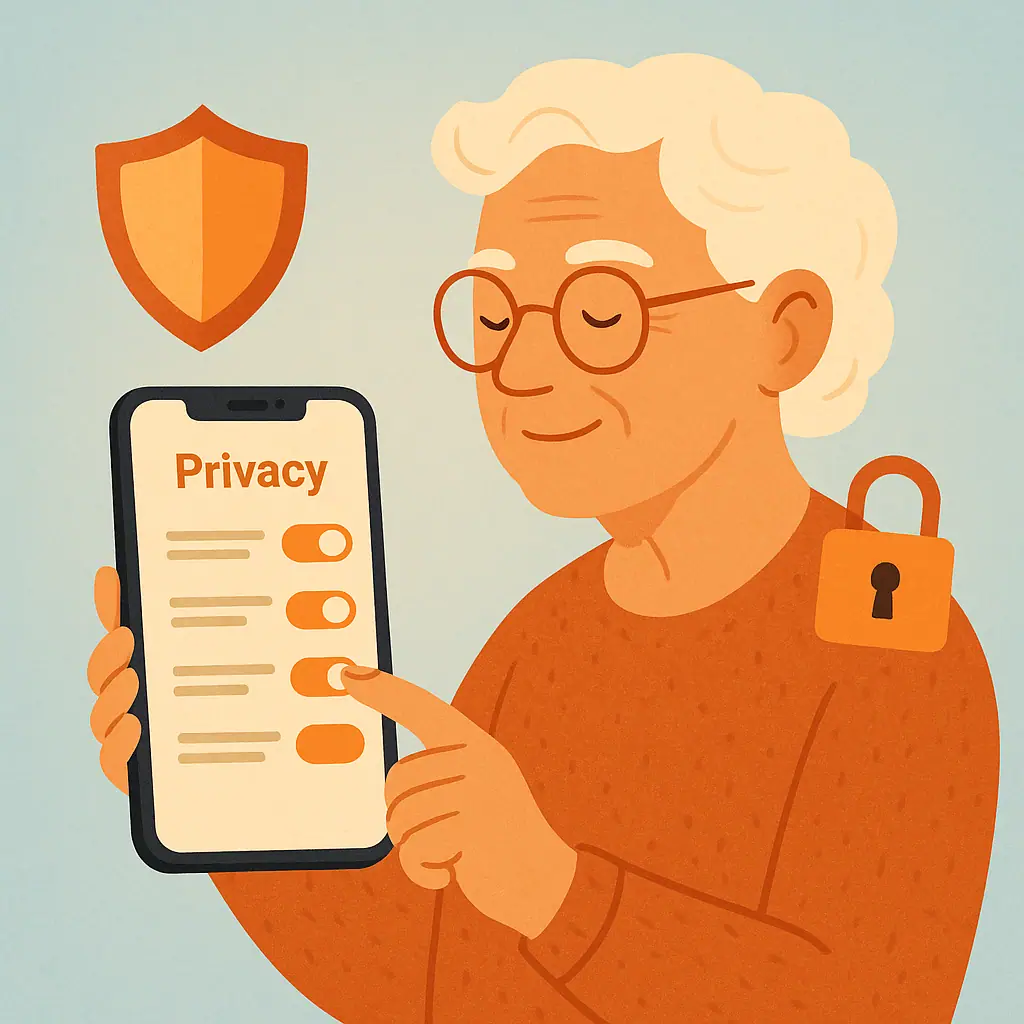
- Open notification settings: Start from your phone's Settings app, not from a random pop-up.
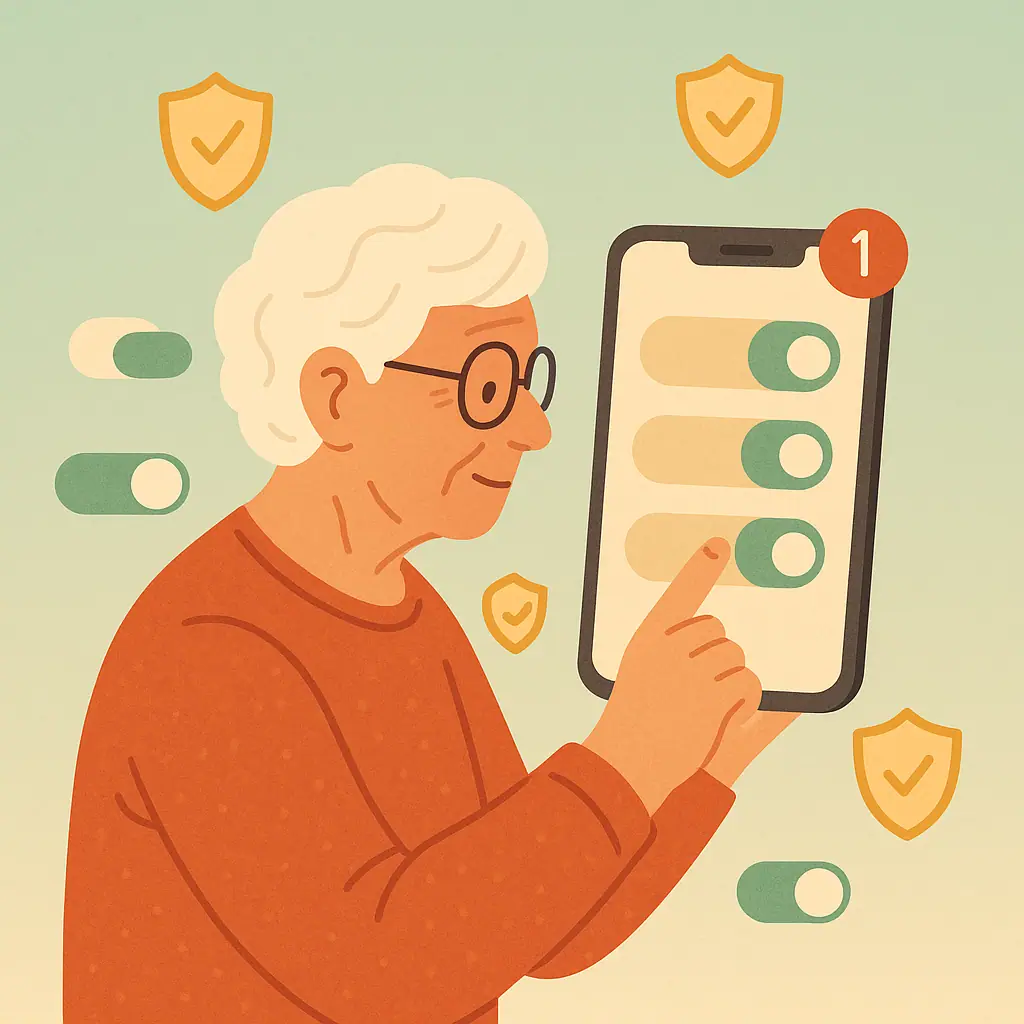
- Review one app at a time: Begin with noisy shopping, game, news, or social apps.
- Turn off promotional alerts: Keep account or delivery alerts only if the app separates them clearly.
- Leave security alerts on: Do not silence banks, email, password, or recovery tools unless you understand the effect.
- Use summaries or quiet delivery: If your phone offers scheduled summaries, use them for non-urgent apps.
- Test important alerts: After changing settings, make sure key contacts and security apps still appear clearly.
Less daily stress
Fewer unnecessary buzzes make the phone feel calmer and easier to trust.
Important alerts stand out
Banking, account, and emergency messages are easier to notice when the screen is not crowded.
Fewer rushed taps
A quieter phone gives you more time to think before opening links or approving prompts.
Settings can vary
Android brands and iPhone versions may place controls in slightly different spots.
Overblocking is possible
Turning off alerts too aggressively can hide useful reminders or security notices.
Common Mistakes to Avoid
The biggest mistake is tapping Allow every time an app asks to send notifications. The second is turning off all alerts after getting frustrated. Both habits create problems: one makes too much noise, and the other may hide important warnings.
Be especially careful with messages that pressure you to act immediately. If an alert claims your account is locked or a payment failed, open the official app yourself instead of tapping a surprise link. The SenorSafe guide on checking email links before clicking uses the same pause-first habit.
A Simple Notification Safety Checklist
- Essential alerts kept: Bank, email, password, account recovery, and emergency alerts remain visible.
- Promotions quieted: Shopping, games, and social reactions no longer interrupt all day.
- Contacts reviewed: Trusted family or caregivers can still reach you when needed.
- Previews checked: Sensitive notification previews are hidden if they expose private information on the lock screen.
- Changes tested: You confirmed the phone still shows the alerts you care about most.
When to Ask for Help
Ask for help if you are not sure whether an app is sending safety alerts or advertisements. A trusted family member can sit with you while you review one app at a time. Avoid letting anyone rush through the settings for you without explaining what changed.
If you changed several settings and now miss important messages, go back slowly. Re-enable alerts for the most important apps first, then quiet optional apps later. If account recovery is confusing, start with setting up account recovery before you get locked out.
Frequently Asked Questions
Should I turn off all phone notifications?
No. It is safer to quiet non-urgent apps while keeping important security, banking, medical, family, and emergency alerts visible.
Are emergency alerts the same as app notifications?
No. Emergency alerts are usually system-level public safety warnings. Review those settings carefully before changing them.
Can I hide private details on the lock screen?
Yes, many phones let you hide notification previews until the phone is unlocked. This can protect private message details.
What if I accidentally turn off something important?
Open notification settings again, choose the app, and turn alerts back on. Test with a trusted person if the app involves messages or security.
Final Thoughts
A safer phone is not always the loudest phone. It is a phone where important alerts are easy to see and unimportant pings do not train you to ignore everything.
Start with three noisy apps today. Quiet the promotions, keep the security alerts, and make your phone feel calmer without losing the warnings that matter.