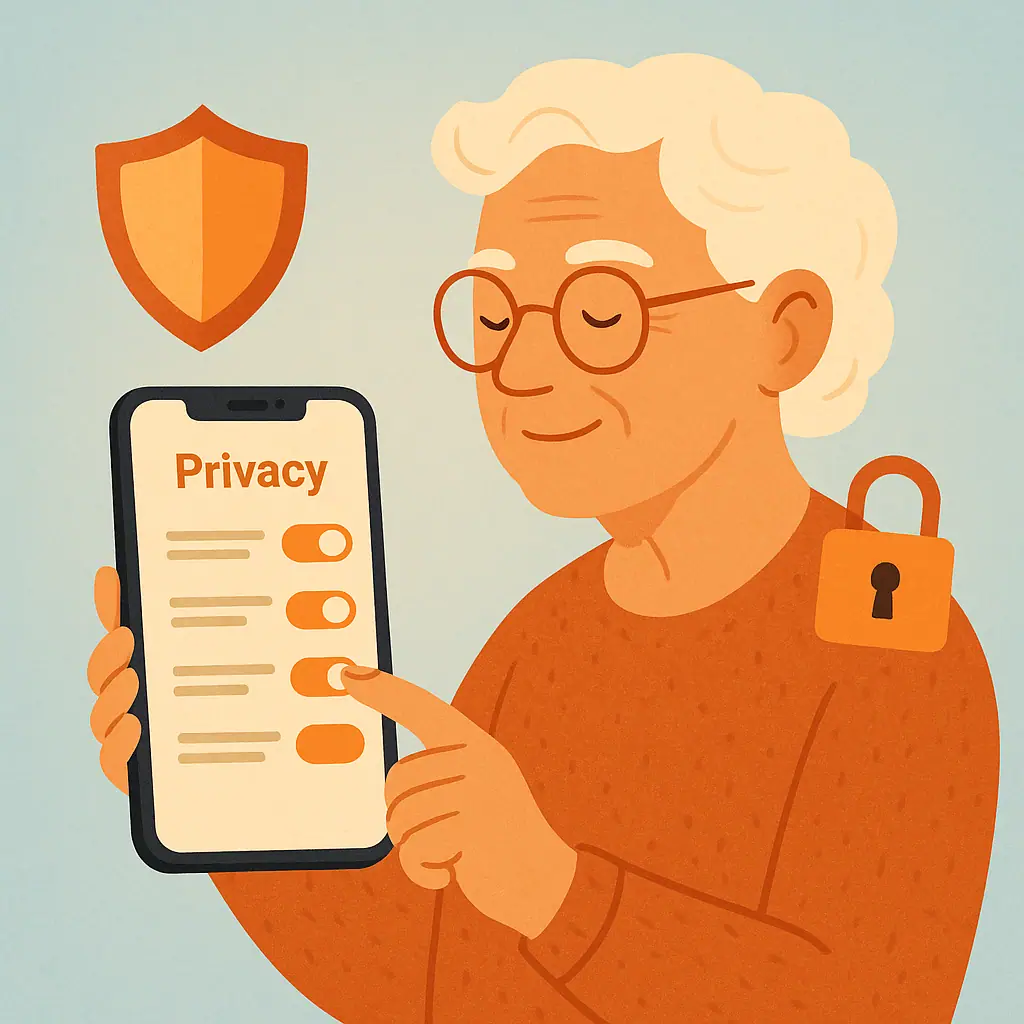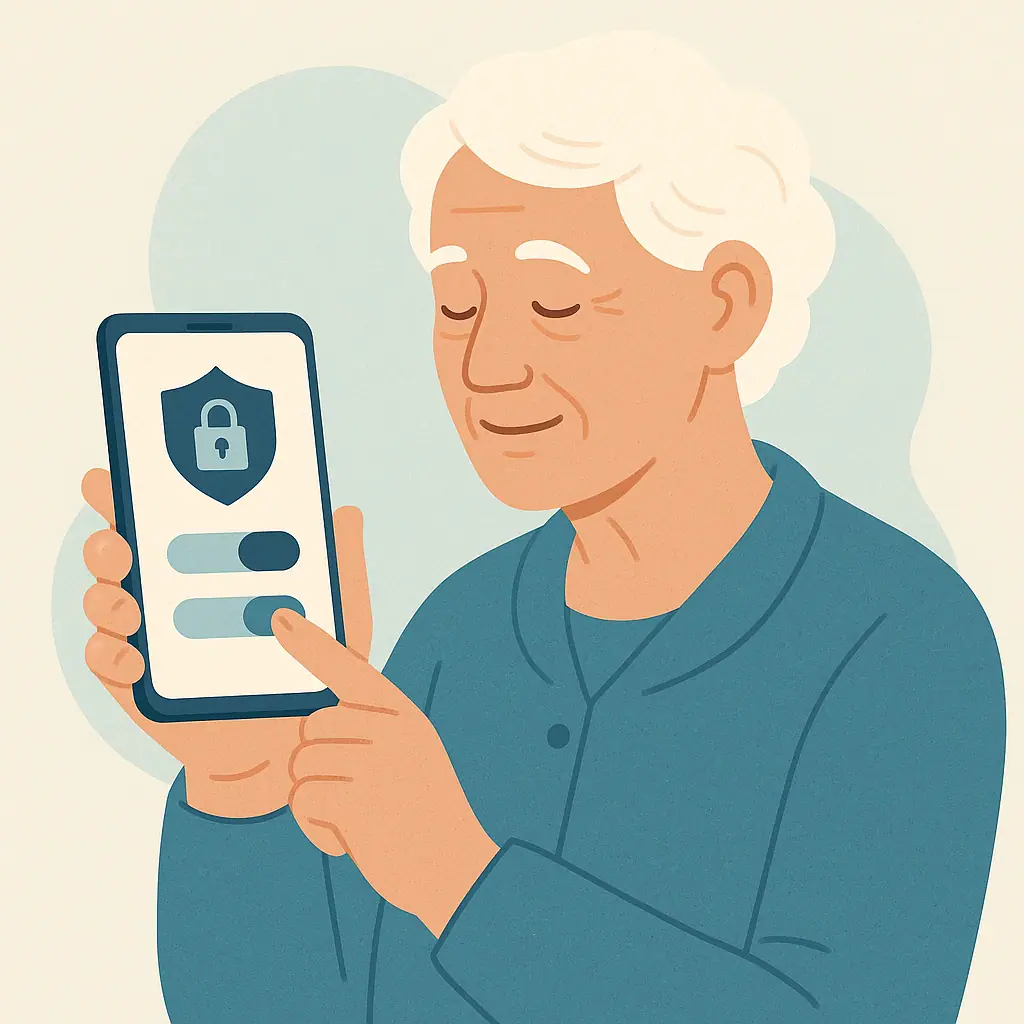
If ads on your phone seem to follow your interests, recent searches, or app activity, you are not imagining the pattern. Phones and online accounts often include advertising settings that can make ads feel more personal.
The good news is that you can reduce some of that personalization without becoming a technology expert. The goal is not to remove every ad from your phone. The goal is to limit how much your phone, Apple account, Google account, or apps use your information to choose ads for you.
This guide explains how to turn off personalized ads phone settings in a calm, step-by-step way, with notes for both iPhone and Android.
Why Personalized Ads on Your Phone Matter
Personalized ads are ads selected partly because of information connected to you, your device, your account, or your activity. That may include app use, topics, search activity, location-related clues, or ad settings you allowed in the past.
Turning off personalization usually does not mean ads disappear. It means the ads may become more general. Apple says turning off its personalized ads setting may not reduce the number of ads you receive, but it limits Apple’s ability to make them more relevant to you.
If you want to understand related phone permissions first, our plain-language guide on checking camera and microphone permissions can help you get comfortable with the same Settings areas.
Start With Phone and App Privacy Basics
Before changing anything, remember that ad controls can live in more than one place. On an iPhone, there are Apple advertising settings and app tracking settings. On Android, there are Android ad privacy settings, Google account ad settings, and sometimes settings inside individual apps.
Use one small change at a time
It is safer to change one setting, read the screen, and then continue. You do not need to rush through every privacy option in one sitting.
Expect labels to vary slightly
Phone menus can change with software updates, and Android brands may use different wording. Look for similar words such as Privacy, Security, Ads, Tracking, Permissions, or Google services.
For a broader privacy habit, you may also want to review how to stop apps from tracking your location after you finish this ad settings check.
How to Turn Off Personalized Ads on iPhone
On iPhone, start with Apple’s own advertising setting. According to Apple’s iPhone User Guide, go to Settings, then Privacy & Security, then Apple Advertising, and turn Personalized Ads on or off.
You can verify the current wording in Apple’s official guide here: Control how Apple delivers advertising to you on iPhone.
- Open Settings: Use the gray gear icon on your iPhone.
- Tap Privacy & Security: Older iPhones may show slightly different wording.
- Tap Apple Advertising: This controls advertising delivered by Apple in places such as the App Store, Apple News, and Stocks.
- Turn off Personalized Ads: This limits Apple’s use of information to make Apple-delivered ads more relevant.
This setting is useful, but it is not the only iPhone ad privacy control. Apple also has a Tracking area where apps can ask permission to track your activity across other companies’ apps and websites.
Check iPhone App Tracking Requests Too
Some readers confuse Apple Advertising with app tracking. They are related to privacy, but they are not the same switch. Apple Advertising controls Apple-delivered ads. Tracking controls whether apps can ask to track your activity across apps and websites owned by other companies.
To review this area, open Settings, tap Privacy & Security, then tap Tracking. From there, you can turn off tracking permission for specific apps or turn off Allow Apps to Request to Track.
For seniors who use an iPhone often, our guide to essential iPhone privacy settings is a helpful next read, but finish this ad setting first so the steps do not blur together.
How to Turn Off Personalized Ads on Android
On many Android phones, the clearest starting point is the Google section inside Settings. Google’s Android Help page says to open Settings, tap Google, then All services, and under Privacy & security tap Ads, then Ads privacy.
Google’s official Android Help page explains these controls here: Manage your ad privacy settings on Android.
- Open Settings: Look for the gear icon.
- Tap Google: On some phones this may be lower in the Settings list.
- Tap All services: This opens more Google-related controls.
- Find Privacy & security: Tap Ads, then Ads privacy.
- Review each option: Check Ad topics, App suggested ads, and Ad measurement.
In these areas, you may be able to turn off ad topics, app-suggested ads, and ad measurement. If your phone does not show the same choices, update your phone when safe to do so or ask a trusted person to sit with you while you look.
Review Google My Ad Center
Android phone settings are only part of the picture. If you use Gmail, Google Search, YouTube, Chrome, or other Google services while signed in, your Google account may also have ad personalization settings.
Google says My Ad Center controls whether ads are personalized on Google services and, when signed in, can affect partner sites and apps. You can visit My Ad Center from your browser and choose whether Personalized ads are on or off.
One important point: Google also explains that turning off personalized ads does not affect ads that are not shown by Google or ads on sites that use other advertising platforms. That is why this is a privacy reduction step, not a total ad blocker.
What These Settings Do and Do Not Stop
Turning off personalized ads can make ads less tailored to your activity, but it does not make the internet ad-free. You may still see ads based on the page you are viewing, your general location, the time of day, or information a specific app uses under its own policy.
- It can reduce personalization: Ads may feel less connected to your recent activity.
- It does not remove all ads: Free apps, websites, and services may still show advertising.
- It may not cover every company: Apple, Google, Facebook, shopping apps, and websites can have separate ad controls.
- It is reversible: If something does not look right, you can return to the same screen and review the setting again.
Android users who want a wider checklist can continue with essential Android privacy settings after this article. That broader check covers other privacy areas beyond ads.
Pros and Cons of Turning Off Personalized Ads
More privacy control
You reduce how much certain ad systems use your activity or interests to choose ads.
Less uncomfortable ad matching
Ads may feel less personal, which can make phone use feel calmer.
Easy to review later
Most settings can be changed again if you decide a different balance works better.
Ads do not disappear
You may still see ads, but they may be based on more general information.
Settings are spread out
You may need to check Apple, Android, Google, and individual app settings separately.
A Simple Checklist
Use this checklist when you want to turn off personalized ads phone settings without feeling overwhelmed:
- If you use iPhone: Check Settings > Privacy & Security > Apple Advertising.
- If you use iPhone apps: Check Settings > Privacy & Security > Tracking.
- If you use Android: Check Settings > Google > All services > Ads > Ads privacy.
- If you use Google services: Review My Ad Center while signed in to your Google account.
- If an app still feels too personal: Look inside that app’s own privacy or ad settings.
- If you are unsure: Pause and ask a trusted person to look with you before changing unfamiliar settings.
When to Get Extra Help
Ask for help if your phone’s settings do not match the steps, a switch is grayed out, or you are worried you changed something important. A trusted family member, local library technology helper, carrier store, or device support page can help you compare the wording on your exact phone.
Do not share your phone passcode, Apple Account password, or Google password just to get help. If someone needs to guide you, let them explain while you hold the phone and make the changes yourself when possible.
Frequently Asked Questions
Will turning off personalized ads remove ads from my phone?
No. It usually makes ads less personalized, but apps, websites, and services may still show ads.
Should I turn off every ad setting I can find?
You can, but go slowly. Change one setting at a time so you understand what changed and can reverse it if needed.
Why do the steps look different on my Android phone?
Android brands and software versions vary. Look for similar labels such as Google, Ads, Ads privacy, Privacy, or Security.
Does this stop scam ads?
Not by itself. It reduces personalization, but you should still avoid suspicious offers, fake prize messages, and unknown links.
Final Thoughts
You do not have to understand every advertising system to make your phone a little more private. Start with the setting that matches your phone, read each screen calmly, and remember that most changes are reversible.
A few minutes in privacy settings can reduce how personal ads feel and help you become more comfortable managing your phone. That confidence is the real win.