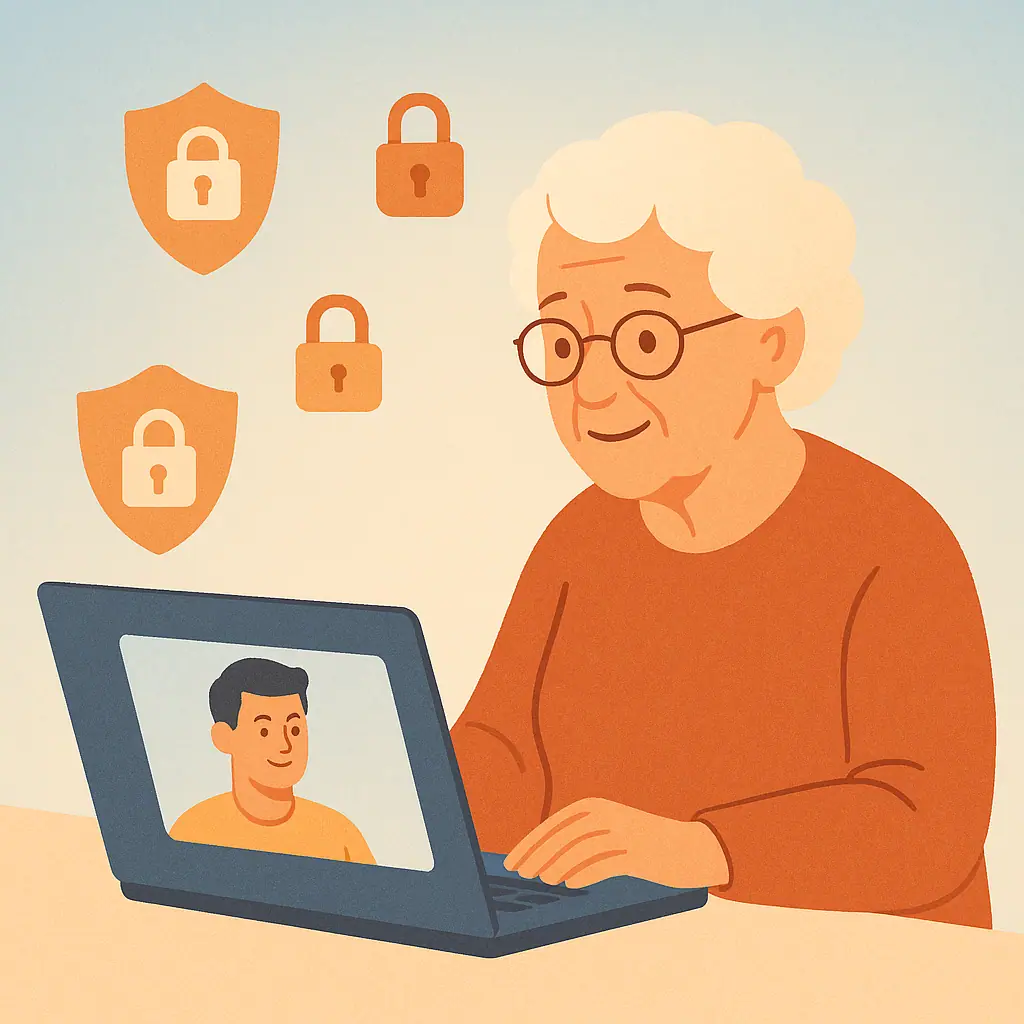
Video calls have become essential — whether you're catching up with family, attending a doctor's appointment, or joining a book club meeting. But every time you click "Join Call," you're opening a window into your home and your digital life.
Most people jump straight into video calls without checking their privacy settings. The result? Strangers crashing meetings, personal conversations being recorded without permission, or sensitive information visible in your background.
In this guide, you'll learn:
- Essential privacy settings for Zoom, FaceTime, and Skype
- How to spot and block uninvited guests
- Simple habits that keep your video calls secure
Let's make sure your next video call is safe, private, and under your control.
Why Video Call Security Matters
Video calling apps are convenient, but they also create new risks. Here's what's at stake when you don't secure your calls:
- Uninvited guests can join. If you share meeting links carelessly, anyone with the link can enter — including scammers or trolls.
- Your background reveals personal details. Family photos, documents on your desk, or mail with your address visible can all be exploited.
- Calls can be recorded without your knowledge. Some apps allow participants to record meetings. Without the right settings, you won't even know it's happening.
- Weak passwords mean easy access. If your video calling account uses a recycled password, hackers can hijack your meetings.
Essential Security Settings for Zoom
Zoom is one of the most popular video calling platforms — but also one of the most targeted by attackers. Here's how to lock it down:
1. Require a Meeting Password
Always enable meeting passwords. This prevents anyone without the code from entering, even if they have the meeting link. To enable:
- Open Zoom and go to Settings > Security
- Turn on Require a password when scheduling new meetings
- Turn on Require a password for instant meetings
2. Use the Waiting Room
The Waiting Room feature lets you see who's trying to join before admitting them. This gives you control over who enters. To enable:
- Go to Settings > Security
- Turn on Enable waiting room
Now, every participant waits in a virtual lobby until you approve them.
3. Lock the Meeting Once Everyone's In
Once all your invited guests have joined, lock the meeting so no one else can enter:
- During the call, click Security at the bottom
- Select Lock Meeting
4. Disable Screen Sharing for Participants
By default, anyone in a Zoom call can share their screen. This can be abused to show inappropriate content. To restrict it:
- During the call, click Security
- Turn off Allow participants to share screen
5. Turn Off Recording Permissions
Prevent participants from recording without your consent:
- Go to Settings > Recording
- Turn off Allow participants to record locally
Essential Security Settings for FaceTime
FaceTime (Apple's video calling app) is generally secure by default, but a few tweaks add extra protection:
1. Only Accept Calls from Contacts
Prevent random FaceTime calls from unknown numbers:
- Open Settings > FaceTime
- Turn off Allow calls from everyone
- Only calls from people in your Contacts will ring through
2. Disable FaceTime on Lock Screen
This prevents someone from accessing your FaceTime calls if they have physical access to your locked device:
- Go to Settings > Face ID & Passcode (or Touch ID & Passcode)
- Scroll down and turn off FaceTime under "Allow Access When Locked"
3. Use Link-Based FaceTime Calls Carefully
FaceTime now lets you create shareable links. Be cautious:
- Only share links with people you trust
- Delete the link after the call ends (go to FaceTime > [call] > Delete Link)
Essential Security Settings for Skype
Skype has been around longer than most video calling apps, but it still needs proper configuration:
1. Control Who Can Call You
- Open Skype and go to Settings > Privacy
- Under Calls, select Contacts only (instead of "Anyone")
2. Disable Automatic Video Start
Prevent your video from turning on automatically when you answer:
- Go to Settings > Audio & Video
- Turn off Automatically receive video and share screen
This gives you a moment to check your background before turning on your camera.
3. Hide Your IP Address
By default, Skype can expose your IP address to other users. To hide it:
- Go to Settings > Privacy
- Turn on Relay calls and messages through Skype servers
Practical Video Call Safety Tips
Beyond app settings, these habits will keep your video calls secure:
- Check your background. Before every call, look behind you. Remove sensitive documents, financial statements, or anything with personal information visible.
- Use a virtual background. Zoom and other apps let you blur or replace your background. This hides your surroundings completely.
- Don't share meeting links publicly. Never post video call links on social media or public forums. Send them privately to invited guests only.
- Mute when not speaking. This prevents accidental audio leaks if you're having a side conversation or someone enters the room.
- End calls completely. After hanging up, close the app. Don't leave it running in the background where someone could rejoin or access your camera.
- Update your apps regularly. Security patches are released frequently. Keep Zoom, FaceTime, and Skype up to date to protect against new threats.
Pros and Cons of Video Calling Apps
Convenient and Free
Connect face-to-face with anyone, anywhere, at no cost.
Secure When Configured Properly
With the right settings, video calls offer end-to-end encryption and strong privacy.
Accessible on Multiple Devices
Use your phone, tablet, or computer — whatever is most comfortable.
Default Settings Often Weak
Most apps don't enable maximum security out of the box.
Background Can Expose Private Info
Without care, your surroundings can reveal sensitive details.
Risk of Uninvited Guests
If links are shared carelessly, strangers can crash your calls.
Frequently Asked Questions
Can someone record my video call without me knowing?
On Zoom, you'll see a notification if recording starts. On FaceTime and Skype, there's no built-in notification — so only call people you trust, and disable participant recording permissions in Zoom settings.
Is FaceTime safer than Zoom?
FaceTime uses end-to-end encryption by default, which is more secure. Zoom offers end-to-end encryption but requires manual activation. Both are safe when configured properly.
Should I cover my webcam when not in use?
Yes. A simple webcam cover (or a piece of tape) prevents unauthorized access if malware ever compromises your device. It's an easy, low-cost precaution.
What should I do if a stranger crashes my video call?
Remove them immediately using the "Remove Participant" option (Zoom) or hang up and create a new meeting with a password. Report the incident to the platform's support team.
Final Thoughts
Video calls are a wonderful way to stay connected, but they require the same caution you'd use when inviting someone into your home. A few minutes spent adjusting privacy settings can prevent serious security issues down the line.
Remember: secure video calling isn't about being paranoid — it's about being smart. Check your settings, control who can join, and stay aware of what's visible in your background. You don't need to be a tech expert to keep your conversations private.