Before you sell, donate, trade in, or give an old phone to someone else, take a little time to protect what is still inside it. Photos, messages, saved passwords, contacts, payment apps, email, and health information may all live on a phone long after you stop using it.
The good news is that you do not need to be technical to wipe old phone before selling. The safest approach is simply to move slowly: save what you want to keep, sign out of important accounts, erase the phone from its own settings menu, and check that it starts like a new device before you hand it over.
Why It Matters to Wipe Old Phone Before Selling
A phone is more like a small filing cabinet than a simple telephone. It can hold family photos, bank alerts, shopping accounts, text messages, location history, saved Wi-Fi networks, and apps that are already signed in.
If someone receives the phone before it is properly erased, they might see information you meant to keep private. Even if the person is a relative or a trusted buyer, it is better for both of you when the phone is clean and ready for a fresh setup.
Start With a Backup You Can Trust
Before touching the erase button, make sure your information has a safe place to go. For many people, this means moving data to a new phone through iCloud, Google backup, Samsung Smart Switch, or the phone carrier's transfer tool.
What to check before you erase
- Photos and videos: Open your photo app or cloud account and confirm recent pictures are visible somewhere besides the old phone.
- Contacts: Check that names and phone numbers appear on your new phone or in your Google, Apple, or email account.
- Two-factor codes: If you use an authenticator app, move those codes before erasing the phone.
- Important apps: Banking, pharmacy, insurance, travel, and email apps may require passwords or verification after you switch devices.
- Notes and files: Save anything that is not already stored in the cloud or copied to your new device.
If your main concern is reducing other kinds of phone tracking, you may also like our guide on how to turn off personalized ads on your phone. That is a separate privacy step, but it pairs well with a general phone cleanup.
Sign Out and Remove What Belongs to You
After backup, sign out of accounts that connect the phone to you. On an iPhone, Apple says to transfer information to the new device and remove personal information from the old one before selling, giving away, or trading it in. Apple's own support page for what to do before you sell or give away an iPhone or iPad is a good place to verify the latest Apple wording.
For Android phones, Google explains that a factory reset removes data from the phone, but you should know the Google Account on the device and understand the reset process first. Google's Android Help page on resetting an Android device to factory settings is the safest source for current Android guidance.
Common items to remove first
- Apple ID or Google account: Sign out where your phone allows it, especially before selling to a stranger.
- Payment cards: Remove cards from Apple Wallet, Google Wallet, Samsung Wallet, or similar apps.
- Bluetooth pairings: Unpair watches, cars, earbuds, and medical devices if they will not go with the phone.
- Find My or device location services: Turn off ownership locks only after you understand what the setting does.
- Memory cards: If your Android phone has a microSD card, remove it unless you truly mean to include it.
Bluetooth is easy to forget because it feels invisible. If you want a calmer review of that topic, read how to control Bluetooth privacy on your phone before you part with an older device.
Erase the Phone From Its Own Settings Menu
Once your backup is complete and your accounts are handled, use the phone's built-in reset option. Avoid guessing from memory, because menu names can change by phone model and software version.
For iPhone
Open Settings and look for the transfer or reset area. On recent iPhones, this is usually under General, then Transfer or Reset iPhone, then Erase All Content and Settings. The phone may ask for your passcode or Apple ID password before it erases.
For Android
Open Settings and search for reset, factory reset, or erase all data. Android menus vary by Samsung, Google Pixel, Motorola, and other brands, so use the search box inside Settings if you do not see the same words.
Keep the phone plugged in if the battery is low. Do not interrupt the reset once it begins. When it finishes, the phone should show a welcome screen, language choice, or setup screen like it did when it was new.
Remove the SIM Card and Check the Screen
The SIM card is the small card that connects many phones to your mobile number. Some newer phones use eSIM instead, but older phones may still have a physical SIM tray.
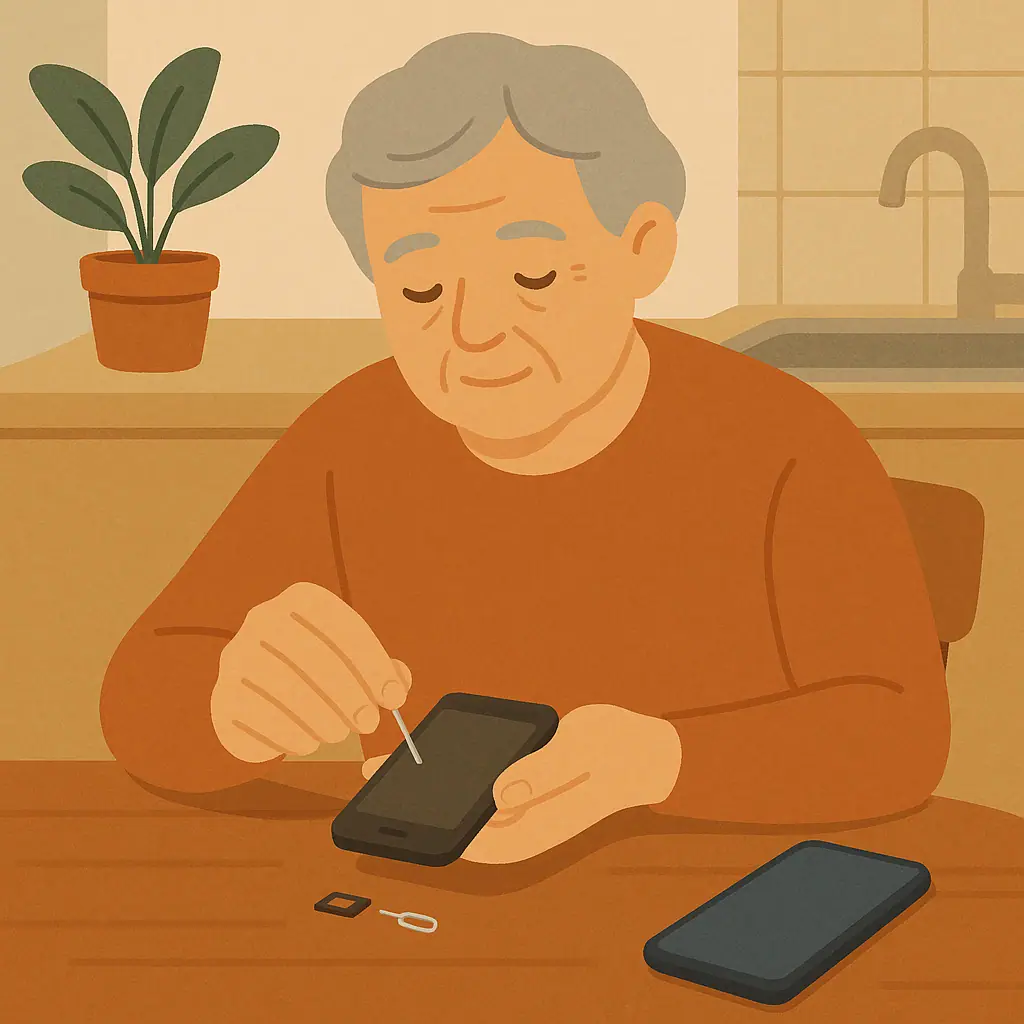
- Physical SIM: Turn off the phone, open the SIM tray with the small tool or a paper clip, and remove the card.
- Memory card: Remove a microSD card if the phone has one and it contains your files.
- eSIM: Ask your carrier whether the old eSIM should be removed or transferred before sale.
- Accessories: Do not include chargers, cases, or watches that are still linked to your accounts unless you mean to give them away too.
After the reset, turn the phone on one more time. You should not see your photos, messages, apps, or personal account already signed in. If the phone asks for your old account password during setup, stop and review the account removal steps before giving it to someone else.
Pros and Cons of Doing the Reset Yourself
You stay in control
You can confirm your backup, remove accounts, and decide what accessories or cards leave with the phone.
It protects personal information
A proper reset lowers the chance that photos, messages, contacts, or apps remain visible to the next person.
It helps the next owner
A clean setup screen makes the phone easier for a buyer, family member, or donation center to use.
It can feel final
Once the phone is erased, recovering missed files may be difficult or impossible if they were not backed up.
Menu names can vary
Different phone brands and software versions may use slightly different labels for the same reset process.
A Simple Final Checklist
- Backup confirmed: Your photos, contacts, files, and messages are visible on the new phone or in a cloud account.
- Important apps ready: You know passwords and recovery methods for banking, email, pharmacy, and insurance apps.
- Accounts removed: Apple ID, Google account, wallets, and device tracking settings have been handled.
- Cards removed: SIM card, memory card, and personal accessories are out of the device.
- Factory reset complete: The phone now shows a welcome or setup screen, not your personal home screen.
- Trusted help used if needed: If something looks unfamiliar, you asked before handing over the phone.
Frequently Asked Questions
Should I erase my old phone before or after moving to the new one?
Move to the new phone first. Make sure your photos, contacts, messages, and important apps are working before you erase the old phone.
Is factory reset enough before selling a phone?
For most everyday users, a built-in factory reset from the phone's own settings is the normal final step. The safer routine is backup first, sign out or remove account locks where needed, then reset.
What if the phone asks for my old account after the reset?
Do not give the phone away yet. It may still be connected to an account protection feature. Sign in yourself, remove the account or device lock properly, and reset again if needed.
Should I remove the SIM card if I am trading in the phone?
Usually, yes. Your carrier or trade-in instructions can confirm the exact step, but you generally do not want your mobile number or memory card leaving with the old device.
Final Thoughts
You do not have to rush when preparing an old phone for sale or donation. Treat it like cleaning out a desk drawer before giving the desk away: keep what belongs to you, remove personal labels, and make sure the next person starts fresh.
If you remember only one thing, remember this order: back up, sign out, erase, remove cards, and check the setup screen. That calm sequence is the best way to wipe old phone before selling without losing what matters.