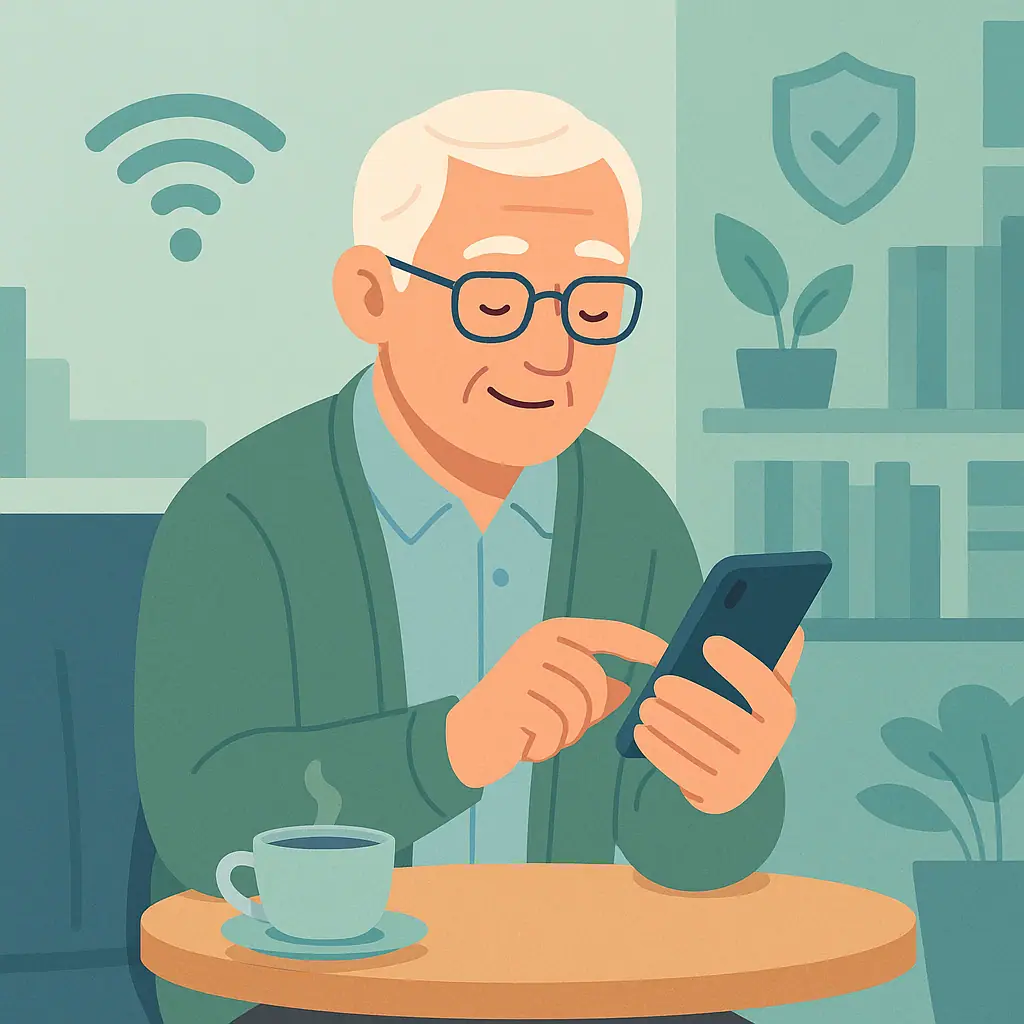
Public Wi-Fi can be helpful when you are at a library, airport, hotel, doctor's office, coffee shop, or a family gathering away from home. The goal is not to be afraid of every network. The goal is to use public Wi-Fi with a few calm habits that protect your phone and your private information.
This guide explains public Wi-Fi phone safety seniors can use without technical language. You will learn when public Wi-Fi is usually fine, when to use cellular data instead, how to manage auto-join settings, and what a VPN can and cannot do.
Why Public Wi-Fi Phone Safety Seniors Matters
A public Wi-Fi network is one that many people can join. Some are protected with a password from the business. Others are open and ask you to accept terms on a sign-in page. Either way, you do not control who else is nearby or how carefully the network is managed.
The Federal Trade Commission explains in its Consumer Advice article on whether public Wi-Fi networks are safe that encryption now protects many websites and apps. That is reassuring, but it still recommends checking for secure connections and being thoughtful about what you do on public Wi-Fi.
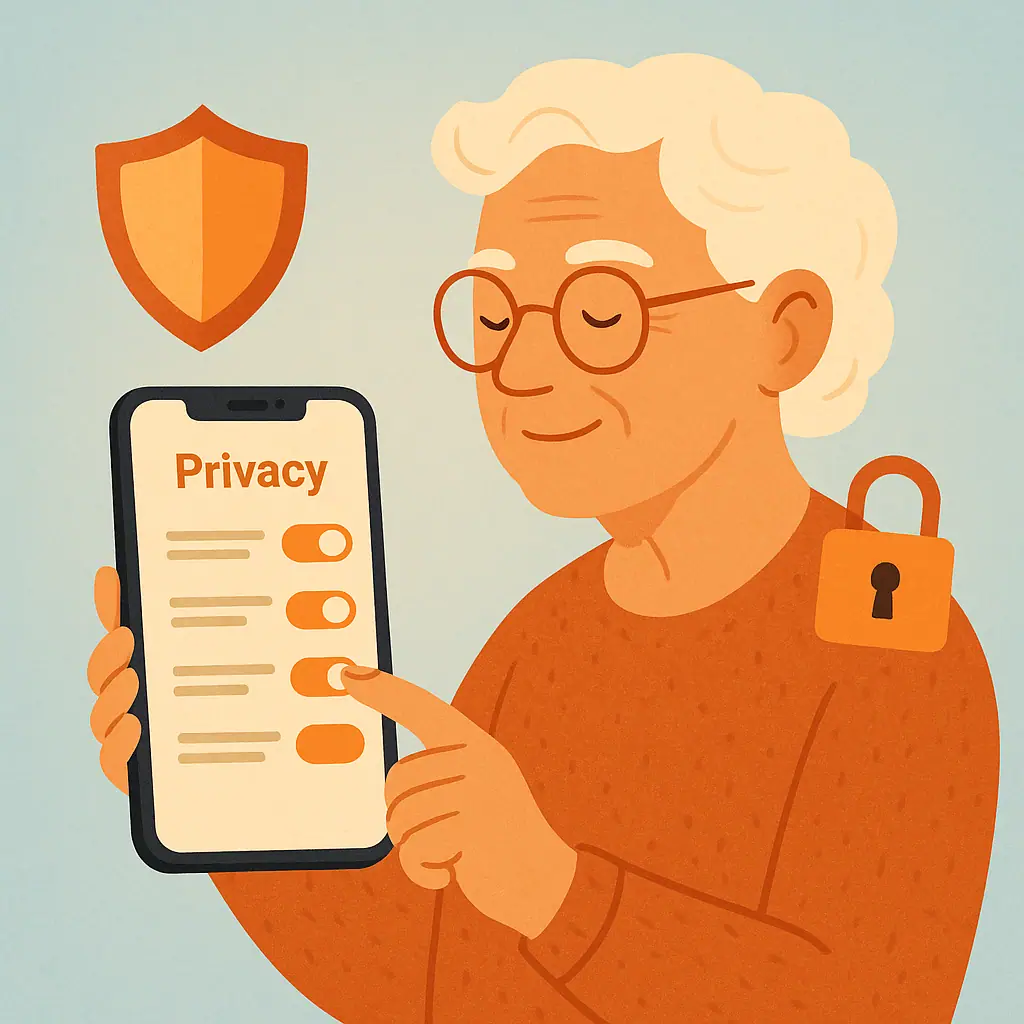
Start With Phone & App Privacy
Your phone already has several protections built in. Most modern websites use secure connections, many apps protect their traffic, and iPhone and Android both give you ways to manage saved networks.
Still, public Wi-Fi safety works best when you combine phone settings with common sense. If a task involves money, identity documents, health information, passwords, or one-time codes, it deserves a more careful connection.
If you want to build a broader phone privacy habit, our guide to checking camera and microphone permissions on your phone is a useful companion because it uses the same slow, settings-based approach.
Think of public Wi-Fi like a public waiting room
You can sit there, read, and make ordinary plans. You probably would not read your bank statement out loud. Public Wi-Fi deserves that same level of practical caution.
Do not let the network name decide for you
A network name can look official without being official. If you are in a hotel, clinic, or airport, ask staff for the exact Wi-Fi name before joining. Do not guess from a list of similar names.
When Public Wi-Fi Is Reasonable to Use
Public Wi-Fi is reasonable for low-risk tasks. Reading articles, checking the weather, looking up directions, messaging a family member, or browsing a store catalog are usually fine if your phone and apps are up to date.
It is also safer when the site address begins with https and your browser shows a lock or security indicator. On a phone, this usually appears near the website address. If your browser warns that a page is not secure, do not type passwords, card numbers, or personal details there.
For iPhone users, Apple describes how its devices handle Wi-Fi security and auto-join behavior in Wi-Fi security with Apple devices. You do not need to memorize the technical details, but it is useful to know that your phone's Wi-Fi behavior is partly controlled by saved network settings.
Tasks to Avoid on Public Wi-Fi
Some tasks are better saved for home Wi-Fi, cellular data, or another trusted connection. The more sensitive the task, the more careful you should be.
- Banking and investment accounts: Use cellular data or a trusted private network when possible.
- Medical portals: Avoid opening test results, insurance pages, or private messages on an unfamiliar network.
- Shopping checkout: Browsing is different from entering a card number or address.
- Password changes: Change important passwords on a trusted connection, especially for email, banking, Apple, Google, Amazon, or Facebook.
- Tax, Social Security, or Medicare forms: Wait until you are on a trusted connection and have time to review carefully.
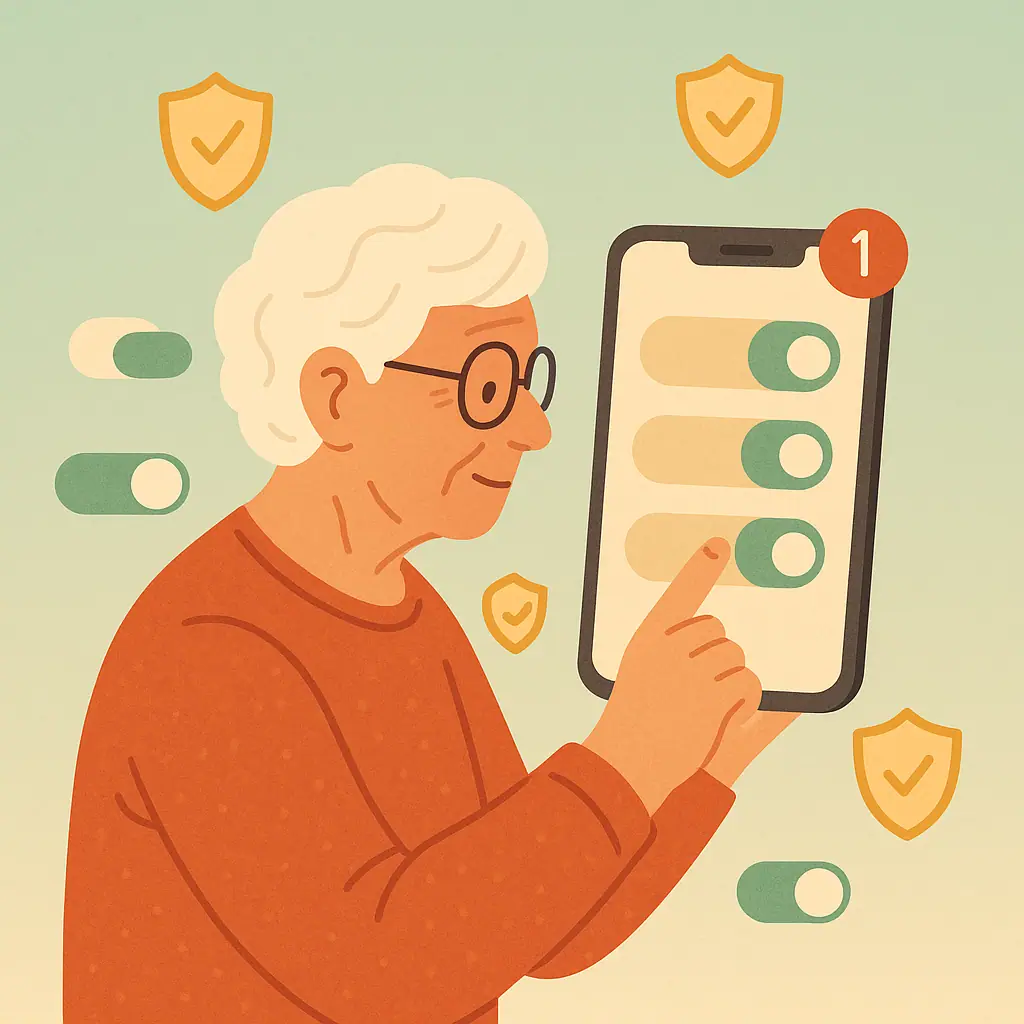
Turn Off Auto-Join for Networks You Do Not Trust
Auto-join is convenient because your phone can reconnect to a saved network automatically. That is useful at home, but less useful for a one-time airport, hotel, store, or clinic network you may never need again.
On an iPhone, open Settings, tap Wi-Fi, tap the information button next to a network, and look for Auto-Join or Forget This Network. Apple also has a plain support page on how to forget a Wi-Fi network or turn off Auto-Join if you want the official wording.
Android labels vary by phone brand, but the general path is Settings, Network & internet, Internet or Wi-Fi, then the saved network's settings. Google's Android Help page on connecting to Wi-Fi networks on Android includes instructions for changing or removing saved networks.
For iPhone
- Open Settings: Tap Wi-Fi.
- Choose the network: Tap the information button next to the network name.
- Turn off Auto-Join: Use this when you may want to keep the password but stop automatic connections.
- Forget the network: Use this for networks you do not plan to use again.
For Android
- Open Settings: Look for Network & internet, Connections, Internet, or Wi-Fi.
- Open the network details: Tap the network name or gear icon.
- Remove or forget it: Use Forget, Remove, or a similar label if you do not trust or need that network.
- Check auto-reconnect: Some Android phones also show an Auto reconnect option you can turn off.
What About VPN Apps?
A VPN, or virtual private network, is an app or service that creates a more private connection between your phone and the VPN provider. It can be useful on public Wi-Fi, especially if you travel often or regularly use shared networks.
A VPN is not magic. It does not make a fake website safe, stop you from entering a password on a scam page, or protect you from every bad app. It also means you are trusting the VPN company, so choose carefully and avoid random free VPNs you do not understand.
If you want a simple rule, use a well-known paid VPN only if you have a clear need for it. If that feels confusing, the safer everyday habit is to use cellular data for sensitive tasks and reserve public Wi-Fi for lower-risk browsing.
Pros and Cons of Using Public Wi-Fi Carefully
You stay connected away from home
Public Wi-Fi can help with maps, messages, travel updates, and simple browsing when cellular signal is weak or limited.
You can reduce unnecessary risk
Turning off auto-join and avoiding sensitive tasks lowers exposure without requiring complicated tools.
You build repeatable habits
The same checks work at airports, hotels, libraries, clinics, and restaurants.
It takes a little attention
You may need to ask for the correct network name or open settings before connecting.
Some tasks should wait
Banking, medical portals, and account changes may need cellular data or a trusted home connection instead.
A Simple Public Wi-Fi Checklist
- Ask for the exact network name: Do not choose a lookalike network just because it sounds official.
- Avoid sensitive accounts: Use cellular data for banking, health, taxes, shopping checkout, or password changes.
- Look for https: Do not type private details into a page your browser marks as not secure.
- Skip unknown pop-ups: A Wi-Fi sign-in page should not ask for your bank login, email password, or Social Security number.
- Turn off auto-join: Do this for hotels, airports, stores, clinics, and other one-time networks.
- Keep your phone updated: Updates often include security fixes that protect everyday phone use.
- Forget old networks: Remove saved networks you do not recognize or no longer use.
For another setting worth reviewing, see our guide on Bluetooth privacy settings on your phone. Wi-Fi and Bluetooth are different, but both are easier to manage when you review saved connections occasionally.
When to Get Extra Help
Ask for help if your phone keeps joining a network you do not recognize, if a public Wi-Fi page asks for private information, or if you entered a password or card number on a page that later felt suspicious.
If the concern is tied to a link or message you received, our guide on checking an email link before clicking can help you slow down and verify the source before taking another step.
Frequently Asked Questions
Is public Wi-Fi always unsafe?
No. Public Wi-Fi is not automatically dangerous, especially when websites and apps use encryption. The safer habit is to avoid sensitive tasks and use your phone's settings to control saved networks.
Should I use cellular data instead of public Wi-Fi?
Use cellular data for banking, medical portals, account recovery, password changes, and shopping checkout when you can. Public Wi-Fi is better for lower-risk browsing, maps, news, and casual reading.
What if my phone menu names look different?
That is normal. iPhone and Android phones change wording over time, and Android brands vary. Look for similar words such as Wi-Fi, Network, Internet, Auto-Join, Auto reconnect, Forget, or Saved networks.
Do I need a VPN on my phone?
Not everyone needs one. A trustworthy VPN can help on public Wi-Fi, but it does not make scams or fake websites safe. If you are unsure, use cellular data for sensitive tasks and ask a trusted person before installing a VPN app.
Final Thoughts
Public Wi-Fi phone safety seniors can rely on is mostly about small choices: confirm the network name, avoid private tasks on shared networks, turn off auto-join when needed, and forget networks you no longer use.
You do not need to become a security expert. Start by opening your Wi-Fi settings today and removing one old public network you no longer recognize. That single step makes your phone a little less likely to connect somewhere without you noticing.