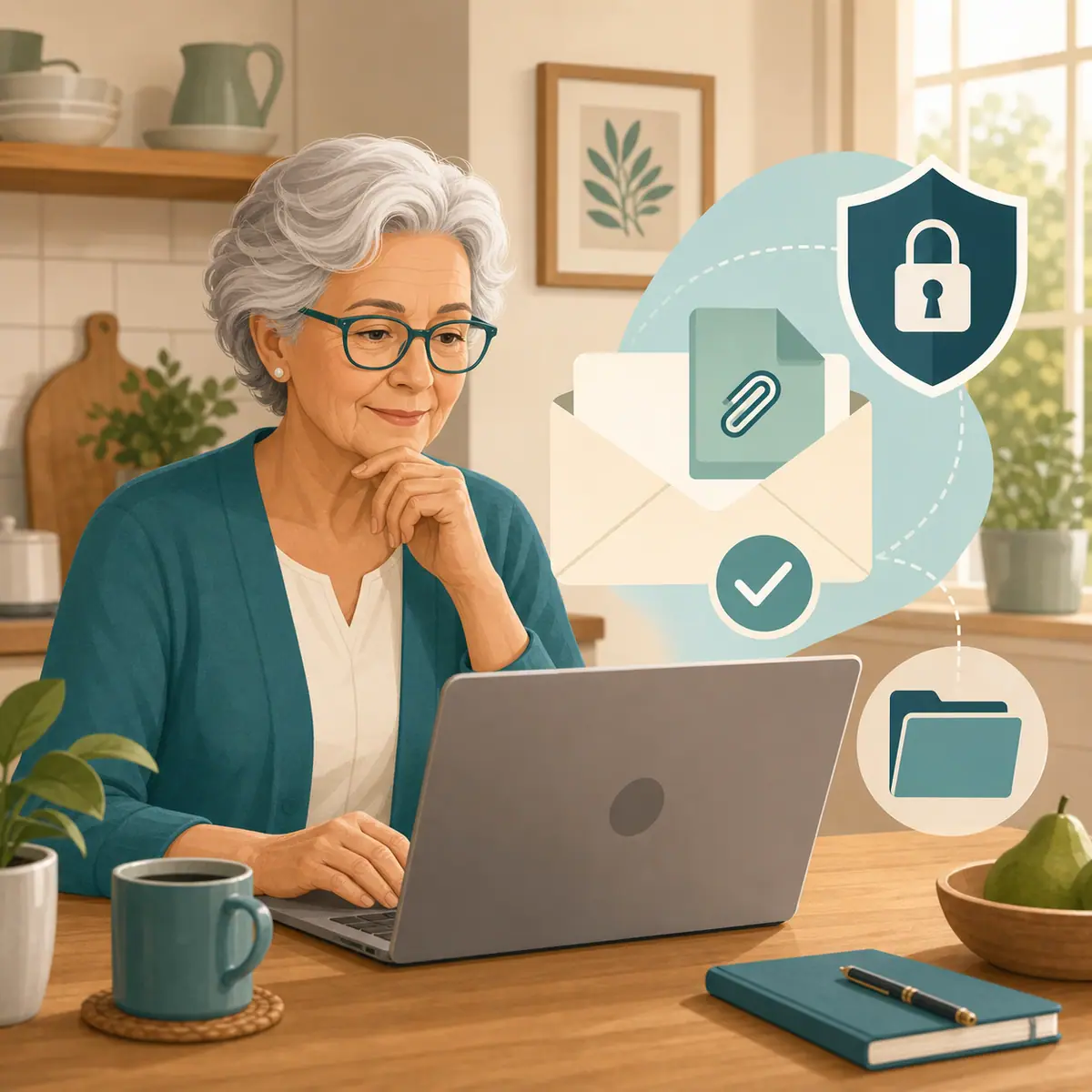
Risky email attachments warning signs are not always obvious at first glance. An attachment can look like an invoice, a photo, a receipt, a form, or a document from someone you know. The safest habit is not panic. It is a short pause before you open anything you were not expecting.
This guide goes deeper than a quick attachment checklist. You will learn how to look at the sender, the message, the file type, and the situation around the email before deciding what to do next.
If you want a shorter first pass, our earlier guide, Should You Open That Attachment? A Quick Safety Checklist, is a good companion. This article focuses on the warning signs that make an attachment too risky to open.
Why Risky Email Attachments Warning Signs Matter
Email attachments are useful when they come from the right person for the right reason. They can also be used to push malware, fake invoices, password-stealing pages, or documents that pressure you to act quickly.
The Federal Trade Commission warns that phishing messages may try to trick people into opening attachments or clicking links, and recommends contacting the company through a phone number, email, or website you know is real when a message seems unexpected. Their consumer guidance on recognizing and avoiding phishing scams is a useful official reference when you want a second opinion.
Start With Email & Communication Safety
Email & Communication Safety starts with context. Before you think about the file itself, ask whether the message makes sense. A safe attachment usually fits a conversation, appointment, purchase, or task you already recognize.
Be more careful when the message creates urgency. Words like overdue, final notice, account closed, payment failed, legal action, or immediate response are not proof of a scam, but they are common pressure tools. Scammers want you to open first and think later.
Look at the sender, not just the name
The displayed name may say a bank, delivery company, government office, or family member. The actual email address may tell a different story. Look for misspellings, extra words, strange endings, or an address that does not match the organization it claims to represent.
Notice whether the attachment was expected
An attachment from a known person can still be risky if it arrives out of the blue. If your cousin suddenly sends a file called vacation_photos.zip with no personal note, verify before opening. Their account could be compromised, or the message could be spoofed.
What to Check First Before Opening an Attachment
When you are unsure, use a slow, repeatable routine. You do not need to understand every technical detail. You only need enough confidence to choose the safer next step.
- Sender: Do you recognize the person or company, and does the email address look right?
- Reason: Were you expecting a file from this sender today?
- Message tone: Does the email pressure you, threaten you, flatter you, or ask for secrecy?
- File name: Does the file name match the reason for the message, or does it look vague and generic?
- File type: Be extra cautious with compressed files, installer files, script files, and documents that ask you to enable special features.
If the email appears to be from a company support team, compare it with the warning signs in How to Spot a Fake Customer Service Email. Fake support messages often use attachments to make a fake problem feel official.
File Types That Deserve Extra Caution
Some attachments are more commonly used to hide harmful activity than others. That does not mean every file is dangerous. It means you should verify the sender and purpose before opening.
- Compressed folders: Files ending in .zip, .rar, or similar formats can hide other files inside. Only open them when you requested them and trust the sender.
- Installer files: Files ending in .exe, .msi, .dmg, or similar formats can install software. Do not open these from email unless you are absolutely sure.
- Script files: Files ending in .js, .vbs, .bat, .cmd, or .ps1 can run commands. Most everyday users should not open these from email.
- Office documents with warnings: A Word, Excel, or PowerPoint file that asks you to enable macros, editing, or content deserves a hard stop unless you verified it another way.
- Password-protected attachments: A password in the email may be used to stop security tools from scanning the file. Treat unexpected password-protected files carefully.
Links can create similar pressure. If the message includes both a link and an attachment, review our guide to checking whether an email link is safe before you click before you interact with either one.
How to Handle a Risky Attachment Step by Step
If an attachment feels questionable, do not open it just to see what it is. Use a safer path instead.
- Do not download or open the attachment: Leave it alone while you check the message.
- Contact the sender another way: Use a phone number, saved contact, official website, or previous trusted message. Do not reply to the suspicious email as your only verification.
- Ask a simple question: Say, "Did you mean to send me a file called this?" A real sender can confirm.
- Look for a safer alternative: Ask the sender to paste the information in the email body, send it through a trusted portal, or share it another way you already use.
- Use your email provider's reporting tool: If the message is clearly suspicious, report it as phishing or spam.
- Delete when confirmed fake: Once you know it is not legitimate, delete it so you do not accidentally open it later.
Gmail's official help page on avoiding and reporting phishing emails explains how Gmail users can report a phishing message from the More menu. Other email providers have similar spam or phishing report options.
Common Mistakes to Avoid
Verify through another channel
Calling, texting, or using an official website helps you avoid trusting a suspicious email thread.
Watch for pressure language
Urgent threats and surprise rewards are signs to slow down before opening a file.
Report suspicious messages
Using the spam or phishing report button helps your email provider recognize similar messages later.
Opening just to check
Curiosity is understandable, but opening a risky attachment can create a problem you could have avoided.
Trusting the display name alone
A message can show a familiar name while using a suspicious or unrelated email address.
Enabling macros or content
Documents that ask you to enable extra features can be trying to bypass normal protections.
A Simple Attachment Safety Checklist
Use this checklist any time an attachment makes you hesitate.
- Was I expecting this file? If no, verify first.
- Do I recognize the sender's real email address? If no, do not open it.
- Does the message pressure me to act quickly? If yes, slow down.
- Is the file type unusual? Be especially careful with installers, scripts, compressed folders, and macro-enabled documents.
- Can I get the information another way? Ask for a phone call, portal message, or plain email explanation.
- Would I feel comfortable asking someone to check it with me? If yes, ask before opening.
When to Get Extra Help
Get help if the attachment claims to involve money, taxes, Medicare, legal papers, account closure, a package problem, or a family emergency. These are exactly the subjects scammers use because they feel important.
If you already opened a suspicious attachment, do not keep clicking around. Close the file, disconnect from the message, and run your computer's security scan if you have one. If you entered passwords or personal information afterward, change the password from a clean device and ask a trusted person or professional for help.
When a message asks for personal information by email, review why you should not share personal information over email. Attachments and requests for sensitive details often appear together in the same scam.
Frequently Asked Questions
What should I check first before opening an email attachment?
Check whether you expected the file, whether the sender's real email address looks right, and whether the message pressures you to act quickly. If any of those feel wrong, verify another way before opening.
Is a PDF attachment always safe?
No. Many PDFs are normal, but an unexpected PDF can still be part of a scam or lead you to unsafe links. Treat it like any other attachment and verify the sender first.
What should I do if I am not sure?
Do not guess. Contact the sender through a number, website, or saved contact you already trust. You can also ask a trusted family member, friend, or support person to look with you.
Can I undo opening a risky attachment?
You cannot always undo it, but you can reduce the harm. Stop interacting with the file, run a security scan, change affected passwords from a clean device, and get help if money or personal information was involved.
Final Thoughts
Learning risky email attachments warning signs is really about giving yourself permission to pause. You do not have to open every file just because it arrived in your inbox.
Start with one calm habit: if you were not expecting an attachment, verify it through another channel before opening it. That small pause protects your device, your accounts, and your peace of mind.