Learning how to secure Google account for seniors can feel like a lot at first because one Google account may connect to Gmail, photos, contacts, YouTube, Android phones, saved passwords, and important documents. The good news is that you do not have to fix everything in one sitting.
A safer Google account is built from a few steady habits: check recovery information, turn on an extra sign-in step, review devices, remove access you no longer use, and avoid rushed messages that ask for codes or passwords. This guide gives you a calm order to follow.
If you get tired, stop after one section and come back later. Security works best when you can think clearly.
Why Secure Google Account for Seniors Matters
Your Google account is often the front door to your digital life. If someone gets into it, they may be able to read email, reset other account passwords, view saved information, or pretend to be you. That is why small account checks are worth doing before there is a problem.
Google's own help page for making an account more secure recommends starting with Security Checkup and recovery options. That page is useful because it reflects Google's current wording and links to the official account tools.
Start With Password and Account Security
Password and account security means protecting both the password itself and the backup methods that prove you are the real owner. For Google, that usually includes a strong password, recovery phone, recovery email, 2-Step Verification, trusted devices, and app access.
If the word passkey appears while you are reviewing settings, do not panic. A passkey is another way to sign in using a device lock, fingerprint, or face check. Our plain-language guide on what passkeys are and whether seniors should use them can help you decide whether that option feels right for you.
For today, the safest approach is to work from the familiar to the newer: recovery information first, then extra sign-in protection, then devices and apps.
What to Check First in Your Google Account
Start with the items that help you recover the account if you forget a password or lose a phone. These details are easy to overlook, but they matter when you are locked out.
Check your recovery phone and recovery email
Sign in at myaccount.google.com, choose Security, and look for recovery phone and recovery email. Make sure the phone number is still yours and that the recovery email is one you can actually open. If either one is old, update it while you are calm and already signed in.
Open Security Checkup
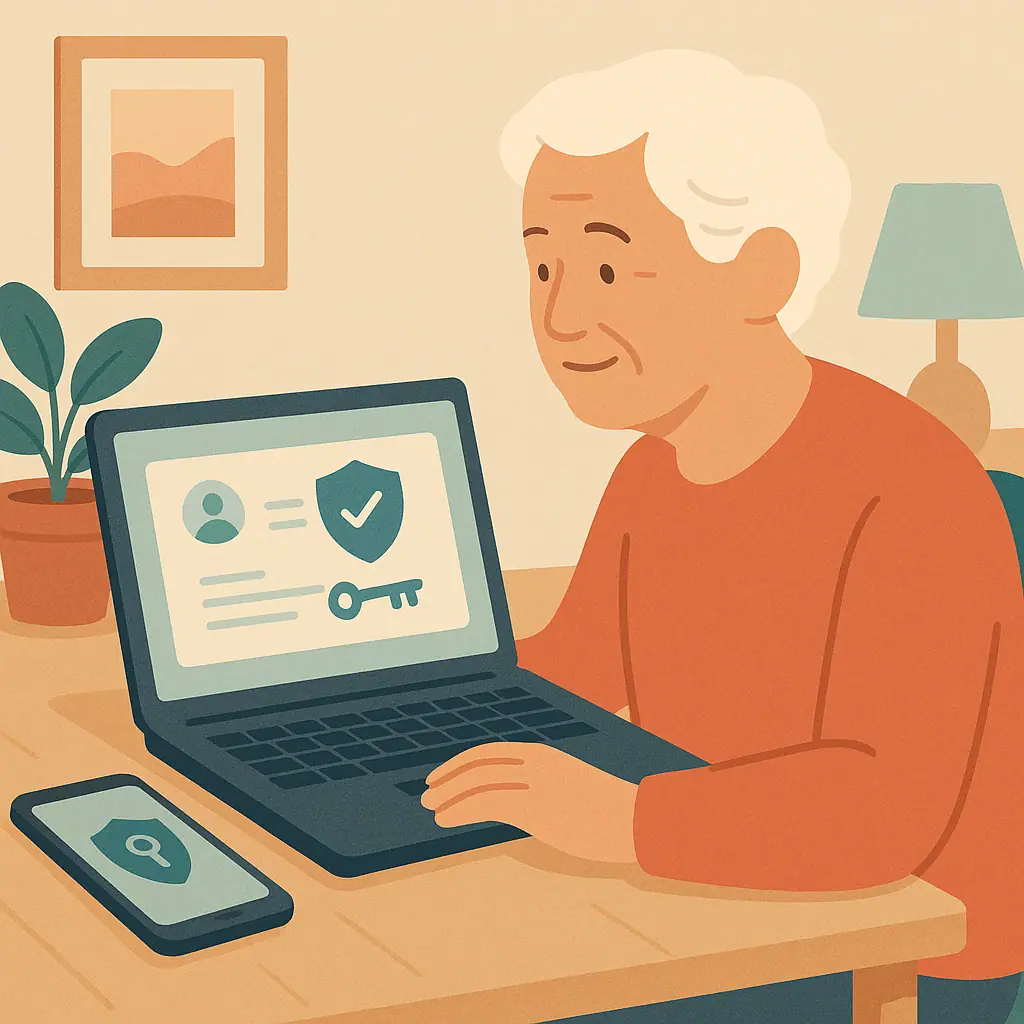
Security Checkup gives personalized suggestions. You may see recommended actions, devices, sign-in methods, or app access. Read one item at a time. A green check usually means there is no urgent action in that area.
If account recovery is the part that worries you most, read our step-by-step article on setting up account recovery before you get locked out. It explains why backup options are easier to fix before an emergency.
How to Secure Your Google Account Step by Step
Use these steps in order. You can do them all at once or spread them across several days.
- Go directly to your account: Type myaccount.google.com into your browser instead of clicking a link from an email or text message.
- Review recovery information: Confirm your recovery phone and recovery email. Remove anything you no longer control.
- Run Security Checkup: Follow Google's recommended actions slowly. If a recommendation is confusing, leave it for later instead of guessing.
- Turn on 2-Step Verification: This adds another check after your password. Google may offer prompts, authenticator apps, text codes, or security keys depending on your account and devices.
- Save backup options: If Google offers backup codes or extra sign-in methods, store them somewhere private and retrievable.
- Review your devices: Look for phones, tablets, and computers signed in to your account. Sign out of devices you do not recognize or no longer own.
- Check connected apps: Remove apps or services that you do not use anymore, especially if you do not remember giving them access.
- Update your password if needed: If your password is reused, weak, or shared with someone, change it to a unique one and store it safely.
The Federal Trade Commission explains that two-factor authentication adds protection because a password alone can be stolen, guessed, or reused. Its consumer article on using two-factor authentication to protect accounts is a helpful outside reference.
If you need a simple family plan for emergency access, keep that separate from daily password sharing. Our guide on creating a family password plan without sharing everything explains how to document only what a trusted person may need.
Common Password and Account Security Mistakes to Avoid
The biggest mistake is rushing because a warning message made you anxious. Real security work should feel careful, not panicked. If a pop-up, email, or phone call tells you to act immediately, slow down and go to your Google account directly.
Do not remove your only recovery method
If your recovery phone is old, add the new one before relying on it. If your recovery email is inaccessible, replace it with one you can open. Avoid leaving the account with no reliable recovery path.
Do not approve sign-in prompts you did not request
If your phone asks whether you are trying to sign in and you are not, choose no or deny. Then review your password and recent security activity when you are safely signed in.
Pros and Cons of Adding Stronger Google Security
Better protection if a password is stolen
2-Step Verification and recovery checks make it harder for someone to enter with only your password.
More confidence during account alerts
When recovery details are current, security notices are easier to understand and respond to calmly.
Cleaner access list
Reviewing devices and apps helps remove old phones, old computers, or services you no longer use.
Setup can feel unfamiliar
Some screens use security words that may take a moment to understand.
You must keep recovery details current
A changed phone number or abandoned email can make account recovery harder later.
Extra sign-in steps take a little time
2-Step Verification may ask for a code, prompt, or device check when Google needs to confirm it is you.
A Simple Google Account Security Checklist
Use this short list once today, then review it again every few months.
- Recovery phone: Is the number still yours?
- Recovery email: Can you open that inbox today?
- 2-Step Verification: Is it turned on for your Google account?
- Devices: Do you recognize every phone, tablet, and computer listed?
- Apps: Have you removed access for apps you no longer use?
- Password: Is it unique to Google and stored somewhere safe?
- Warnings: Do you know not to share verification codes with callers or message senders?
If Gmail is the main reason your Google account matters, our beginner guide to setting up a secure email account can help you connect these checks to everyday email safety.
When to Get Extra Help
Ask for help if you do not recognize a signed-in device, if recovery options show information you no longer control, if you think someone else may know your password, or if a security prompt appears when you are not signing in.
Choose a trusted person who will sit beside you and let you stay in control. Do not hand over your password unless there is a clear, agreed emergency plan. If a screen uses wording that looks different from this article, check Google's official help page or pause until someone trustworthy can help you verify it.
Frequently Asked Questions
What should I check first to secure my Google account?
Check your recovery phone and recovery email first. Those details help Google contact you and may help you recover the account if you cannot sign in later.
How often should I review my Google account security?
Review it every few months, and anytime you get a new phone, change phone numbers, stop using an old email address, or notice a security alert.
What should I do if I am not sure about a setting?
Do not guess. Leave that setting alone, open Google's official help page, or ask a trusted person to review it with you before changing anything important.
Can I undo these security changes later?
Many settings can be adjusted later, but be careful with recovery information and sign-in methods. Make sure you always keep at least one current way to prove the account is yours.
Final Thoughts
You can secure your Google account without feeling overwhelmed by doing the work in a calm order: recovery information, Security Checkup, 2-Step Verification, devices, apps, and password habits.
Your next safe step is small. Sign in directly at myaccount.google.com and check only your recovery phone and recovery email today. That one check can make the rest of your Google security feel much easier.